
How to recover lost product keys on windows usually comes down to one question: did Windows come from a retail purchase, a prebuilt PC (OEM), or a work/school license. Once you know that, the “right” recovery method gets a lot clearer, and you can avoid wasting time on tools that can’t possibly show the key you need.
If you’re here because you’re reinstalling Windows, moving to a new drive, or activating Office again, you’re not alone. Product keys are still part of the Windows world, but modern activation also uses digital licenses tied to your Microsoft account or to the device itself.
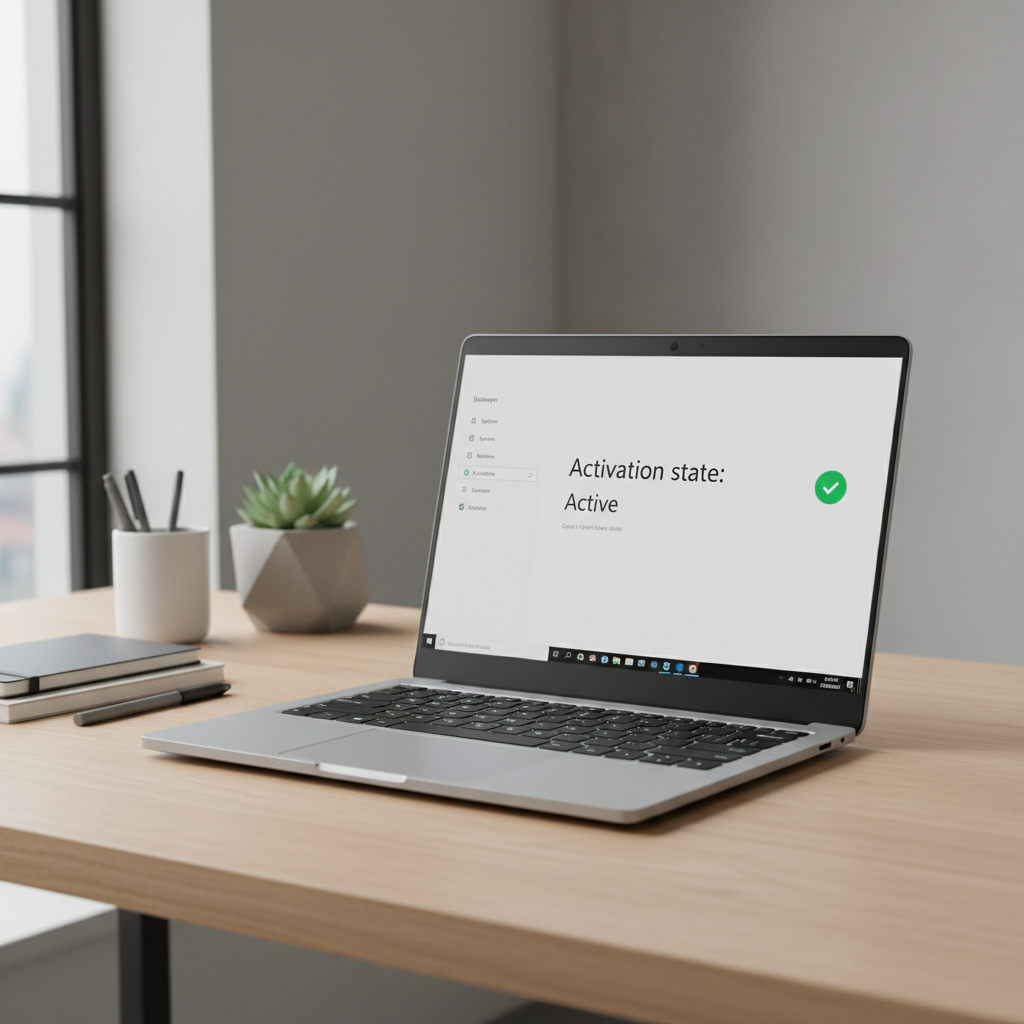
One quick heads-up before we get practical: in many cases you can’t “recover” the original 25-character key because Windows may be activated via a digital entitlement. That’s not bad news, it just changes what you should do next.
What type of Windows license do you have (and why it matters)
Before you try to extract anything, figure out which bucket you’re in. It determines whether a tool will find a usable key, and whether you even need one.
- Retail: You bought Windows separately (Microsoft Store, authorized retailer). Key is typically reusable on a new PC (after deactivating the old one).
- OEM (preinstalled): Came with a Dell/HP/Lenovo, etc. Key is often embedded in firmware (UEFI/BIOS) or activation is device-tied.
- Volume (work/school): Managed by IT via KMS/MAK. Your “key” situation is different, and self-recovery often hits a wall.
- Digital license: Activated by signing in, hardware hash, or upgrade path. No readable key might exist.
According to Microsoft Support, Windows activation can use either a product key or a digital license linked to your device or Microsoft account. That’s why many modern installs activate automatically after you sign in.
Quick self-check: do you actually need the key right now?
This is where people save an hour. If the goal is simply “get Windows activated again,” you may not need to hunt down the 25 characters.
- You probably don’t need a key if you’re reinstalling on the same PC and Windows was already activated, especially Windows 10/11.
- You likely need a key if you’re moving a retail license to a different PC, switching editions (Home vs Pro), or activating older software.
- You need IT help if your PC is on a company domain/Entra ID and activation was managed centrally.
If you’re unsure, check your activation status first: Settings → System → Activation (Windows 11) or Settings → Update & Security → Activation (Windows 10). If it says activated with a digital license, that’s your answer.
Method 1: Check Windows activation status and your Microsoft account
When people search how to recover lost product keys on windows, they often skip the simplest path: confirm whether your Microsoft account already “holds” the activation.
Step-by-step
- Open Settings → System → Activation.
- Look for messages like “Windows is activated with a digital license” or “digital license linked to your Microsoft account.”
- If you changed hardware recently, run Activation troubleshooter and sign in with the same Microsoft account used previously.
If you have purchase history, check your Microsoft account orders. That won’t always display a key (depending on how it was delivered), but it often clarifies whether you own a retail license.
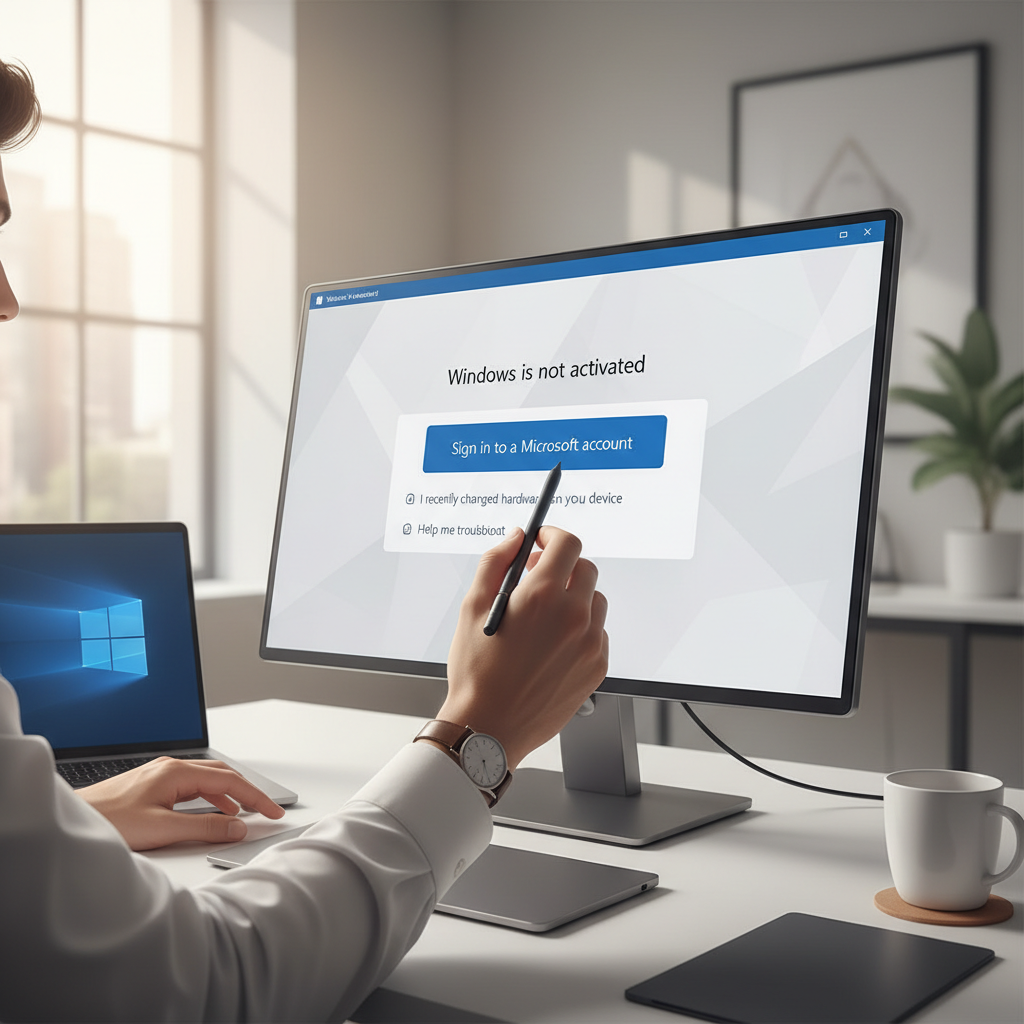
Method 2: Find an embedded OEM key (UEFI/BIOS) using Command Prompt
If you have a prebuilt PC, there’s a decent chance the key is stored in firmware. This is one of the few cases where “recovery” feels like a real recovery.
Command to try
Open Command Prompt as Administrator, then run:
- wmic path softwarelicensingservice get OA3xOriginalProductKey
If it returns a 25-character key, save it somewhere safe. If it returns blank, don’t panic, it often means you’re on a digital license or the device never had an embedded key (common with some custom builds).
Method 3: Extract keys from the registry (what it can and can’t do)
This is where expectations matter. Many “key finder” apps are essentially decoding licensing info from the registry. On newer Windows versions, the key you get might be a generic installation key used for setup, not proof of your license.
Practical takeaway: registry-based extraction is most useful for older setups or specific software, and less reliable for a clean Windows 10/11 retail recovery story.
- If a tool shows a key that looks valid but Windows still won’t activate after reinstall, that key may not be the one you need.
- If your machine used a digital license, no registry trick will conjure a unique retail key.
When you use third-party tools, download only from reputable vendors, scan the installer, and avoid anything that bundles “system optimizers.” If you’re in a managed work environment, ask IT first.
What to do when you can’t recover the original key (realistic options)
Sometimes the honest answer to how to recover lost product keys on windows is: you can’t retrieve the original string, but you can still get activated legitimately.
Common scenarios and next move
| Scenario | What usually works | What to avoid |
|---|---|---|
| Reinstalling on the same PC | Install same edition, connect to internet, sign in; activation often returns automatically | Buying a new license before checking Activation status |
| Replaced motherboard / major hardware change | Activation troubleshooter + Microsoft account link; retail transfers may work | Assuming OEM licenses always transfer (many won’t) |
| Prebuilt PC with OEM | UEFI key command, or install Windows and let it auto-detect edition | Installing Pro when device is licensed for Home |
| Work/school device (volume license) | Contact IT; they can reassign MAK or ensure KMS activation | Random key-finder tools on corporate machines |
| Purchased from a retailer | Check email receipt/packaging, retailer account, Microsoft Store order history | Key generators, “cheap keys” marketplaces |
Hands-on reinstall tips so activation goes smoothly
Even with the right license, the reinstall flow can trip you up. These steps reduce friction.
- Match the edition: Home vs Pro matters. Installing the wrong edition is a common reason activation fails.
- Skip key entry if unsure: During setup, choose “I don’t have a product key,” then activate later once Windows is running.
- Get online: Activation checks typically need internet access.
- Sign in to the same Microsoft account: Especially if you previously linked the license.
- Save proof of purchase: Receipts, order numbers, or the original box label help if you need support.
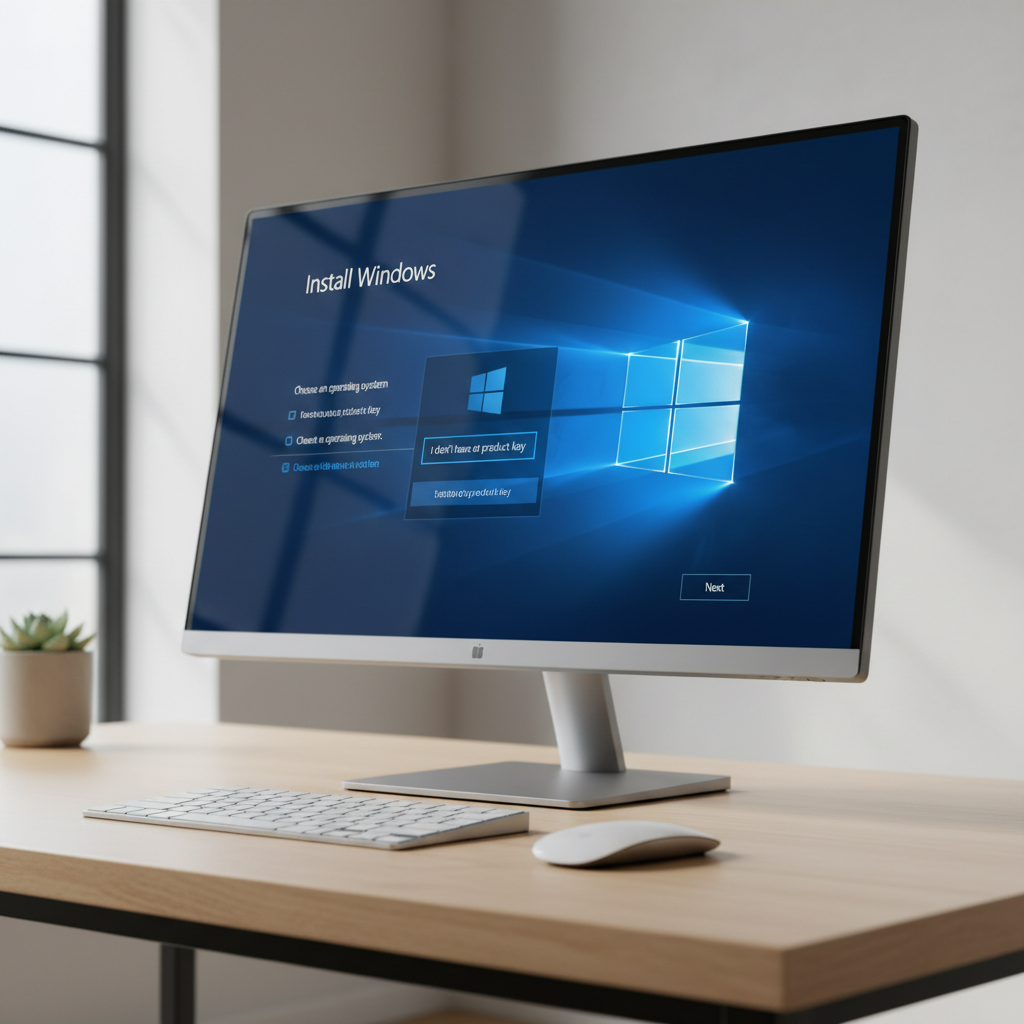
Key point: if Windows was activated on that same device before, reinstalling the same edition typically activates again without you typing anything.
Common mistakes that waste time (or create risk)
- Confusing a generic key with your license: Some displayed keys are installation defaults, not transferable proof.
- Mixing editions: Home license won’t activate Pro unless you upgrade properly.
- Using shady “key” sites: Besides legal issues, they can introduce malware or get revoked later.
- Ignoring account linking: If you never linked activation to a Microsoft account, hardware changes become harder to resolve.
According to Microsoft Support, activation troubleshooting is the recommended path after significant hardware changes, especially when a digital license is involved.
When to contact Microsoft, the PC manufacturer, or IT
If you’ve tried the clean methods and activation still fails, escalation is normal, not a defeat.
- Contact Microsoft if you own a retail license and can show purchase proof but can’t activate after hardware changes.
- Contact the manufacturer if your OEM device should have a firmware key but Windows can’t detect it, or you’re unsure what edition shipped.
- Contact IT for company or school devices. Volume activation rules vary, and self-fixing can break policy.
If your PC shows signs of malware or you suspect a compromised installer, it’s smart to pause and consult a qualified technician, since activation issues sometimes appear alongside deeper system problems.
Conclusion: a practical path to getting activated again
If you’re trying to recover a Windows key, start by identifying the license type, then check Activation status and your Microsoft account before you chase extraction tools. For OEM machines, the firmware key command is worth a quick try, and for digital licenses the smoothest move is often reinstalling the same edition and signing back in.
If you want one action right now, open Settings → Activation and confirm whether you’re on a digital license, then decide whether you truly need a 25-character key or just a clean reinstall path.