
Best affordable tablets for kids usually come down to a trade-off: you want a screen that feels fast enough for school and streaming, without paying “premium iPad money,” and you also want controls that actually work when your child tries to outsmart them.
What makes this tricky in 2026 is that “kids tablet” can mean very different things, a locked-down device for a 5-year-old, or a regular Android tablet for a middle-schooler who needs Google Classroom, a keyboard, and decent multitasking. Parents often end up overbuying, or buying cheap and regretting it when the tablet crawls after a few updates.
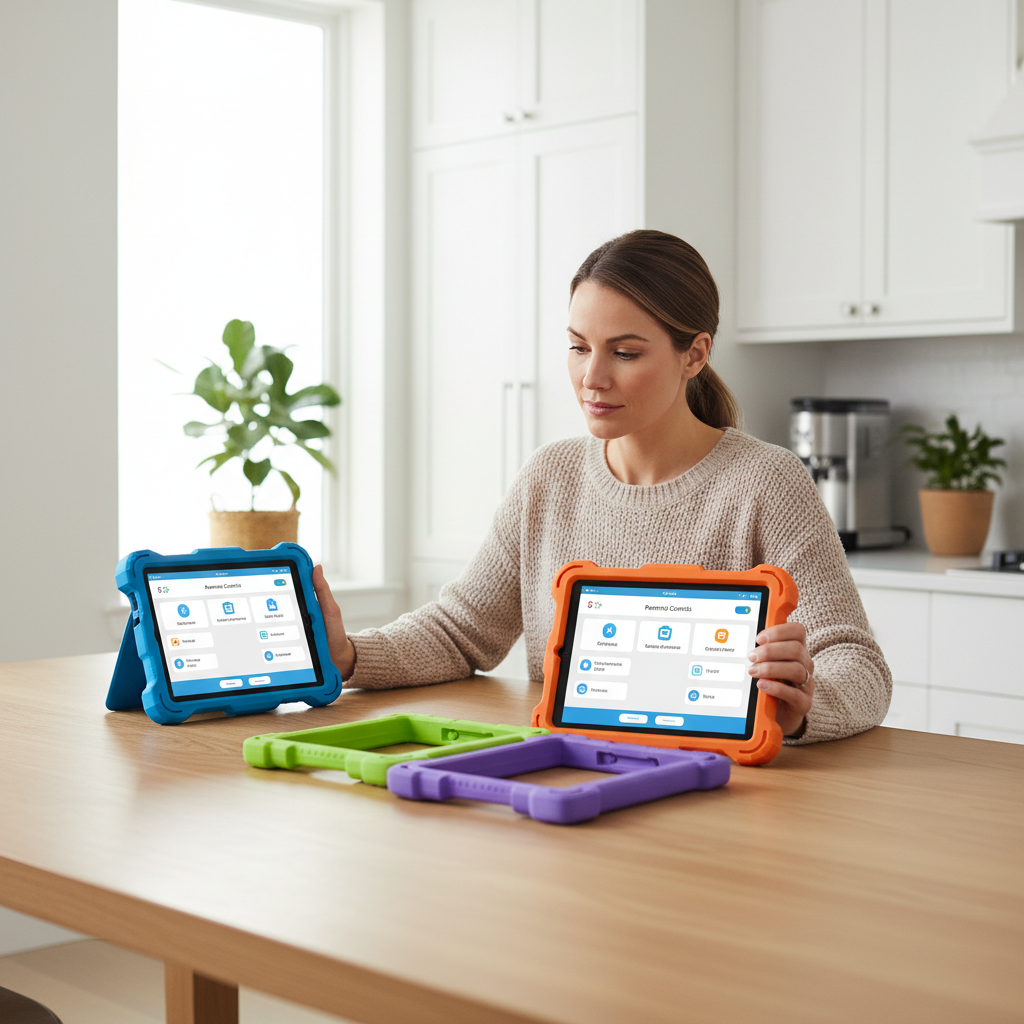
This guide stays practical, what to buy for different ages, what specs matter in real life, which features are “nice” versus truly necessary, plus a short checklist you can use before you hit Add to Cart.
Quick picks: best budget tablets by age and use
If you just want direction, here are common “fits.” These aren’t the only good choices, but they match how most families actually use a tablet.
- Ages 3–7 (durability + simple controls): Amazon Fire HD 8 Kids / Kids Pro, or Samsung Galaxy Tab A9 with a rugged case
- Ages 8–12 (school + YouTube Kids + light games): Samsung Galaxy Tab A9/A9+, Lenovo Tab M series, or a discounted iPad (9th/10th gen)
- Teens (notes + multitasking): iPad 10th gen on sale, Samsung Galaxy Tab A9+ (larger screen), or a budget Chromebook tablet if school uses Google tools heavily
For most households hunting the best affordable tablets for kids, the “sweet spot” is a mainstream 8–11 inch tablet with enough storage, then you add the right case, charger, and rules.
Comparison table: what to check before you buy
Specs can look boring, but they predict whether a tablet stays usable after updates and new apps.
| What matters | Good “budget” target | Why you’ll care later |
|---|---|---|
| Screen size | 8–11 inches | 8" travels well, 10–11" is nicer for homework and split-screen |
| RAM | 3–4GB minimum, 6GB if possible | Too little RAM causes app reloads, lag, and “why is this so slow?” moments |
| Storage | 64GB+ (or 32GB with microSD) | Games, downloads, and offline school videos fill up storage fast |
| Battery | 8–12 hours typical use | Cheaper tablets often degrade faster, so a stronger start helps |
| Charging | USB-C preferred | Fewer weird cables, easier replacement chargers |
| Parental controls | Account-level + device-level controls | App timers alone aren’t enough for many kids |
| Warranty/case ecosystem | Easy-to-find rugged cases + screen protectors | A $25 case can save you from a $200 “oops” |

Key takeaway: for a kids device, RAM + storage + controls matter more than “highest resolution.”
Why “cheap” kids tablets go bad fast (and how to avoid it)
Some low-priced tablets are totally fine, but the ones that turn into drawer clutter usually fail for predictable reasons.
- Not enough RAM: the tablet feels okay on day one, then struggles after system updates and heavier apps.
- Too little storage: parents end up deleting apps weekly, which becomes a constant argument at home.
- Weak long-term software support: fewer updates can mean more bugs, app incompatibility, and security concerns.
- Parental controls that are “surface-level”: timers exist, but content filters and purchase controls are inconsistent.
- Fragile accessories: cheap cases crack, charging ports loosen, screens scratch easily.
According to Common Sense Media..., families often do better with clear rules and age-appropriate settings than relying on “kid mode” alone, especially once kids start requesting specific apps.
Self-check: which type of kids tablet shopper are you?
This sounds silly, but it stops a lot of wasted money. Pick the line that feels most like your situation.
- “I need it to survive drops.” Prioritize a kids edition bundle or a mainstream tablet with a proven rugged case.
- “School sent a list.” Match the ecosystem first (Google accounts, Apple IDs, MDM rules), then shop deals.
- “My kid is app-hungry.” Choose better RAM/storage, and build stricter purchase approval.
- “We travel a lot.” Screen size + battery + offline downloads matter more than peak speed.
- “I want one device for multiple kids.” Look for easy profile switching and strong PIN protections.
If you’re aiming for the best affordable tablets for kids, getting honest about use patterns is the difference between “great value” and “why did we buy this?”
Best affordable options in 2026 (what each is good at)
Instead of pretending there’s one winner, here’s how the popular budget picks typically shake out, along with what to watch.
Amazon Fire HD Kids (best for simple, younger-kid setup)
- Good at: kid-friendly interface, simple parent dashboard, value-focused bundles
- Watch for: app ecosystem limits versus standard Android, and performance ceiling for heavier games
This is often the easiest “first tablet,” especially if you want fewer configuration steps and fewer surprises.
Samsung Galaxy Tab A9 / A9+ (best mainstream Android value)
- Good at: familiar Android experience, better general app compatibility, strong case options
- Watch for: make sure you’re not buying a low-RAM configuration if your child multitasks
For many families, this hits the practical middle, not fancy, but it feels like a “real” tablet, and it ages better than ultra-cheap options.
Lenovo budget Android tabs (best when discounted heavily)
- Good at: sale pricing, decent screens for video, good enough for casual use
- Watch for: software update policies and older chips on some models
If you see a steep discount, this can be a smart pick, just don’t ignore RAM and storage because the sticker price looks tempting.
Older or discounted iPads (best for longevity if you catch a deal)
- Good at: smooth performance, strong app quality, consistent parental controls
- Watch for: storage tiers, accessory costs, and buying too old a model
According to Apple..., parents can use Screen Time to set downtime, app limits, and content restrictions. It’s not magic, but it’s one of the more coherent control systems if your home already uses iPhones.
Setup steps that make a budget tablet feel “kid-safe”
Even the best affordable tablets for kids can turn into a headache if setup stops at “create a password.” These steps are the ones that actually reduce daily friction.
- Create a child account or managed profile: use Google Family Link, Apple Family Sharing, or the device’s kid profile system.
- Lock purchases down: require approval for downloads and in-app purchases, and disable “one-tap” buying where possible.
- Set content rules by category: focus on app store age ratings, web filtering, and video platform restrictions.
- Use timers that match your day: school nights versus weekends, and a bedtime cutoff that’s non-negotiable.
- Build a “home screen” that guides behavior: keep school apps and reading front-and-center, hide junk folders.
According to FTC..., children’s privacy is a real consideration in apps and services aimed at kids. Practically speaking, it’s worth reviewing app permissions, limiting ad-heavy games, and using a family email rather than a child’s personal info when possible.

Small but meaningful move: add a passcode rule that kids don’t see you type, many “mystery purchases” start with a watched PIN.
Mistakes to avoid when buying a kids tablet on a budget
- Buying 16GB/32GB with no expansion: you’ll feel the pain fast once downloads and updates stack up.
- Ignoring the case and screen protector line item: the cheapest tablet becomes expensive after one drop.
- Assuming Wi‑Fi is always reliable: if travel or shared housing is common, offline downloads matter.
- Over-optimizing for “educational” branding: the boring basics, reading apps, note tools, libraries, often win.
- Setting rules once and never revisiting: kids change quickly, and settings should change with them.
When someone says they bought a “bad tablet,” it’s often not one fatal flaw, it’s three small compromises stacking up.
Conclusion: how to choose with confidence (without overspending)
If you want a clean decision, start with age and school requirements, then choose the best combination of RAM, storage, and parental controls you can afford, and budget for a rugged case on day one. That approach usually beats chasing the lowest price.
Your next step: pick 2–3 candidates, verify the exact RAM/storage configuration, then check whether your preferred parental control system works smoothly on that model. If you do that, you’ll land on a tablet that stays usable well past the first “new toy” month.