
How to optimize android phone for gaming comes down to one thing: removing the small bottlenecks that stack up into lag, heat, and sudden frame drops.
If you play competitive shooters, MOBAs, or even heavy open-world titles, you already know the pattern, one bad update, one storage spike, or one warm room and your “fine” phone starts stuttering. The frustrating part is that it’s often fixable without buying a new device.
This guide focuses on real-world tweaks that usually matter in 2026: GPU and refresh-rate settings, battery and thermal behavior, storage hygiene, and network stability. Not every tip fits every brand, so I’ll also show you quick checks to avoid wasting time on placebo changes.
Start with a quick diagnosis (before you “optimize” anything)
Most people jump into toggles, but you get better results when you identify the bottleneck first. The fix for GPU overload looks different from the fix for bad Wi‑Fi or storage thrash.
- FPS drops during big fights: often GPU/CPU load, thermal throttling, or background apps.
- Stutters after 10–20 minutes: usually heat, battery saver rules, or charging heat.
- Rubber-banding / delayed actions: more likely network jitter than phone performance.
- Game takes forever to load: storage nearly full, slow microSD, or heavy cache.
A practical baseline: restart once, launch the game first (before social apps), play 5 minutes, then check if the issue is immediate or time-based. Time-based problems scream “thermals” in many cases.
Core settings that actually move the needle
On modern Android builds, performance is shaped by a mix of display settings, system power management, and OEM “game mode” layers. You don’t need all of them, you need the right combination.
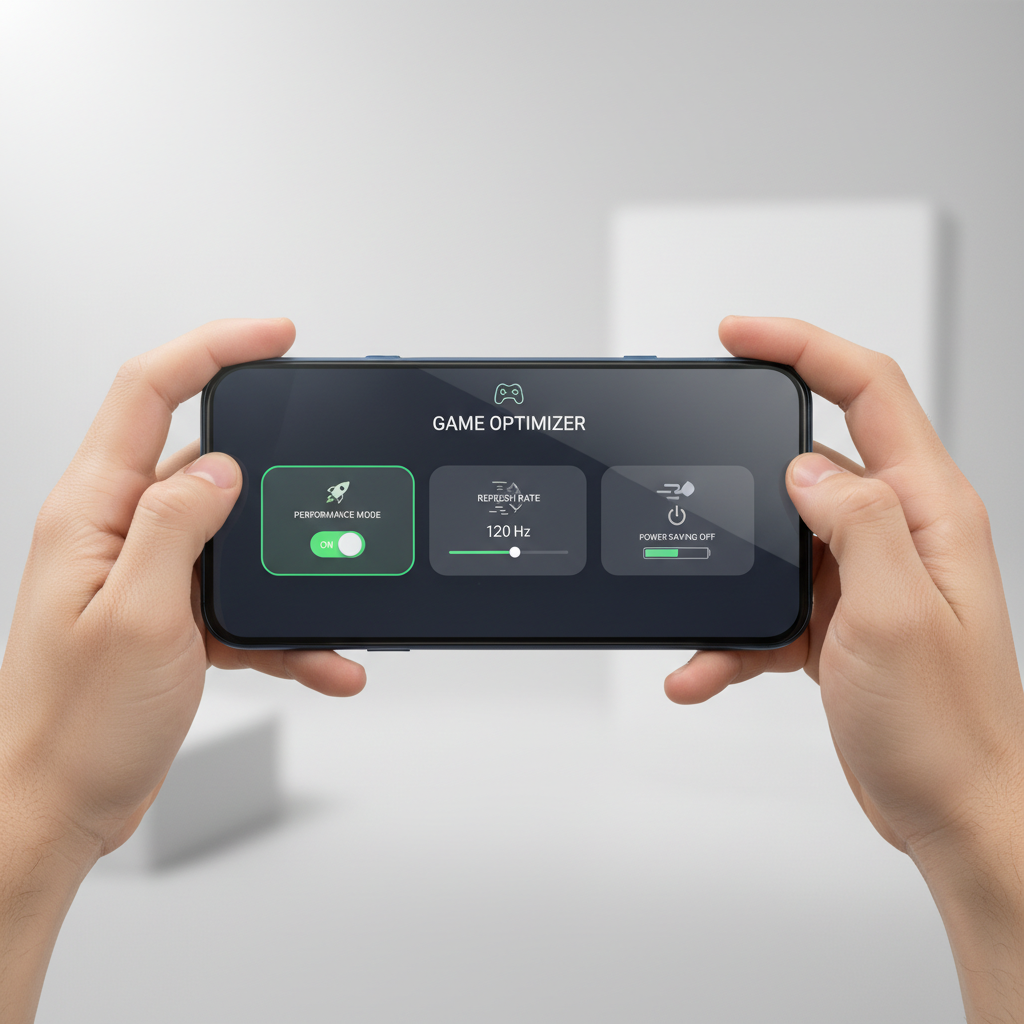
Match refresh rate to what the game can hold
If your phone is set to 120Hz/144Hz but the game hovers at 55–75 FPS, you may feel inconsistent pacing. Many players prefer a stable 60 or stable 90 over a shaky “up to 120.”
- Set the display to 60Hz for heat control and stability on midrange devices.
- Try 90Hz if the game offers 90 FPS mode and your phone can sustain it.
- Avoid forcing max refresh rate if it raises temps quickly in your room.
Use the right performance mode, not always the highest
OEM game modes differ a lot. “Ultra performance” may boost clocks early, then throttle harder later. A balanced “performance” mode can feel smoother across longer sessions.
- Enable the phone’s Game Mode or Game Booster.
- Turn on “prevent accidental touches” and notification blocking, not just CPU boosting.
- If your phone offers a thermal limit slider, keep it moderate for long matches.
According to Android Developers, efficient background work and proper scheduling are central to smooth performance, which is why controlling background activity and power modes can materially change game consistency.

Thermals: the hidden reason your “optimized” phone still lags
If your performance drops after a few matches, it’s often thermal throttling, the phone reduces CPU/GPU speed to protect the battery and internal components. You can’t “toggle” your way out of physics, but you can reduce heat sources.
- Remove thick cases during gaming, many trap heat.
- Avoid gaming while the phone is fast charging, it commonly adds heat.
- Lower in-game graphics one notch before lowering resolution, textures and shadows are frequent heat drivers.
- Keep brightness reasonable, high brightness adds display heat and power draw.
If you want a simple rule: prioritize stable temps over peak FPS. A phone that holds 60 FPS consistently often feels “faster” than one that spikes to 120 and collapses to 45.
According to Qualcomm, sustained performance is limited by thermal design and power efficiency, which is why heat management matters as much as raw chip specs for long gaming sessions.
Storage and RAM cleanup that helps (without “cleaner” apps)
How to optimize android phone for gaming also means making the phone less busy. Android is good at memory management, but messy storage and aggressive background syncing still cause stutters.
Do these 4 checks first
- Keep 15–20% free storage when possible, near-full storage can slow app behavior.
- Update the game and GPU drivers if your brand supports it (some phones ship GPU driver updates via system updates or Play system updates).
- Clear in-game cache only if you see weird hitching after updates; don’t do it daily.
- Disable auto-download for large apps during play (app store updates in the background can wreck consistency).
Avoid common “optimization” traps
- Don’t use random RAM cleaner apps, many add ads, run in the background, and create more churn.
- Don’t force-stop system services unless you know the impact, it can break notifications, GPS, or controller support.
Instead, use built-in tools: Battery usage, App standby restrictions, and your OEM Game Mode whitelist.
Network tuning for lower ping and fewer spikes
If the game feels inconsistent even when FPS is stable, it’s likely connection quality. Many “lag” complaints are actually jitter, not low bandwidth.
- Prefer 5GHz Wi‑Fi at home, less interference than 2.4GHz in many apartments.
- Disable VPNs during competitive play unless you specifically need it.
- Turn off “Wi‑Fi scanning” features if they cause roaming behavior on some devices.
- If you use mobile data, check if your carrier has a low-latency gaming add-on or if your plan deprioritizes heavy usage, it varies.
According to the Federal Communications Commission (FCC), wireless performance can be impacted by interference and congestion, so changing bands or router placement can matter as much as phone settings.
Practical optimization checklist (by scenario)
Different games punish different parts of your phone. Use this as a quick “do this, not that” map.
| Situation | Most likely cause | What to change first |
|---|---|---|
| Stutters after 15 minutes | Heat / throttling | Lower shadows + remove case + avoid charging |
| FPS unstable in fights | GPU load | Cap to stable FPS, reduce effects, use performance (not ultra) |
| Input feels delayed | Network jitter | 5GHz Wi‑Fi, disable VPN, move closer to router |
| Long loading screens | Storage pressure | Free 15–20% space, remove large unused apps, check microSD |
| Random frame spikes | Background tasks | Pause updates, restrict heavy apps, reboot before session |
Step-by-step: a solid “2026 setup” for smoother gaming
If you want a single path to follow, this is usually a safe sequence. It keeps changes reversible, and it avoids the rabbit hole of obscure developer toggles.
- Step 1: Reboot, then open only the game.
- Step 2: Turn on Game Mode, block notifications, lock brightness to a comfortable level.
- Step 3: Set display to a refresh rate you can hold (60/90), then choose the matching FPS option in-game.
- Step 4: Drop one heavy graphics setting (shadows/effects) before dropping everything.
- Step 5: Check storage free space, pause app updates and cloud sync for the session.
- Step 6: Fix network basics, 5GHz Wi‑Fi, no VPN, stable signal, router nearby.
Key takeaways: stable FPS beats peak FPS, heat control beats “turbo mode,” and background noise (updates, syncing, overlays) is a bigger deal than most people admit.
When you should stop tweaking and consider deeper help
Sometimes the phone is already doing all it can. If you’re hitting these signs, consider a more technical check or outside help.
- Your phone gets painfully hot fast, even in light games, battery health or hardware issues are possible, a service center can advise.
- Performance crashed after a system update and stays bad after resets of settings, consider backing up and doing a clean install, or ask your carrier/OEM support.
- Severe network spikes across all devices at home, it’s likely router/ISP congestion, contacting your ISP may be more effective than phone tuning.
If you notice swelling, unusual odors, or the device shuts down frequently while charging, stop using it and consult a qualified technician, safety comes first.
Conclusion: keep it simple, then get consistent
How to optimize android phone for gaming is less about secret settings and more about consistent fundamentals: pick a realistic FPS target, reduce heat sources, keep storage breathing room, and stabilize your connection. Do those well and most games feel noticeably smoother.
Your next move: choose one game you care about, apply the 2026 setup steps in order, then test for 20 minutes. If it still degrades only over time, shift your focus to cooling and charging habits rather than more toggles.
FAQ
How do I optimize an Android phone for gaming without rooting?
You can get most gains without root by using Game Mode, setting a sustainable refresh rate, restricting background apps, and managing thermals. Rooting may add risk and often breaks banking apps or security features, so it’s not a default recommendation.
Should I use “Force 4x MSAA” or other Developer Options for games?
Usually no. Some Developer Options increase GPU workload and heat, which can reduce sustained performance. If you experiment, change one setting at a time and be ready to revert.
Why does my Android game lag only when charging?
Charging adds heat and power management rules may kick in, which can trigger throttling. Try slower charging, avoid fast charging mid-match, or play on battery and charge between sessions.
Is 120Hz always better for mobile gaming?
Not always. If the game and phone can hold high FPS consistently, 120Hz feels great. If it can’t, a stable 60Hz or 90Hz often feels smoother and keeps temperatures lower.
Do gaming booster apps from the Play Store help?
Many simply close apps or show overlays, and some add ads and background load. Built-in OEM tools tend to integrate better with the system scheduler and power management.
How much free storage do I need for smooth gaming?
A common practical target is keeping 15–20% free space, because near-full storage can slow installs, updates, and caching behavior. Exact impact varies by device and storage type.
What’s the fastest way to reduce ping on Android?
Use 5GHz Wi‑Fi when possible, move closer to the router, and avoid VPNs during matches. If you still see spikes, the issue may be your network path or ISP congestion rather than the phone.
If you’re trying to improve performance fast and you’d rather not guess, start by writing down your symptoms, time-based FPS drops, heat buildup, or network spikes, then apply only the matching fixes from the table, it’s the quickest way to get smoother gameplay without breaking daily-use settings.