
How to fix wifi keeps dropping on android usually comes down to one of two things: your phone is “letting go” of Wi‑Fi to save power or chase a stronger signal, or your router/network is unstable and your phone is just the one showing the symptoms.
Either way, the annoyance is real, calls break, videos buffer, and you end up toggling Wi‑Fi like it’s a ritual. The good news is you can usually narrow the cause in 10–15 minutes, then apply a small set of changes that actually stick.
This guide walks you through quick diagnosis first, then fixes in the right order, from easiest Android settings to router-side changes. I’ll also flag the situations where it’s probably time to stop tweaking and get help from your ISP or a repair shop.
Quick diagnosis: is it your phone, your router, or the network?
Before you change a dozen settings, do a simple split test. You’re trying to learn whether the drop happens on this Android phone everywhere, or on this Wi‑Fi network for everyone.
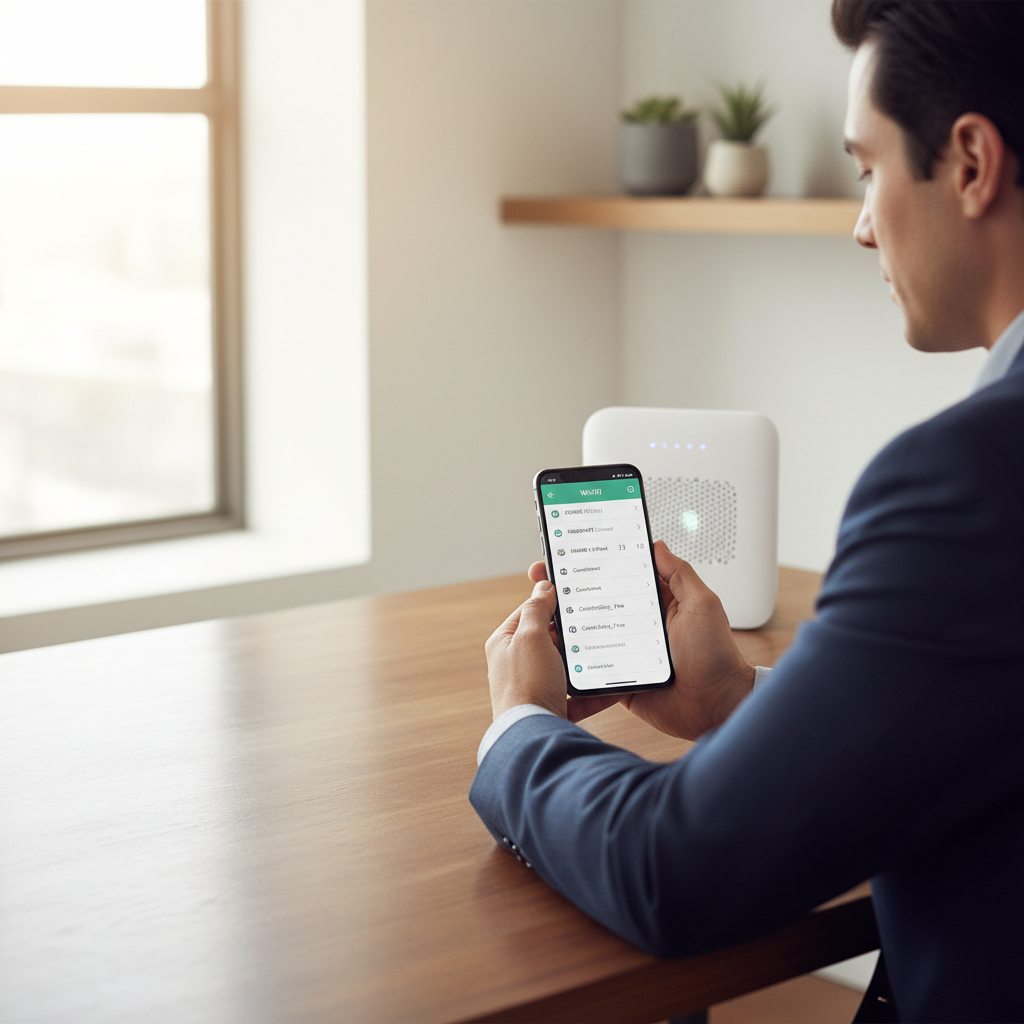
Fast checks that tell you a lot:
- Try another device on the same Wi‑Fi (laptop, iPad, another phone). If they also drop, suspect the router/ISP.
- Try your Android on a different Wi‑Fi (work, friend’s house, hotspot from another phone). If it drops there too, suspect the phone/software.
- Note the timing: only when screen turns off, only when you walk to a bedroom, only during peak evening hours, or totally random.
Write down what you see. It sounds basic, but this step prevents “fixes” that help nothing because you’re solving the wrong problem.
Common causes on Android (what’s usually really happening)
Wi‑Fi drops on Android tend to cluster around a few patterns, and each pattern points to a different fix. If you match the pattern, you’ll waste less time.
- Aggressive battery optimization: the phone deprioritizes Wi‑Fi when idle, especially with certain vendor skins.
- Auto network switching: Android may jump between Wi‑Fi and cellular if it thinks Wi‑Fi is “poor,” even when it’s usable.
- Saved network profile glitches: old credentials, corrupted config, or a bad DHCP lease can cause periodic reconnect loops.
- 2.4 GHz congestion or weak coverage: neighbors’ networks, microwaves, and distance make 2.4 noisy; 5 GHz is faster but drops sooner through walls.
- Router features that don’t play nice: band steering, WPA mode mismatches, or firmware bugs can trigger disconnects that look like phone issues.
According to the Federal Communications Commission (FCC), Wi‑Fi performance can be affected by interference and obstacles in the home, which often shows up as unstable connections rather than slow speed alone.
Fixes on your Android phone (do these in order)
If you’re here for the practical part, this is it. Run these steps top to bottom and stop when the drops stop.
1) Toggle airplane mode, then restart (yes, it still works)
Turn on Airplane mode for 10 seconds, turn it off, then restart the phone. This forces radios to reinitialize and can clear stuck network states.
2) “Forget” the Wi‑Fi network and reconnect cleanly
Go to Wi‑Fi settings, select your network, and tap Forget. Reconnect and re-enter the password. If the profile was corrupted or the IP lease got messy, this often stabilizes things.
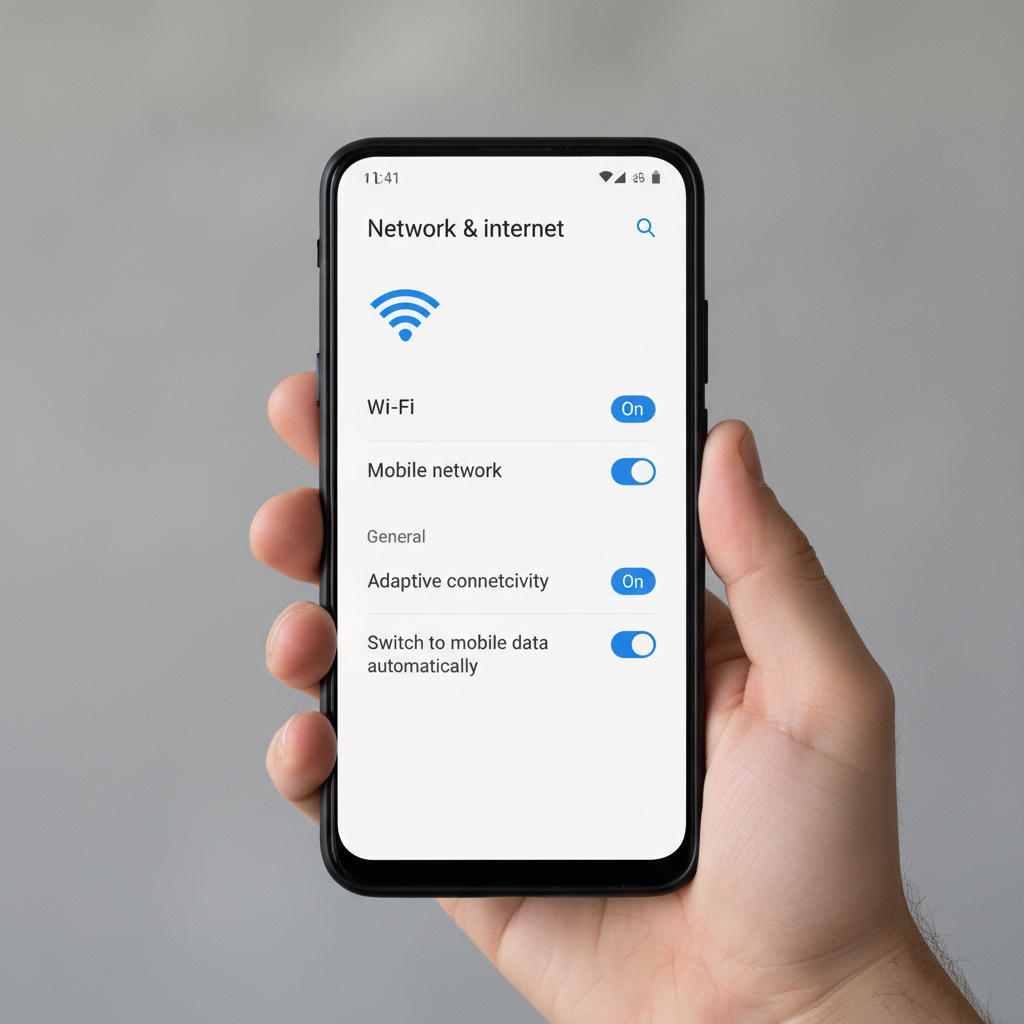
3) Turn off switching features that kick you off Wi‑Fi
Menu names vary by Android version and manufacturer, but look for settings like these and disable them temporarily:
- Switch to mobile data automatically / Adaptive connectivity
- Wi‑Fi assistant / Smart Wi‑Fi / Intelligent Wi‑Fi
- Avoid bad Wi‑Fi (wording differs)
If your drops stop immediately, you’ve identified the culprit: Android was “helping” too aggressively.
4) Reduce battery restrictions for Wi‑Fi-heavy apps
If Wi‑Fi drops mainly when your screen is off or during streaming/VoIP, battery controls may be choking background activity.
- In Battery settings, find Battery optimization (or App battery management).
- Set critical apps (Zoom, Teams, WhatsApp, streaming apps) to Unrestricted or allow background activity.
This won’t fix a bad router, but it can stop the “disconnect when idle” pattern that feels random.
5) Reset network settings (use when the basics fail)
This is the “bigger hammer” that often helps when you’ve tried forgetting the network but the phone still behaves oddly.
- Search Settings for Reset network settings (sometimes under System > Reset options).
- This typically resets Wi‑Fi, Bluetooth, and cellular settings, so expect to re-pair devices and rejoin networks.
If you’re troubleshooting how to fix wifi keeps dropping on android and you see the phone failing on multiple Wi‑Fi networks, this step is especially worth trying.
6) Update Android and your Wi‑Fi drivers (practical version)
Install pending system updates and vendor updates. Wi‑Fi stability issues sometimes tie to driver bugs, and updates are the “quiet fix” people skip.
- Check Settings > System > System update
- Check Play Store > Manage apps for updates
Router and home network fixes (where many problems actually live)
If multiple devices drop, or your Android behaves fine elsewhere, spend your energy here. Most “phone problems” end up being Wi‑Fi environment problems.
Place the router like you actually want Wi‑Fi to work
Try to put the router central and elevated, away from thick walls, metal shelves, and aquarium tanks. If your drops happen in the same room every time, it’s usually coverage, not a mystical Android issue.
Split 2.4 GHz and 5 GHz network names (temporarily)
Band steering is convenient, but when it’s buggy, your phone can bounce between bands and look like it “drops.” In your router settings:
- Create separate SSIDs, like MyWiFi-2G and MyWiFi-5G
- Test stability on each band for a day
If 5 GHz drops only at distance, use 2.4 GHz for reliability in far rooms. If 2.4 GHz is noisy, 5 GHz may be steadier up close.
Check security mode and firmware
Many routers offer WPA2, WPA3, or mixed modes. Mixed modes sometimes cause compatibility quirks with older devices.
- Prefer WPA2-Personal (AES) if you suspect compatibility issues
- Update router firmware from the manufacturer’s admin page/app
According to CISA, keeping network equipment updated is an important security practice, and it can also reduce stability issues caused by known bugs.
When a mesh system or extender is the real fix
If the router placement is already “as good as it gets” and drops correlate with walking around the home, a mesh system often beats a cheap extender. Extenders can help, but they also add complexity and sometimes create their own handoff issues.
Use this table to choose the most likely fix
If you want a shortcut, match your symptom to the likely cause and the first thing to try.
| What you notice | Most likely cause | Try this first |
|---|---|---|
| Drops when screen turns off | Battery optimization / background restrictions | Allow background activity, adjust battery optimization |
| Drops in one room or behind walls | Weak signal / interference | Move router, test 2.4 vs 5 GHz, consider mesh |
| Phone fine on other Wi‑Fi, bad at home | Router config or firmware | Update firmware, split SSIDs, check WPA mode |
| Only this phone drops everywhere | Android network config glitch | Forget network, reset network settings, update OS |
| Drops during busy evening hours | ISP congestion or neighborhood Wi‑Fi congestion | Try 5 GHz, change channel, contact ISP if persistent |

Key takeaways (so you don’t overthink it)
- Test another network/device first, it tells you whether to focus on Android settings or the router.
- Disable “smart switching” features if your phone keeps abandoning usable Wi‑Fi.
- If drops happen by location, treat it like a coverage problem, not an app problem.
- Router firmware and Wi‑Fi band behavior cause a surprising number of disconnect loops.
When to get professional help (or at least stop guessing)
If you’ve tried the Android-side steps and basic router fixes and the connection still drops daily, you may be dealing with hardware faults or an ISP line issue. In many cases, it’s faster to escalate than to keep flipping toggles.
- ISP support: frequent modem signal drops, outages, or problems affecting multiple devices
- Router replacement: older router, overheating, random reboots, firmware no longer updated
- Phone service/repair: drops happen on every Wi‑Fi, even after network reset and OS updates
If your phone gets hot, the battery swells, or the device shows other instability signs, it’s reasonable to consult a qualified repair professional rather than pushing it.
Conclusion: a practical path to stable Wi‑Fi
If you came here searching how to fix wifi keeps dropping on android, don’t start by changing everything. Do the split test, turn off auto-switching, then reset the network settings if needed. If multiple devices drop, treat the router and home layout as the main project, not the phone.
Your next action is simple: pick one environment where the drops are easiest to reproduce, apply one change, then test for a few hours. That’s how you get to a stable connection without chasing ghosts.
FAQ
Why does my Android disconnect from Wi‑Fi but my laptop stays connected?
Phones roam more aggressively and use battery-saving rules that laptops don’t. If the laptop is stable, check Android features like adaptive connectivity, Wi‑Fi assistant, and battery optimization before blaming the router.
How do I stop my phone from switching to mobile data when Wi‑Fi is weak?
Look for settings such as “Switch to mobile data automatically,” “Adaptive connectivity,” or “Wi‑Fi assistant,” then disable them for testing. Menu names vary by device, so using Settings search is usually fastest.
Does resetting network settings delete everything on my phone?
No, it typically doesn’t erase photos or apps, but it does remove saved Wi‑Fi networks, VPN settings, and Bluetooth pairings. Plan for a few minutes of re-setup afterward.
Should I use 2.4 GHz or 5 GHz to avoid Wi‑Fi drops?
2.4 GHz usually reaches farther and can be more stable through walls, but it’s also more crowded. 5 GHz is often cleaner and faster nearby, yet it can drop sooner at distance. Testing each band with separate SSIDs gives a clearer answer for your home.
Can a VPN cause Wi‑Fi to keep dropping on Android?
A VPN usually doesn’t disconnect Wi‑Fi at the radio level, but it can make the internet feel like it’s cutting out. If Wi‑Fi shows “connected” but apps fail, try disabling the VPN briefly to compare.
Why does Wi‑Fi drop only at night?
It may be neighborhood congestion, ISP load, or interference from nearby networks. If the router offers channel selection, trying a less crowded channel can help, and if the modem logs show drops, contacting your ISP makes sense.
What if none of the fixes work?
If the problem follows the phone across multiple networks even after OS updates and a network reset, hardware or firmware issues become more likely. At that point, a repair shop or the manufacturer’s support channel can save time.
If you’re trying to stabilize a flaky connection and you’d rather not spend your weekend guessing, a quick checklist approach helps: confirm whether it’s the phone or the network, apply one change at a time, and document what improves. If you need a more hands-off path, consider having your ISP check the line signal and reviewing your router placement and settings with a technician.