
how to fix slow file transfer on usb drives usually comes down to one thing: you’re not actually limited by “the USB drive,” you’re limited by a specific bottleneck, like the port, cable, file system, tiny-file overhead, or a background process throttling writes.
If you move files daily, that bottleneck gets expensive fast, minutes turn into hours, backups get skipped, and people start yanking drives mid-copy because they assume it froze, which is how data loss stories start.
This guide helps you identify what’s slowing transfers in the real world, then apply practical fixes that tend to work on Windows and macOS without turning your computer into a science project.
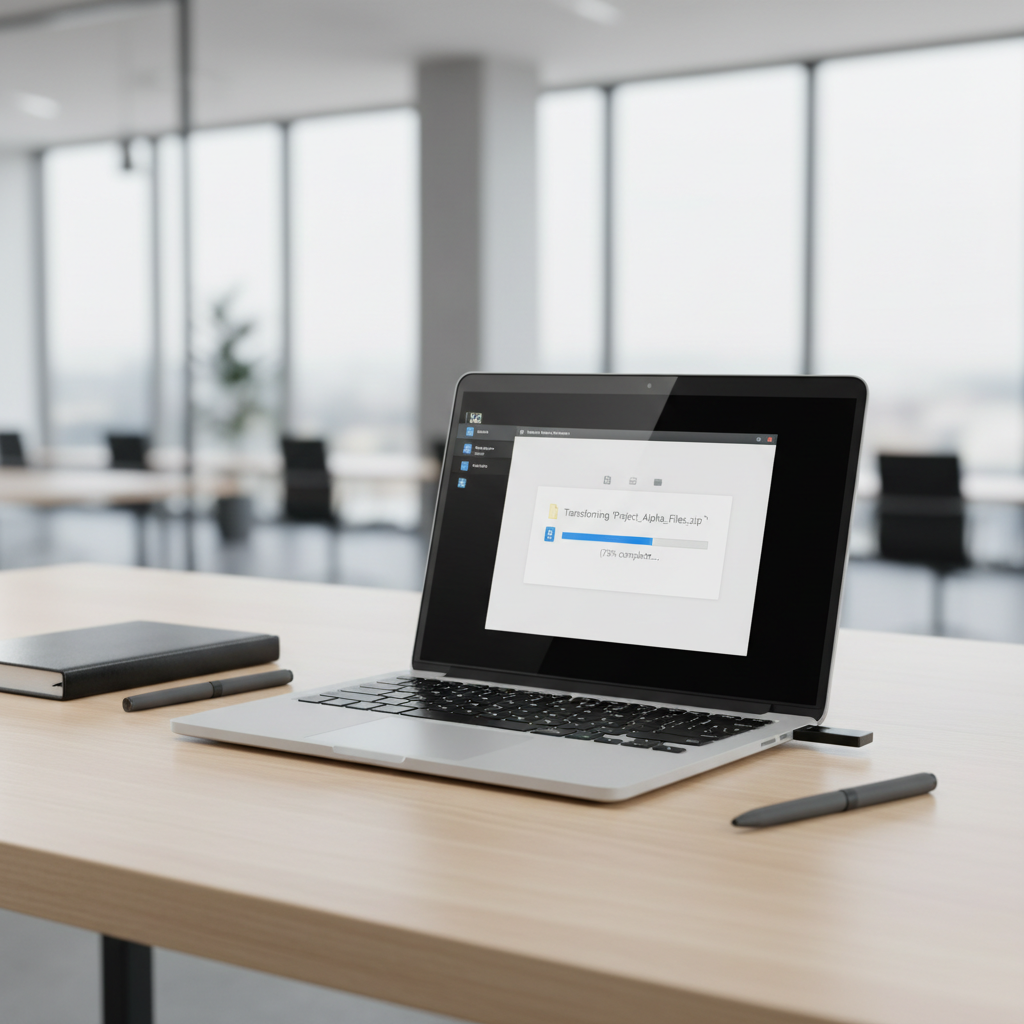
Start with the real bottleneck (it’s often not what people think)
USB transfer speed is the “slowest link” across your whole chain: source drive, destination drive, USB controller, port standard, cable or adapter, file system, and even how many files you copy at once.
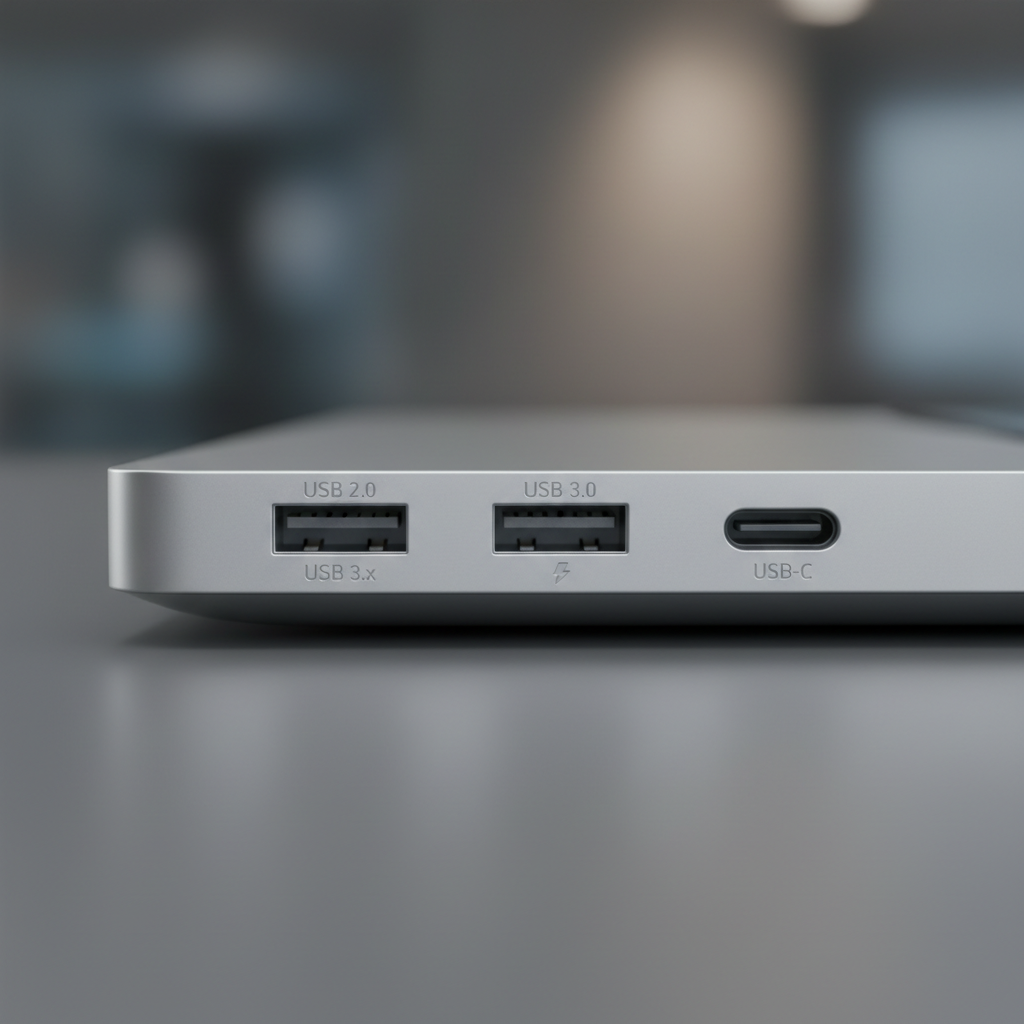
- Port mismatch: plugging a USB 3.x drive into a USB 2.0 port forces USB 2.0 speeds.
- Drive type limits: cheap flash drives can be fast at reads, painfully slow at sustained writes.
- Many small files: 20,000 photos or project files can crawl compared with one big video.
- File system overhead: exFAT vs NTFS vs APFS matters, especially for lots of writes.
- Background contention: antivirus scanning, cloud sync, indexing, or an overheated controller throttling.
Before changing settings, confirm where the slowdown happens: is it slow only to that drive, only from that drive, only on one computer, or only with one cable/adapter.
Quick self-check: 5 minutes to classify your situation
Run this checklist and keep notes, it saves you from random “tweaks” that do nothing.
- Try another port on the same computer, especially a different side of a laptop.
- Try another cable/adapter if you use USB-C hubs or dongles, many are the silent culprit.
- Test with one large file (like a 2–10GB video) versus a folder with many small files.
- Test another computer if available, to separate drive issues from PC issues.
- Check drive heat: if the stick or enclosure gets hot, thermal throttling is possible.
If the drive is slow everywhere, it’s likely drive quality, file system, free space, or wear. If it’s slow only on one machine, focus on ports, drivers, OS settings, or background services.
Know your USB versions and what “normal” looks like
A lot of frustration comes from expecting USB-C to automatically mean “fast.” USB-C is a connector shape, not a speed guarantee.
| What you see | What it often means | Typical real-world transfer feel |
|---|---|---|
| USB 2.0 (often black port) | 480 Mbps max | Slow for big copies, painful for backups |
| USB 3.0/3.1 Gen 1 (often blue) | 5 Gbps max | Good for most flash drives, decent SSD enclosures |
| USB 3.1 Gen 2 / USB 3.2 (varies) | 10 Gbps max | Great with NVMe/SSD externals |
| Thunderbolt 3/4 (USB-C port) | Up to 40 Gbps | Excellent with high-end enclosures |
According to USB Implementers Forum (USB-IF)... USB naming has evolved and can be confusing, so verifying specs on your computer and drive model usually beats guessing by port color.
Fixes that actually move the needle (by scenario)
Scenario A: You plugged into the “wrong” port or a slow hub
This is the simplest win, and it happens constantly with front-panel PC ports, cheap hubs, and some monitors’ USB passthrough.
- Plug the drive directly into a known fast port on the computer (rear I/O on desktops is often more reliable).
- Replace hubs with a powered USB 3.x hub if you must use one, especially for external HDDs/SSDs.
- Avoid chaining adapters, USB-C to A to hub to drive adds failure points and may negotiate down.
Scenario B: The drive is fast at first, then slows dramatically
That pattern often points to heat or a small write cache filling up, common on budget flash drives and some portable SSDs.
- Let the drive cool, then retest with a single large file.
- Leave more free space, many drives slow down when nearly full.
- If it’s a portable SSD, check if it’s a DRAM-less model or uses a small SLC cache, you may see speed cliffs on long writes.
If this is your daily workload, the “fix” might be using a higher-quality drive designed for sustained writes, not just changing OS settings.
Scenario C: Lots of small files crawl, but big files are fine
This is normal behavior: file system metadata, allocation, and per-file overhead add up. The solution is often changing how you copy, not fighting hardware.
- Zip the folder into one archive, copy the archive, then unzip on the destination.
- Use a sync tool that batches operations efficiently (robocopy on Windows, rsync on macOS/Linux).
- Temporarily pause cloud sync for that folder while copying.
Windows: settings and checks worth doing (and a few to avoid)
On Windows, slow copies often come from write-caching policy, outdated chipset drivers, or security software scanning every file mid-transfer.
1) Check the “Quick removal” vs “Better performance” policy
Windows can disable write caching for safety. Enabling performance can speed writes, but it increases the importance of safe eject.
- Device Manager → Disk drives → your USB drive → Properties → Policies
- Consider Better performance if you reliably “Eject” before unplugging
According to Microsoft... write caching can improve performance, but you should use the “Safely Remove Hardware” feature to reduce risk of data corruption.
2) Update chipset/USB controller drivers
If transfers are slow only on one PC, update motherboard chipset drivers or laptop platform drivers from the manufacturer, not random driver sites.
- Update Windows, then check OEM support page for chipset/USB drivers
- Try a different USB controller path: another port, or a rear port on desktops
3) Antivirus and indexing: test without turning off your protection permanently
Security tools can scan each file as it lands, making many-file transfers crawl. A safe approach is a quick A/B test.
- Copy a test folder with antivirus enabled, note time
- Then try adding a temporary exclusion for that USB drive letter or destination folder (if your policy allows), retest
- Remove the exclusion after the copy if you don’t need it
If you manage a work device, changes might require IT approval, and that’s usually for a good reason.
macOS: common causes and practical fixes
On macOS, file system compatibility and Spotlight indexing are common culprits, especially when moving between Mac and Windows.
1) Check the drive format (exFAT vs APFS vs NTFS)
- exFAT: common for cross-platform use, usually fine, sometimes slower with many tiny files
- APFS: best for Mac-only workflows and SSDs
- NTFS: macOS reads by default but writing often needs third-party drivers, which can affect speed and reliability
If you’re consistently seeing slow transfers, backing up the drive and reformatting to the best-fit file system can help, but only do this if you’re comfortable wiping the drive.
2) Reduce Spotlight overhead for that drive (selectively)
Spotlight can index newly copied content. For huge transfers, that can feel like the copy “never ends,” because background activity stays high.
- System Settings → Siri & Spotlight → Spotlight Privacy (wording varies by macOS version)
- Add the external drive to Privacy during big transfers, then remove later if you want it searchable
According to Apple... Spotlight may index external volumes when connected, and privacy settings can exclude locations from indexing.

Drive health, free space, and file system issues that slow everything down
If every computer is slow with the same drive, don’t overlook basic drive condition. Flash memory and HDDs can degrade, and errors can trigger retries that look like “random slowness.”
- Keep free space: try not to run the drive nearly full if you do lots of writes.
- Run a disk check: Windows Error Checking or macOS Disk Utility First Aid can catch file system problems.
- Swap the enclosure/cable for external SSDs, enclosures fail more often than people expect.
If the drive makes unusual noises (HDD) or disconnects randomly, stop using it for important data and consider a backup first.
Practical “speed-up” workflow: a repeatable process
If you just want a reliable way to improve transfer time without guessing, use this loop.
- Step 1: Test one large file on a direct port, no hub.
- Step 2: If large-file speed is fine, change your method for small files: zip, then copy.
- Step 3: If large-file speed is bad, try another port, then another cable/adapter.
- Step 4: Check format and free space, then run a disk check.
- Step 5: If still slow everywhere, treat it as a drive limitation and upgrade the drive for the workload.
Key takeaway: most “mystery slowness” becomes obvious once you separate port/hub issues from drive limits and small-file overhead.
Common mistakes that waste time (or risk your data)
- Assuming USB-C means fast: the port might be USB 2.0 over USB-C on some devices.
- Unplugging when it “hangs”: a slow write can look frozen, but it may still be flushing cache.
- Reformatting too early: it can help, but it also wipes data, diagnose first.
- Disabling security tools permanently: do a controlled test instead, then revert settings.
- Copying while the computer is under load: heavy CPU or disk activity can drag transfers down.
When it’s time to get professional help (or at least stop and reassess)
If you see repeated disconnects, frequent “disk not ejected properly” messages, I/O errors, or a drive that suddenly becomes read-only, the safest move is to prioritize data recovery over speed. In many cases, continuing to force transfers can make recovery harder.
For business-critical data, or if the drive contains the only copy of something important, consider consulting an IT professional or a reputable data recovery service, especially if the drive fails to mount reliably.
Conclusion: get your time back without guesswork
how to fix slow file transfer on usb drives is mostly about narrowing the cause fast: confirm you’re on a high-speed port without a questionable hub, test large-file versus many-file behavior, then decide whether you need a settings change, a format change, or simply a better drive for sustained writes.
If you do one thing today, run the 5-minute self-check and retest with a single large file, that result tells you which path is worth your effort.
FAQ
Why is my USB drive fast on one computer but slow on another?
Usually it’s the port, hub, or controller path. One machine may route that port through a slower internal hub or negotiate a lower USB mode, so testing another port and avoiding dongle chains is a good first move.
How do I know if I’m accidentally using USB 2.0?
Clues include very slow large-file transfers and ports that are older or connected through a basic hub. On Windows, you can also check device properties in Device Manager, while on macOS System Information often reveals the negotiated speed.
Does formatting to exFAT make transfers faster?
It can, but it depends on what you’re comparing against and your file mix. exFAT is convenient for Mac and Windows, but for Mac-only SSD workflows APFS often behaves better, and for Windows-only, NTFS is typically more consistent.
Why do lots of small files transfer so slowly?
Each file needs metadata operations and verification, so overhead dominates. Zipping files into one archive before copying is a surprisingly effective workaround in many cases.
Should I turn on “Better performance” in Windows for my USB drive?
If you consistently eject the drive properly, it can improve write speed. If you often unplug without ejecting, stick with the safer option, because the risk of corruption goes up.
Can antivirus slow USB file copies?
Yes, especially when copying many small files. A temporary, controlled test with scanning exclusions can confirm whether that’s the issue, but long-term changes should match your risk tolerance and workplace policies.
Is a slow USB transfer a sign my drive is failing?
Sometimes. If slowness comes with disconnects, errors, or the drive becomes read-only, treat it as a warning sign and back up what you can before experimenting further.
What’s the simplest upgrade if I transfer big files often?
A reputable portable SSD plus a USB 3.2 Gen 2 or Thunderbolt-capable connection often delivers the most noticeable improvement, assuming your computer supports it and your cables are rated for the speed.
If you’re constantly fighting slow copies and you’d rather not troubleshoot every drive and port combination, a practical approach is standardizing on one known-good external SSD, one certified cable, and a consistent file system for your workflow, it’s not flashy, but it removes most of the day-to-day friction.