
how to set up guest wifi network for visitors usually comes down to one goal: let people get online without handing them the keys to your whole home network.
If you have friends over, a babysitter, a contractor, or even short-term renters, giving out your main WiFi password can feel easy in the moment, then quietly risky later. That password often stays saved on their devices, and your smart home gear, shared drives, and admin settings sit on the same network path.
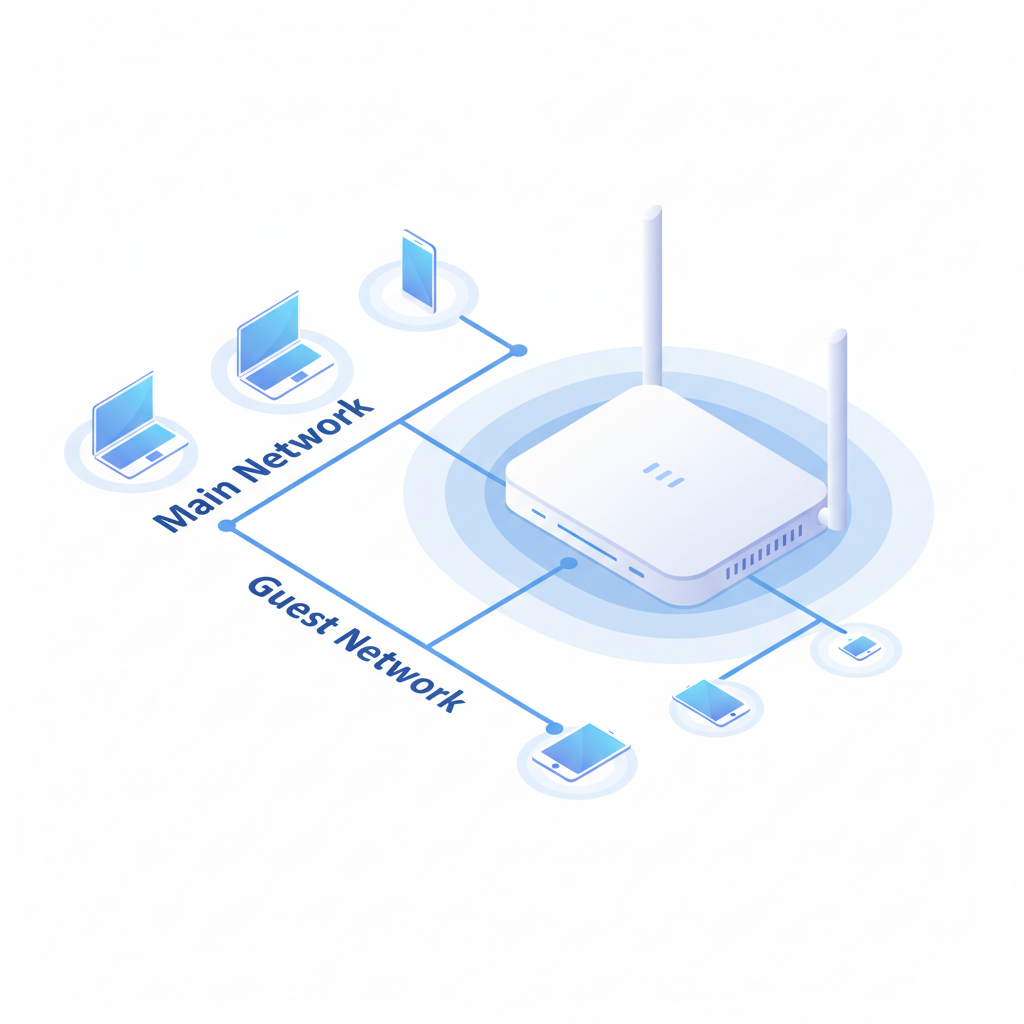
The good news is most modern routers make guest access pretty straightforward, and when it is configured well it can also reduce “my internet feels slow” complaints. This guide walks through the practical steps, what settings actually matter, and a few easy checks so you know the guest network is doing its job.
What a guest WiFi network really does (and what it doesn’t)
A guest WiFi network is a separate wireless network name (SSID) that typically isolates visitor devices from your primary devices. In plain terms, it’s a “different hallway” to the internet, so visitors can browse and stream without seeing your printer, NAS, security cameras, or smart home hubs.
Many routers implement guest networks using client isolation and separate network segments, but the exact behavior varies by brand and model. That’s why you should test isolation rather than assume it works.
- Usually included: separate SSID and password, optional time limits, basic device isolation
- Sometimes included: bandwidth limits, content filtering, schedules, captive portal
- Not guaranteed: full firewall separation equal to a business VLAN setup
According to the Cybersecurity and Infrastructure Security Agency (CISA), using strong, unique passwords and keeping devices updated are core home-network security habits. A guest network supports that by reducing where your “real” password gets shared.
Before you start: a quick checklist that saves time
Before you change settings, make sure you can actually manage your router and that you’re not building a guest network on top of an unstable connection.
- Find your router model and app or admin URL (often printed on the router label)
- Confirm you know the router admin login, not just the WiFi password
- Check whether your setup is a single router, a modem+router combo, or a mesh system
- Update router firmware if an update is available, this often fixes guest-network bugs
- Decide your guest-network name and password (unique, not your main password)
If you live in an apartment building with heavy WiFi congestion, plan to enable both 2.4 GHz and 5 GHz guest bands if your router supports it. Many “it doesn’t work” moments come from visitors being stuck on an overcrowded band.
How to set up a guest WiFi network for visitors (router-agnostic steps)
Most brands follow the same flow even if menus look different. If you’re searching how to set up guest wifi network for visitors on Google, these steps map to nearly every modern home router.
1) Log in to your router or mesh app
Use the official mobile app when available, it tends to expose guest controls more clearly than the web admin page. If you use the web UI, connect to your main WiFi first, then go to the router’s local address.
2) Enable “Guest Network” and name it clearly
Pick an SSID that you won’t confuse with your primary network, especially when you’re troubleshooting.
- Good: “SmithHome-Guest”
- Avoid: “SmithHome2” (you will forget which is which)
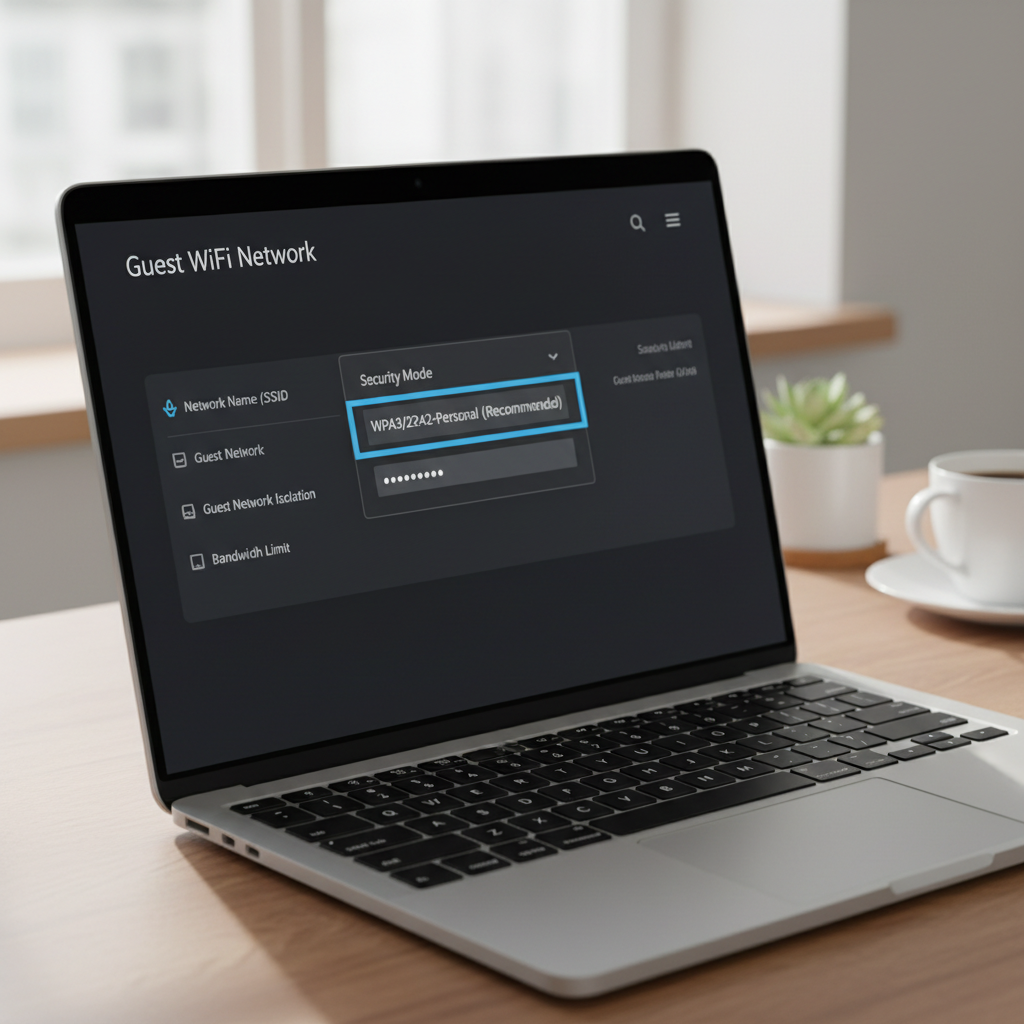
3) Use WPA2 or WPA3, and set a fresh password
Choose WPA3 if all your visitor devices are modern, otherwise WPA2 is still common in many households. Avoid WEP or “open” networks unless you’re intentionally running a public hotspot style setup, which is rare at home.
Password advice that works in real homes: make it long enough to be safe, but not so painful that you end up texting your main password “just this once.” A short passphrase with spaces removed works well (for example, three random words plus two numbers).
4) Turn on guest isolation (sometimes called “Access intranet” off)
This is the setting that matters most. Look for options like:
- “Allow guests to access local network” or “Access intranet”
- “Device isolation” or “AP isolation”
- “Guests can see each other”
For most homes, set it so guests cannot access your local network. If you want visitors to print to a shared printer, that’s the one case where you may selectively allow local access, but it’s often better to use AirPrint or cloud print features rather than opening your LAN.
5) Choose bands: 2.4 GHz + 5 GHz (and 6 GHz if available)
If your router supports band steering, keep it on. If you can split bands, keep the names consistent (or let the router manage it) so visitors don’t bounce between networks and disconnect.
6) Add limits when they help, not because they exist
Bandwidth limits and schedules are useful when visitors stay longer or you have many devices.
- Bandwidth cap: helps if guests stream heavily and you work from home
- Schedule: helpful for rentals or kids’ sleep hours
- Device limit: useful for parties, prevents 40 devices from camping on your router
Recommended settings by scenario (quick table)
Different households have different “pain points.” This table gives you sane defaults you can adjust.
| Scenario | Guest isolation | Password approach | Extra controls |
|---|---|---|---|
| Friends/family visiting occasionally | On | One shared guest password, rotate quarterly | None, keep it simple |
| Contractors, cleaners, babysitter | On | Change after the job ends | Optional schedule (work hours) |
| Work-from-home household | On | Stable guest password, rotate every 1–3 months | Bandwidth cap for guest SSID |
| Short-term rental / Airbnb-style turnover | On | New password per stay if practical | Captive portal if supported, device limit |
How to verify it’s actually safe (a fast self-test)
After you set things up, do a two-minute test. This is the part many people skip, then later wonder why a guest can see a TV or cast to a speaker.
- Connect your phone to the guest network
- Try to access the router admin page, it should fail in many configurations
- Try to discover local devices (printer, smart TV, NAS), they should not appear
- Confirm internet works and speed feels reasonable
If you can still see local devices, your router may be running a “guest SSID” that is mostly cosmetic. Some models require a separate toggle for LAN access, and some ISP-provided gateways are limited.
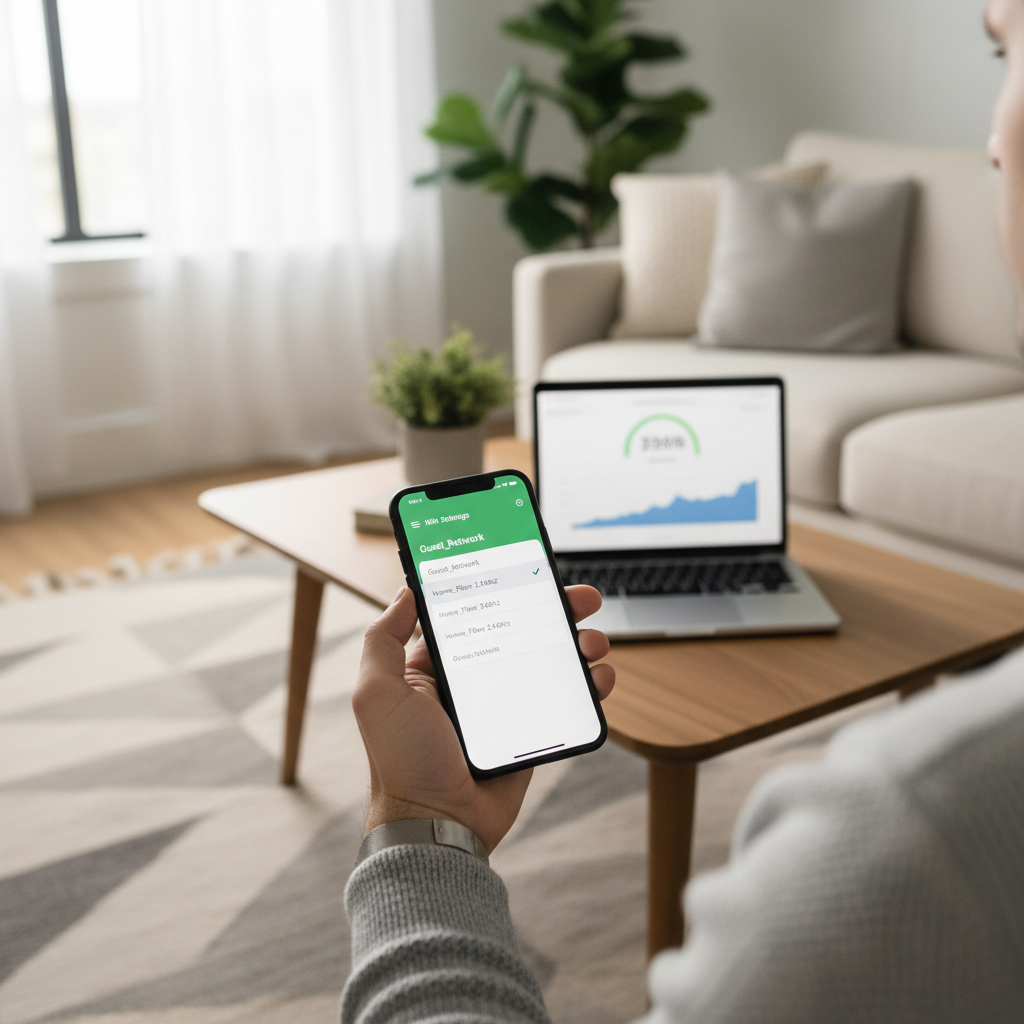
If your goal is specifically how to set up guest wifi network for visitors so they can’t “see” your smart home devices, this isolation check is the proof, not the menu labels.
Common mistakes that make guest WiFi pointless
Most guest networks fail for predictable reasons, and they’re usually easy to fix once you know what to look for.
- Reusing the main WiFi password: convenience now, regret later
- Leaving “Access local network” enabled: guests can browse shared devices
- Running an open guest network: anyone nearby may join, and troubleshooting becomes messy
- Forgetting to update firmware: older firmware can have unstable guest SSID behavior
- Over-tuning: extreme bandwidth caps cause buffering, guests blame your internet
Also, watch out for “smart” features that bypass isolation, like casting or media sharing. Some ecosystems rely on local discovery protocols, and guest isolation can block them, which is good for privacy but confusing if you expected guests to cast to your TV.
When you might need a more advanced setup (and what to ask for)
A typical guest SSID works for most homes, but there are cases where it’s not enough.
- You run a home office with sensitive systems: consider VLANs and firewall rules
- You host frequent events: consider a dedicated access point and separate ISP plan
- Your ISP gateway has weak controls: bridge mode plus your own router may help
According to the Federal Trade Commission (FTC), keeping routers updated and using strong authentication are important steps to reduce common security risks. If your router UI feels limited or confusing, a local IT professional can verify segmentation, especially if you store work data at home. If you’re in a rental or shared building, it may be worth confirming what you’re allowed to change with your ISP or property manager.
Key takeaways (printable in your head)
- Create a separate SSID and avoid sharing your main password
- Turn on isolation by disabling local network access for guests
- Use WPA2/WPA3 and rotate the guest password when it makes sense
- Test it on a phone to confirm guests can’t discover your devices
- Add limits only if you need them, stability beats fancy controls
Conclusion: a safer setup in under 15 minutes
Once you know where the isolation and security settings live, how to set up guest wifi network for visitors becomes a quick routine rather than a one-time project you avoid. Give guests their own SSID, keep your main network private, and run the quick self-test so you’re not guessing.
Your next move can be simple: open your router app today, enable the guest network, and change that guest password to something you won’t mind rotating later.
FAQ
Does a guest WiFi network slow down my main network?
Not by itself. Both networks share the same internet connection, so heavy guest streaming can still use bandwidth, but separating SSIDs doesn’t automatically reduce performance. If it becomes an issue, a reasonable guest bandwidth cap can help.
Can guests access my printer or smart TV on a guest network?
In many setups, no, because isolation blocks local discovery. Some routers let you allow limited local access, but that often weakens the privacy benefit. If you really want sharing, consider device-specific sharing options rather than opening the whole LAN.
Should I hide the guest network SSID?
Usually it’s not worth it. Hidden SSIDs can create connection friction and don’t add meaningful security by themselves. A strong password and WPA2/WPA3 do more.
How often should I change the guest WiFi password?
It depends on who uses it. For frequent visitors, every 1–3 months is a practical rhythm. For one-off contractors or a short-term rental, changing it after the work or stay is cleaner.
Is WPA3 required for a secure guest network?
No, WPA2 is still common and generally acceptable for many home situations when paired with a strong password. WPA3 can be a nice upgrade, but compatibility varies with older devices.
What if my router doesn’t have a guest network option?
Some ISP-provided gateways are limited. You can ask your ISP about firmware features, or use your own router or mesh system. If you go that route, confirm whether you should enable bridge mode to avoid double-NAT issues.
Can I set up a QR code for guests to join?
Yes, most phones can generate a WiFi QR code once the network is saved. It’s a nice convenience layer, just remember that easy sharing also means you may want to rotate the password periodically.
Want a lower-effort way to manage guest access?
If you’re juggling work calls, smart home devices, and visitors, it can be easier to use a router or mesh system with a strong app that lets you toggle guest WiFi, rotate passwords, and apply isolation rules in a couple taps, rather than digging through web menus each time.