
How to clear cache on Google Chrome is one of those small fixes that can quickly solve big annoyances on a PC, pages loading weirdly, sites showing old versions, or a login that suddenly won’t stick.
The tricky part is that “cache” gets mixed up with cookies and browsing history, and clearing the wrong thing can sign you out everywhere, or wipe helpful autofill. So it’s worth doing this with a little intent, not just clicking buttons until the problem disappears.
Below you’ll get a practical, PC-focused walkthrough, how to clear only what matters, when you should (and shouldn’t) do it, and a few faster options if you’re troubleshooting on a deadline.
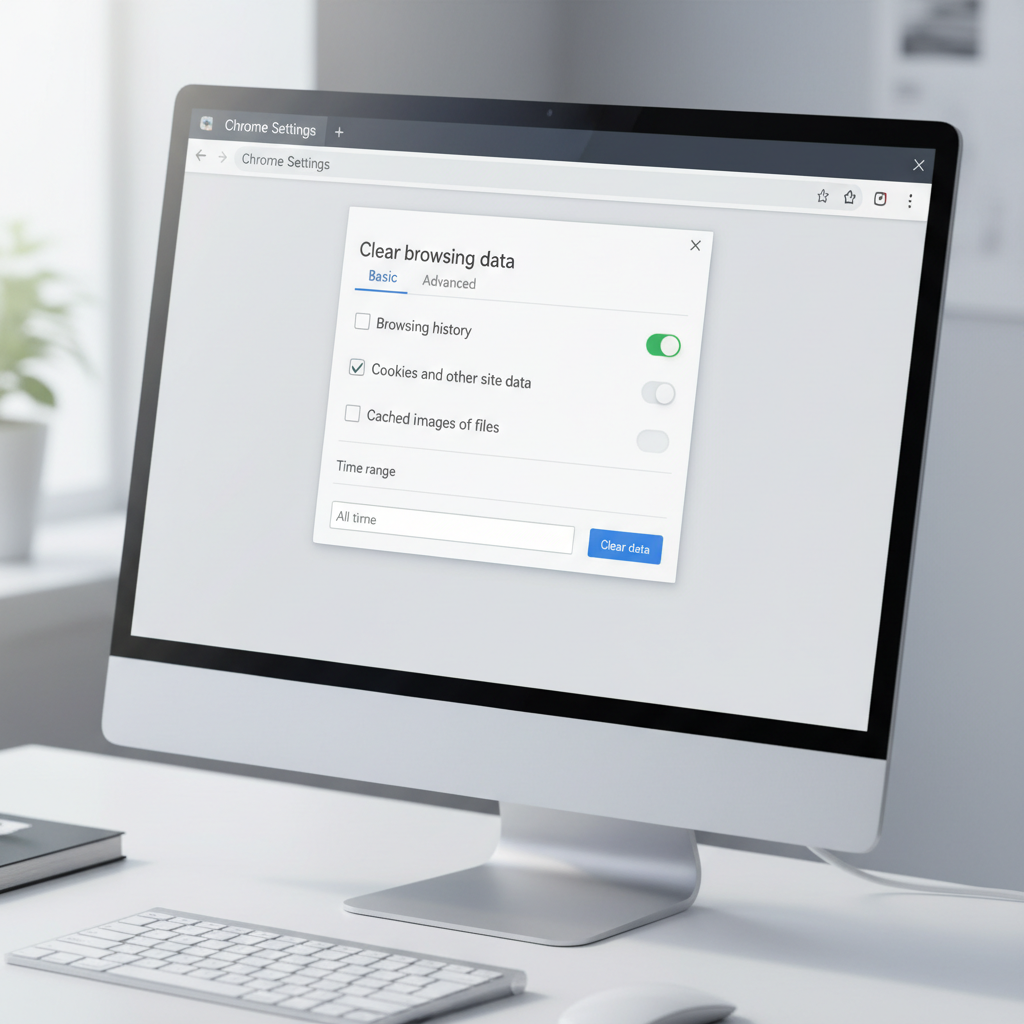
What “cache” means in Chrome (and what it is not)
Chrome’s cache is a local storage area for website files, images, scripts, and other bits that help pages load faster next time. When it goes stale or corrupted, you might see broken layouts, missing buttons, or a site refusing to update even after refresh.
Cache is different from a few items people commonly clear by accident:
- Cookies: Keep you signed in and store site preferences. Clearing them often logs you out.
- Browsing history: A record of visited pages, it won’t usually fix a broken site.
- Cached images and files: This is the cache item that most often helps with display and loading issues.
According to Google Chrome Help, clearing cached images and files can resolve loading and formatting problems, while cookies are more tied to sign-in and site settings.
When clearing cache helps, and when it’s a distraction
Clearing cache is most useful when the browser keeps pulling an outdated or broken copy of a site. In real day-to-day troubleshooting, it tends to help with:
- Web pages that look “half loaded” or missing styling
- Changes to a site not showing up after updates
- Random errors after a Chrome update or extension change
- Sluggish loading on a few specific sites (not your whole PC)
It’s less likely to help if the issue is outside Chrome, for example a slow internet connection, a site outage, or low disk space. If everything is slow everywhere, clearing cache can still be worth trying, but it’s rarely the only fix.
Quick self-check: are you dealing with cache, cookies, or something else?
Before you clear anything, run this quick checklist, it saves time and avoids unnecessary sign-outs.
- The site looks outdated even after refresh → cache is a good suspect.
- You’re constantly logged out or a site forgets preferences → cookies are a bigger suspect than cache.
- Only one website is broken → try that site in Incognito first.
- Chrome crashes or freezes → cache might help, but extensions and hardware acceleration are also common causes.
- Incognito works fine → often points to cache, cookies, or extensions in your normal profile.
If your goal is “fix a weird site,” clear cached files first and leave cookies alone unless the site is still misbehaving.
Step-by-step: clear cache in Chrome on a PC
This is the standard method, reliable, and easiest to explain to someone else on your team or family PC.
Method 1: Use the “Clear browsing data” screen
- Open Chrome.
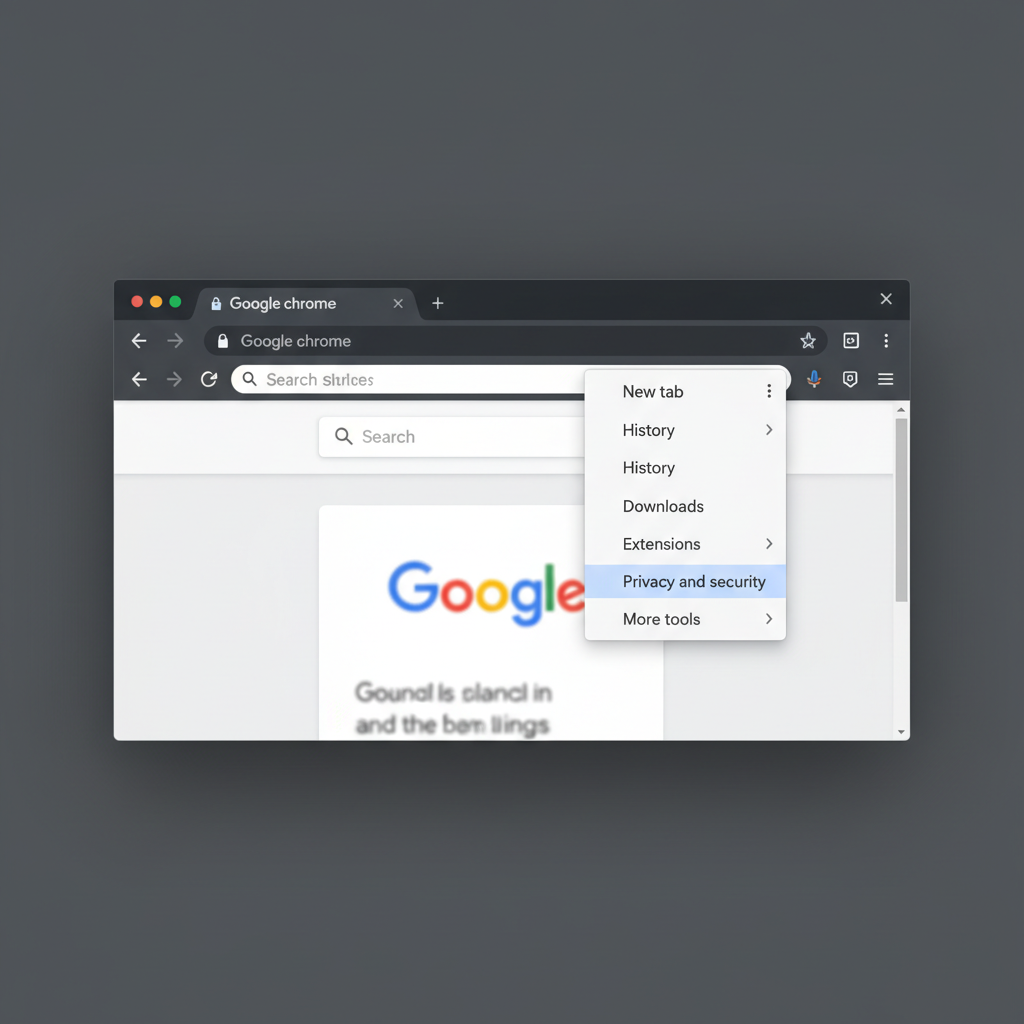
- Click the three-dot menu (top-right).
- Go to Settings → Privacy and security → Delete browsing data.
- Choose a Time range (details below).
- Check Cached images and files.
- Uncheck Cookies and other site data unless you specifically want sign-in resets.
- Click Delete data.
After that, close the affected tabs and reload the site. If it still looks wrong, fully restart Chrome, then try again.
Method 2: Keyboard shortcut (fast path)
On Windows and many PC keyboards, you can open the same dialog quickly with Ctrl + Shift + Delete. This is handy if you’re already in “fix it now” mode.
Choose the right time range (this is where most people overdo it)
If you pick “All time,” you clear everything Chrome stored, which can slow the first load of many sites afterward. Many cases don’t need that. Here’s a practical guide:
| Time range | When it makes sense | Trade-off |
|---|---|---|
| Last hour | A site broke just now, after an update or a change | Least disruptive, may not remove older bad files |
| Last 24 hours | Layout glitches or stale content started recently | Good balance for most troubleshooting |
| Last 7 days | Recurring issues across a few sites during the week | More reloading, but still manageable |
| All time | Persistent problems, you’ve tried smaller ranges already | Most disruptive, more “first load” slowness |
If you’re unsure, start with Last 24 hours. It usually fixes the common “this page won’t update” problem without nuking everything.
More targeted fixes: clear cache for one site, or reload hard
Sometimes you don’t want a full clear, you just want one site to behave. These options can be less disruptive than a broad wipe.
Option A: Clear site data for a single website
- Open Chrome Settings → Privacy and security → Third-party cookies (or Site settings, wording can vary by version).
- Find View permissions and data stored across sites.
- Search for the site domain, then remove its stored data.
This can remove both cache-like stored files and cookies for that domain, so it may sign you out of that specific site, but it won’t touch everything else.
Option B: Hard refresh (good for a “stuck” page)
Try a hard reload when a page looks cached. On many PCs, Ctrl + F5 or Shift + Refresh can force a deeper reload. It’s not identical to clearing cached images and files, but it’s a quick first move.

Common mistakes (and how to avoid making your problem worse)
- Clearing cookies when you only need cache, this triggers sign-outs and MFA prompts, then people assume the “fix” failed.
- Expecting speed miracles, clearing cache can help when files are corrupted, but it can also make the next few page loads slower.
- Not restarting Chrome after clearing, some issues only fully reset after a full browser restart.
- Ignoring extensions, ad blockers, script blockers, and privacy tools can break page elements in ways that look like cache problems.
If your issue is tied to a single site, test in Incognito (which usually disables most extensions) before you clear data. That quick test can tell you whether an extension is the real culprit.
When you should troubleshoot beyond cache
If you’ve tried how to clear cache on Google Chrome and the problem stays, move to checks that often matter more on a PC:
- Update Chrome: Menu → Help → About Google Chrome.
- Disable extensions temporarily: Especially anything that filters scripts, cookies, or ads.
- Turn off hardware acceleration (as a test): Settings → System. This can help with rendering glitches on some GPUs.
- Try a new Chrome profile: If your profile is corrupted, clearing cache won’t fully fix it.
- Check storage space: Very low disk space can cause weird browser behavior.
According to Google Chrome Help, keeping Chrome updated and managing extensions are key steps when troubleshooting repeated browsing issues.
If you’re in a managed work environment, device policies can limit what you can clear or change, and IT may prefer specific steps. In that situation, it’s usually faster to ask rather than fight the settings.
Key takeaways and a simple action plan
If Chrome is acting up, clearing cached files is a sensible, low-risk first fix, as long as you avoid wiping cookies unless you mean to. Start small, confirm the symptom improves, then escalate only if needed.
- For most cases: Clear Cached images and files for Last 24 hours, restart Chrome, reload the site.
- If one site is the issue: Remove site data for that domain, or try Incognito to rule out extensions.
- If problems persist: Update Chrome and review extensions before doing bigger resets.
If you want the quickest next step, open the clear-data dialog with Ctrl + Shift + Delete and choose cache only, then check whether the site starts behaving normally again.