
How to fix wifi keeps disconnecting usually comes down to one of three things: the router is struggling, the device is roaming or saving power too aggressively, or the Wi‑Fi environment is noisy and unstable. The good news is you can narrow it down fast without buying new gear right away.
If you’re dealing with disconnects on both your phone and PC, that’s a strong hint the issue sits “upstream” (router/modem/ISP) more than the devices. If it happens on only one device, you can focus on settings, drivers, or that device’s Wi‑Fi hardware.
This guide walks you through a practical sequence: confirm where the problem lives, fix the common router and band issues, then handle phone/PC-specific settings that quietly cause drops. You’ll also get a quick table of symptoms, plus a short checklist so you don’t waste time on random tweaks.
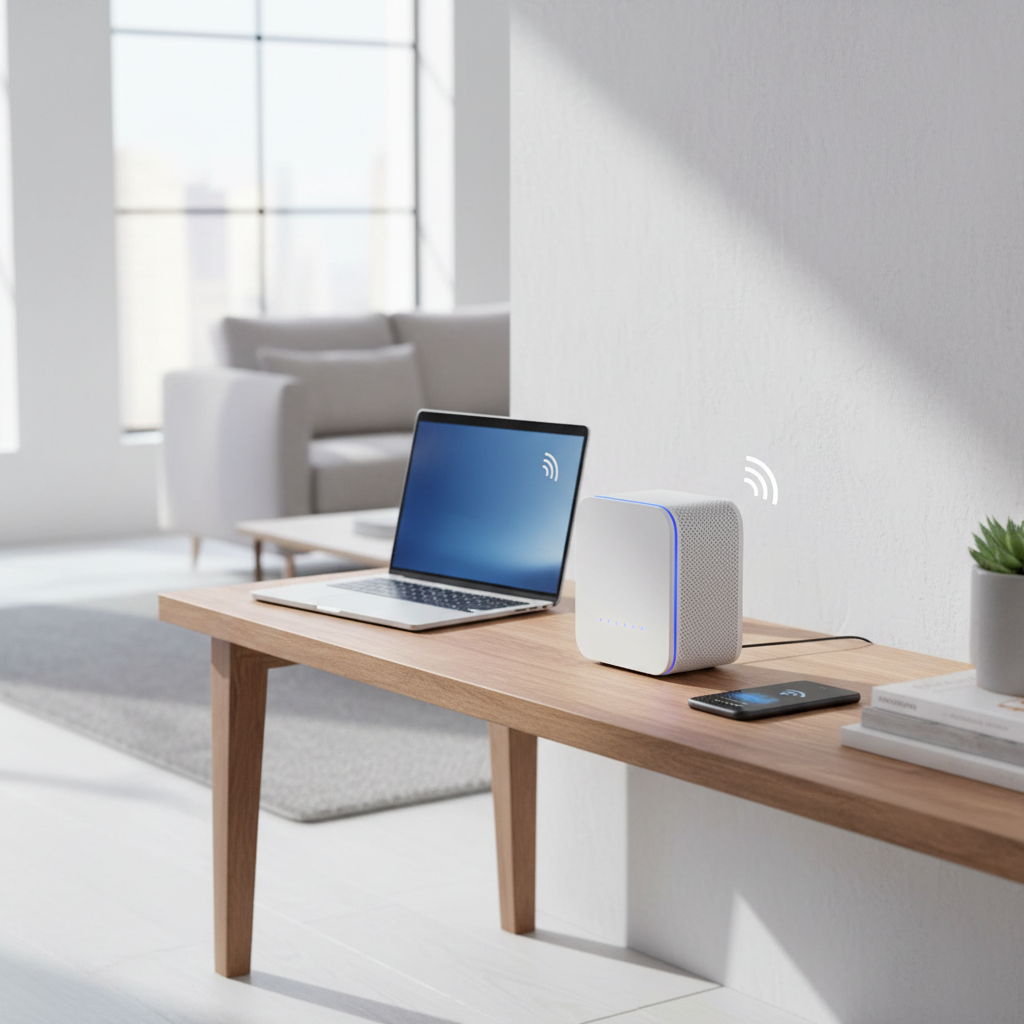
Start here: confirm whether it’s the router, device, or ISP
Before changing settings, do two quick checks. This saves a lot of frustration, because “Wi‑Fi disconnects” can actually be internet outages, weak signal, or a device switching bands.
Two fast tests
- Same network, different devices: If your phone and PC both drop around the same time, suspect the router/modem/ISP path.
- Wi‑Fi vs internet: When it “disconnects,” look at your device icon. If Wi‑Fi stays connected but pages don’t load, it may be ISP/DNS/modem, not Wi‑Fi.
According to FCC, home broadband performance can vary based on in-home network conditions and interference, not just your plan speed, so it’s worth separating “Wi‑Fi quality” from “internet quality” early.
Quick symptom-to-fix table (use this to avoid guessing)
Most people jump straight to rebooting, which helps sometimes, but it doesn’t tell you why it keeps happening. Use the table to pick the most likely path.
| What you notice | Most common cause | Best first fix |
|---|---|---|
| Drops on phone and PC | Router overheating, bad firmware, modem/ISP flaps | Update firmware, check modem logs, swap cable/port |
| Drops only in one room | Weak signal, interference, poor router placement | Move router higher/central, switch channels/band |
| Drops when you walk around | Band steering/roaming sensitivity | Split SSIDs, lock device to 5 GHz or 2.4 GHz |
| PC drops, phone fine | Driver/power saving, adapter issues | Update Wi‑Fi driver, disable power saving on adapter |
| Phone drops, PC fine | Private address/VPN/DNS profile, aggressive battery saving | Forget/rejoin, reset network settings, review VPN/DNS |
Fixes that solve most “Wi‑Fi keeps disconnecting” cases at home
These are the high-impact steps that cover the messy reality: crowded airwaves, flaky routers, and settings meant to be “smart” that end up being twitchy.
1) Reboot correctly (router and modem)
- Unplug modem and router.
- Wait about 30–60 seconds.
- Plug in the modem first, wait until it’s fully online, then plug in the router.
This matters because many disconnect issues are really the modem renegotiating the connection, and the router just looks guilty.
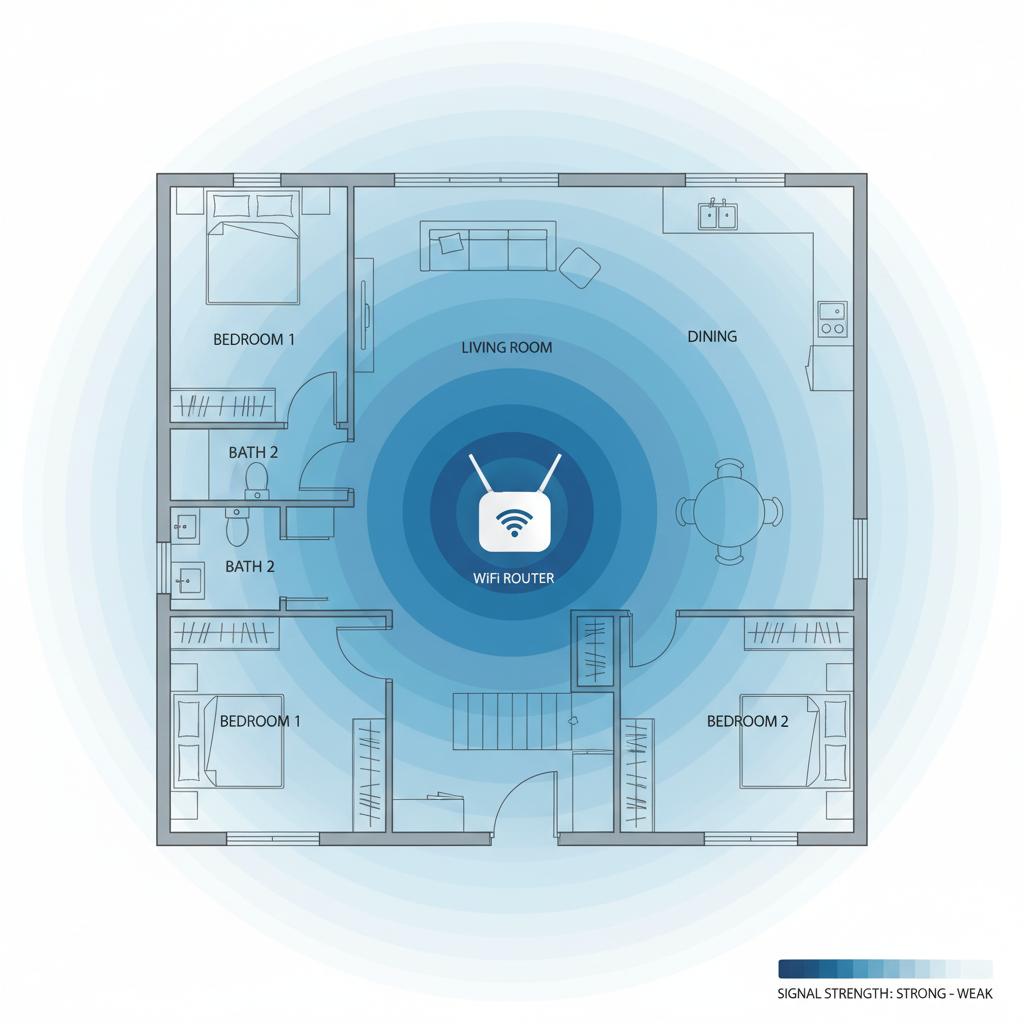
2) Fix router placement (it’s boring, but it works)
- Put the router as central as you can, and elevate it (shelf height beats floor level).
- Keep it away from metal cabinets, aquariums, thick masonry, and microwave ovens.
- If your router has external antennas, try one vertical and one slightly angled.
If your Wi‑Fi drops mostly when you move rooms, this step often beats any setting tweak.
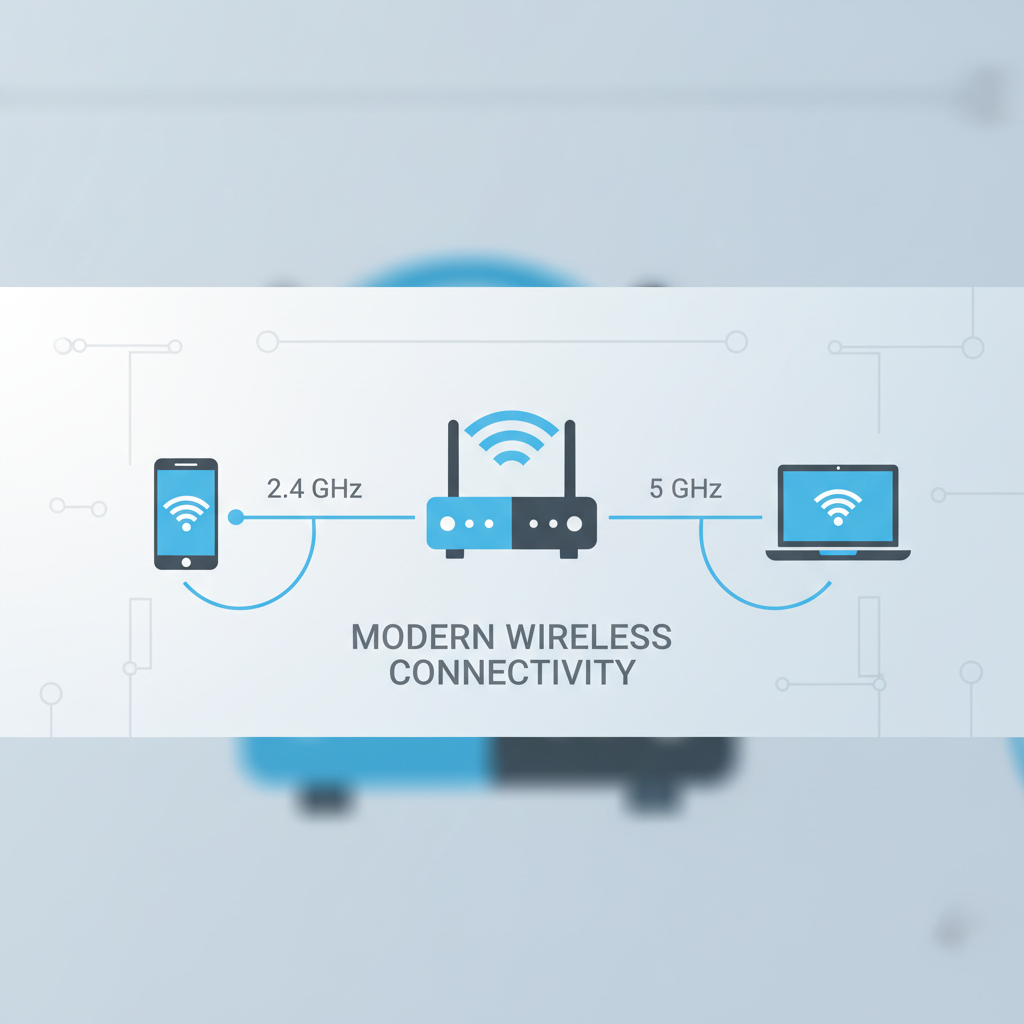
3) Choose the right band: 2.4 GHz vs 5 GHz (and 6 GHz if you have it)
- 2.4 GHz: longer range, more congestion, often slower, but steadier through walls.
- 5 GHz: faster, less interference in many areas, but shorter range.
- 6 GHz (Wi‑Fi 6E/7): cleanest air in many homes, but range can be limited.
If your network uses one combined name (band steering), devices sometimes bounce between bands and “feel” like they disconnect. A practical fix is to split SSIDs (separate names for 2.4 and 5) and put stationary devices on 5 GHz, far rooms on 2.4 GHz.
4) Update router firmware and avoid unstable “beta” features
Router firmware bugs can cause periodic drops, especially with newer phones and Wi‑Fi 6/6E features. Check your router admin page or app for updates.
- If you see options like “Smart Connect,” “Airtime Fairness,” “802.11r fast roaming,” try toggling them one at a time.
- Don’t change five things at once, or you won’t know what fixed it.
According to CISA, keeping network device firmware updated is a basic security practice, and in real life it also reduces weird stability problems tied to old code.
5) Check channel congestion (especially in apartments)
In dense neighborhoods, “Wi‑Fi keeps disconnecting” can really mean your router keeps losing airtime. Many routers have an “Auto” channel setting that works fine, but not always.
- On 2.4 GHz, channels 1, 6, or 11 usually behave better than in-between channels.
- On 5 GHz, try a different channel block if you see periodic drops.
- If your router supports it, keep channel width conservative when stability matters (for example, 20 MHz on 2.4 GHz).
Phone-specific fixes (iPhone and Android) that stop random drops
If the PC stays connected but your phone falls off, it’s often a “helpful” phone setting: privacy randomization, VPN, DNS profiles, or battery optimization. This is where how to fix wifi keeps disconnecting becomes very device-specific.
Do these in order
- Forget the network and rejoin: it clears a corrupted saved config.
- Turn off VPN temporarily to test (VPN apps can trigger reconnect loops).
- Disable “Wi‑Fi scanning always available” or “Switch to mobile data” features if your phone keeps abandoning weak Wi‑Fi.
- Review custom DNS profiles (private DNS, ad-block DNS). If the internet drops but Wi‑Fi looks connected, DNS is a prime suspect.
On iPhone, also check that Low Power Mode isn’t forcing more aggressive network behavior. On Android, battery optimization for the Wi‑Fi or “connectivity” system apps can cause similar issues.
PC-specific fixes (Windows and macOS) when Wi‑Fi disconnects every few minutes
PCs add another layer: drivers, power management, and older Wi‑Fi adapters that hate modern router features. If you’re chasing how to fix wifi keeps disconnecting on a laptop or desktop, these steps often beat router tweaks.
Windows: the high-impact settings
- Update the Wi‑Fi driver from the laptop maker or Intel/Realtek site, not just Windows Update.
- Device Manager → Network adapters → your Wi‑Fi adapter → Power Management: uncheck Allow the computer to turn off this device.
- Settings → Network & Internet → Advanced network settings → Network reset (use when things are truly messy).
macOS: quick stability checks
- Toggle Wi‑Fi off/on, then “Forget This Network,” then rejoin.
- Try a new “Location” in Network settings to rebuild network preferences cleanly.
- If you use a USB Wi‑Fi adapter or dock, test without it to rule out flaky hardware.
If your PC disconnects mostly on 5 GHz but not 2.4 GHz, test the other band. Some older adapters behave poorly on certain 5 GHz channels.
When the router is the bottleneck: signs you may need an upgrade
Not every router deserves endless troubleshooting. Some units overheat, some have underpowered CPUs that choke with lots of devices, and some just age out.
- Frequent reboots needed to stay stable.
- Drops happen when streaming, gaming, or video calling ramps up.
- Router gets very hot, especially in a cabinet.
- You rely on mesh/extenders and still see roaming drops.
Before buying, try two low-cost tests: replace the Ethernet cable between modem and router, and plug the router into a different power outlet or surge protector. Power noise is rare, but when it’s the cause it’s maddening.
Practical step-by-step: a 20-minute plan that usually resolves it
If you want a simple runbook, this is the order that tends to surface the real culprit fast, without turning your network into a science project.
- Minute 0–3: Reboot modem/router properly, confirm lights settle.
- Minute 3–7: Stand near the router, test on phone and PC. If stable close-by but not far away, focus on placement/band.
- Minute 7–12: Split SSIDs or manually connect devices to a specific band, retest.
- Minute 12–16: Update router firmware, then set conservative channel choices (especially 2.4 GHz 1/6/11).
- Minute 16–20: On the device that still drops, do the device-specific steps: forget/rejoin, drivers, power management.
Key takeaway: if both phone and PC drop after you’ve tested right next to the router, it’s rarely a “bad Wi‑Fi password” situation, it’s usually router/modem/ISP stability.
Common mistakes that waste time (and sometimes make it worse)
- Changing many settings at once: you lose the ability to identify the actual fix.
- Assuming extenders solve everything: cheap extenders can add latency and roaming problems; a proper mesh system often behaves better.
- Ignoring modem/ISP flaps: if the modem drops sync, Wi‑Fi troubleshooting won’t stick.
- Overusing “Auto” everywhere: Auto channel and wide channel widths can backfire in crowded areas.
When to escalate: ISP, hardware support, or a pro
If you’ve worked through the steps and the disconnects continue, it’s reasonable to escalate, especially when you see patterns that point outside your home network.
- Call your ISP if the modem logs show frequent re-syncs, or internet drops happen even on Ethernet.
- Replace or warranty the router if it overheats, reboots randomly, or drops even with minimal devices connected.
- Consider professional help if you have a large home, mixed construction (brick/metal), or you need reliable coverage for work; a site survey can identify interference and dead zones. If you’re unsure about wiring, electrical safety, or ladder work for access points, it’s safer to involve a qualified technician.
Conclusion: keep it stable by fixing the right layer
If you’re stuck on how to fix wifi keeps disconnecting, the fastest win is separating Wi‑Fi issues from ISP issues, then locking down the basics: sane router placement, a stable band choice, updated firmware, and device power/driver tweaks. Most households don’t need exotic settings, they need fewer moving parts.
Pick one action right now: run the 20-minute plan, or, if the drops hit multiple devices at once, start by updating router firmware and checking modem stability. That usually gets you back to a connection you can stop thinking about.