
how to fix microphone not working on pc usually comes down to three things: the wrong input device is selected, Windows (or the app) lacks permission, or the mic signal never reaches the PC because of a driver, cable, or hardware issue.
If you tackle it in the right order, you can often fix it in minutes instead of bouncing between random settings screens. The key is to start with simple “is Windows hearing anything?” checks, then move to permissions and drivers, and only then assume the microphone itself is broken.
Below is a practical flow you can follow on Windows 10 or Windows 11, with quick tests, common fixes, and a few “this looks fine but still fails” gotchas that catch people off guard.
Start with the fastest checks (they solve more than you think)
Before you touch drivers or reinstall anything, make sure the basics are not blocking audio.
- Confirm the mic is not muted: check a physical mute switch on headsets, inline controls, or a keyboard mic-mute key.
- Unplug and replug: for USB mics, try a different USB port (avoid unpowered hubs while testing).
- Check the cable and jack: a loose 3.5mm plug can “look connected” but still fail.
- Restart the app: Zoom/Teams/Discord can hold onto the wrong device until restarted.
- Restart Windows: it sounds basic, but audio services can hang.
If you’re using a laptop built-in mic, the physical checks are fewer, but privacy hotkeys and vendor utilities (Lenovo Vantage, Dell Optimizer, HP Audio Control) can still mute input.
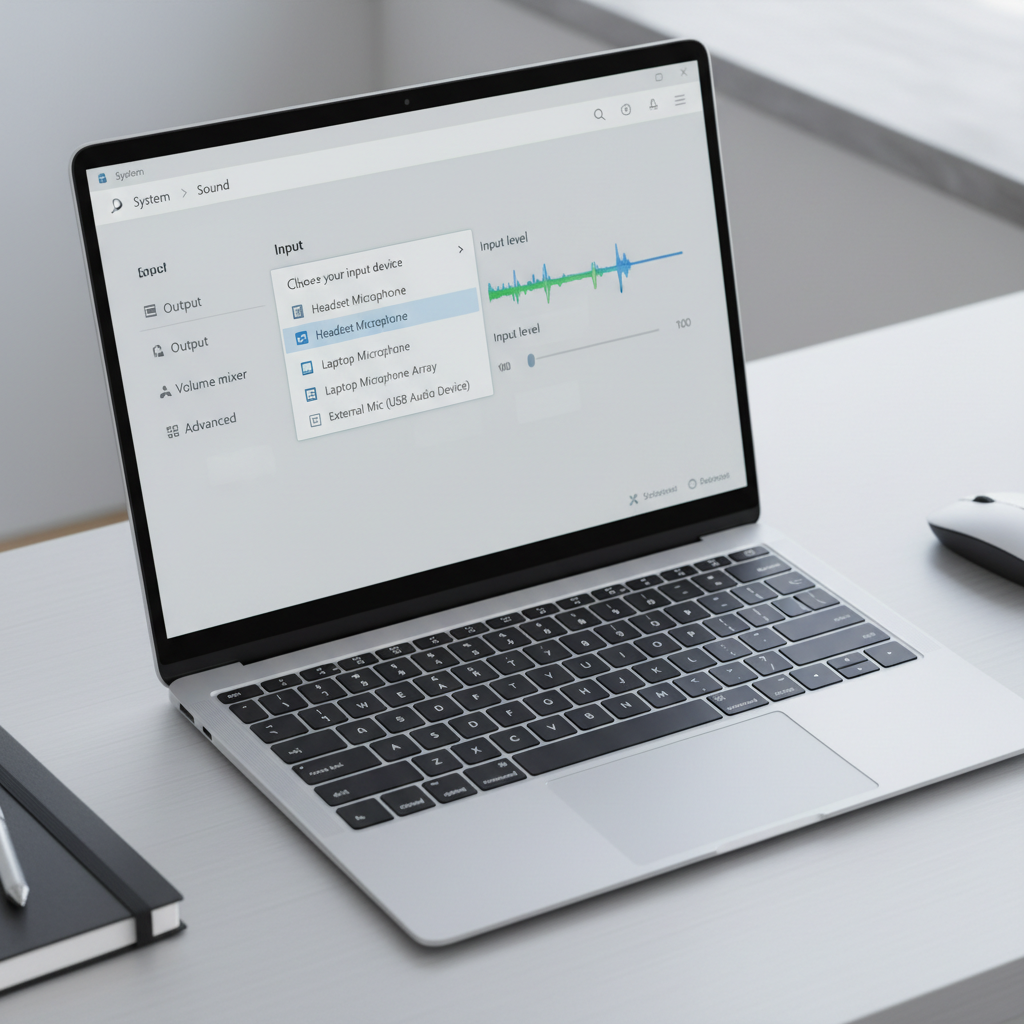
Make sure Windows is listening to the right input device
A very common reason people search how to fix microphone not working on pc is that Windows quietly switched the default input, especially after plugging in a webcam, controller, Bluetooth headset, or HDMI display.
Windows 11
- Go to Settings > System > Sound.
- Under Input, pick the microphone you actually want.
- Speak and watch the Input volume meter. If it never moves, Windows is not receiving a signal.
Windows 10
- Go to Settings > System > Sound.
- Under Input, choose your device, then click Device properties.
- Check the volume and whether the mic is disabled.
Tip that saves time: if the meter moves in Windows but the mic fails in one app, you likely have an app setting or permission problem, not a hardware one.
Check privacy permissions (Windows and the app both matter)
Windows can block microphone access at the system level, and many apps also have their own mic permission switch. Either one can make the mic “not work.”
According to Microsoft Support, microphone privacy settings control whether apps are allowed to access your microphone, and you can manage access per app in Settings.
Windows 11 permission path
- Open Settings > Privacy & security > Microphone.
- Turn on Microphone access.
- Turn on Let apps access your microphone.
- Scroll and enable the specific app (if listed).
Windows 10 permission path
- Open Settings > Privacy > Microphone.
- Enable Allow access to the microphone on this device and Allow apps to access your microphone.
Then check the app itself:
- Browser (Chrome/Edge): look for a mic icon in the address bar, confirm the site is allowed.
- Zoom/Teams/Discord: open audio settings and pick the same input device you chose in Windows.
If you’re in a managed work/school PC environment, these toggles might be enforced by policy. In that case, you may need IT to change the setting.
Use this quick self-check to identify your “type” of mic failure
This table helps you stop guessing and pick the most likely fix.
| What you see | What it usually means | Where to fix it |
|---|---|---|
| Windows input meter never moves | No signal reaching Windows (device, port, driver, hardware) | Sound settings, Device Manager, cables/ports |
| Meter moves in Windows, but one app has no mic | App selected wrong input or blocked permission | App audio settings, browser site permissions |
| Mic works, but volume is extremely low | Input gain too low, enhancement conflict, wrong mic mode | Input volume, Levels/Boost, vendor audio console |
| Mic works then cuts out randomly | USB power saving, Bluetooth instability, driver issue | Power settings, Bluetooth settings, driver update |
Fix drivers and audio services (when settings look correct)
If you’ve confirmed the right input is selected and permissions are allowed, but the mic still fails, drivers and services are the next realistic suspects.
Update or reinstall the microphone/audio driver
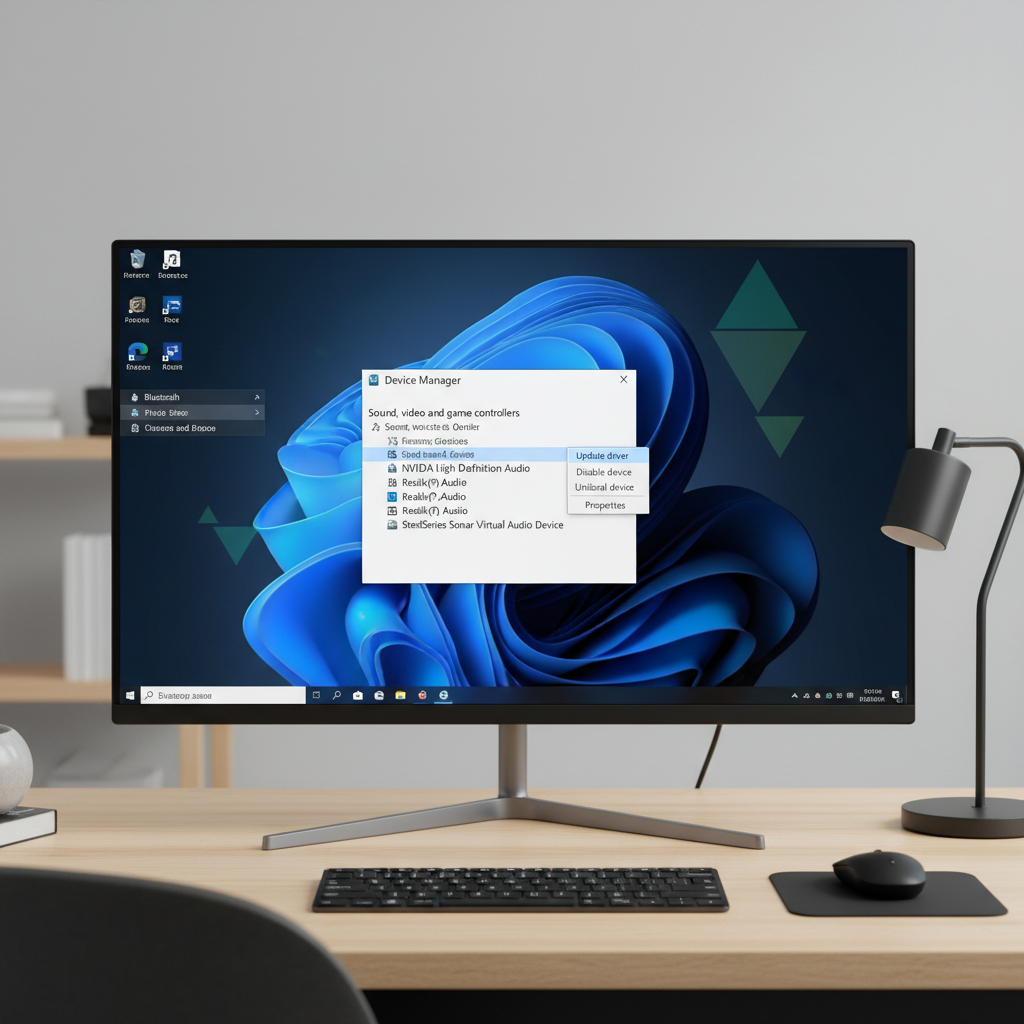
- Right-click Start > Device Manager.
- Expand Audio inputs and outputs and Sound, video and game controllers.
- Right-click your mic or audio device > Update driver.
- If the issue started after an update, try Properties > Driver > Roll Back Driver (when available).
- As a stronger step: Uninstall device, then restart to let Windows reinstall it.
If you use a USB microphone, also check Universal Serial Bus controllers for warnings, and test another port to rule out a flaky hub or front-panel port.
Run the built-in troubleshooter (it’s not magic, but it can reset common flags)
- Windows 11: Settings > System > Troubleshoot > Other troubleshooters > run Recording Audio.
- Windows 10: Settings > Update & Security > Troubleshoot (or “Additional troubleshooters”) > Recording Audio.
Restart audio-related services (only if you’re comfortable)
- Press Win + R, type services.msc.
- Restart Windows Audio and Windows Audio Endpoint Builder.
If you’re on a company PC, restarting services might be restricted.
App-specific fixes (Zoom, Teams, Discord, and browsers)
When the Windows input meter moves but people still can’t hear you, the fix is usually inside the app. This is where many “it worked yesterday” stories end up.
Zoom
- Settings > Audio and choose the correct microphone.
- Use Test Mic to confirm input.
- Disable exclusive control conflicts by checking Windows settings below (next section).
Microsoft Teams
- Settings > Devices and select the mic explicitly.
- Quit Teams completely (system tray) and reopen if it keeps reverting.
Discord
- User Settings > Voice & Video, pick Input Device.
- If voice cuts in/out, temporarily turn off Automatic Gain Control and test.
Chrome/Edge (web apps like Google Meet)
- On the meeting page, open the mic selector and choose the right input.
- Check site permissions: lock icon > Site permissions > allow Microphone.
Advanced adjustments that often fix “low volume” or “robotic” mic audio
At this stage, you’re not asking “why is my microphone missing,” you’re asking why it sounds wrong. This is also part of how to fix microphone not working on pc in real life, because users often describe “not working” when the audio is just unusable.
Disable Exclusive Mode (helps with app conflicts)
- Open Control Panel > Sound.
- Go to the Recording tab, double-click your mic.
- Under Advanced, uncheck Allow applications to take exclusive control.
Adjust input levels and enhancements
- In the mic properties, check Levels and raise the mic level gradually.
- If you see Microphone Boost, use small changes; too much boost can add hiss.
- Look for Enhancements (if present) and try toggling them off to test for conflicts.
If you have Realtek or a vendor audio console installed, its “noise suppression” or “beamforming” options can help, but they can also over-filter voices. If your audio sounds clipped or underwater, test with those features disabled.
Key takeaways (save this for next time)
- Windows input meter is your truth test: if it moves, hardware is usually fine.
- Permissions break mics quietly, especially after Windows updates or browser changes.
- Drivers matter most when the meter never moves or the device disappears.
- App settings are separate from Windows settings, and they often override defaults.
Conclusion: a realistic order that fixes most cases
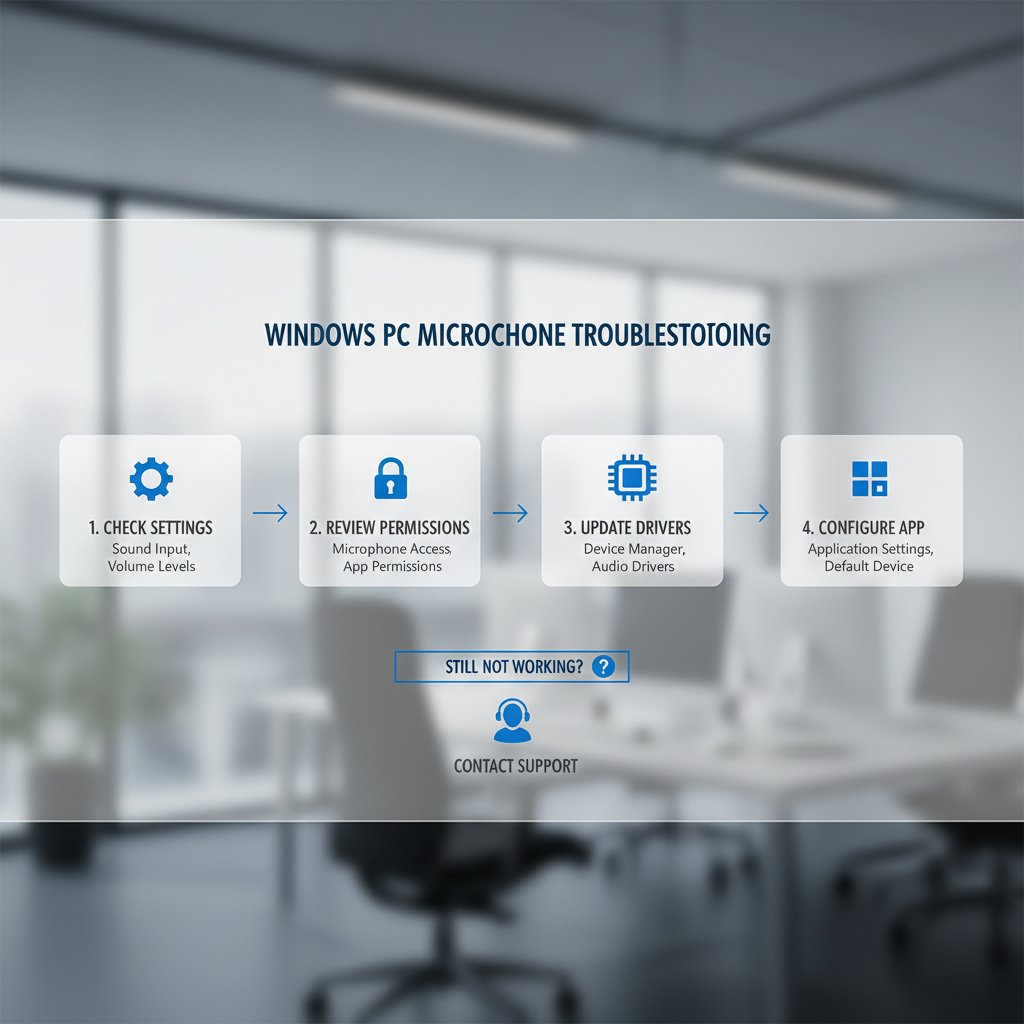
If you want the shortest path, do it like this: confirm the mic is not muted and is properly connected, verify the correct input device in Windows Sound settings, check Windows and app permissions, then move to driver repair and Exclusive Mode if the problem persists. That sequence covers the majority of “no one can hear me” scenarios without turning the process into a weekend project.
If you try the steps above and the Windows input meter still never moves across multiple ports and apps, the microphone hardware might be failing, or the PC may have a deeper audio subsystem issue, and a technician or the device manufacturer support team can help you validate that safely.
Practical next steps
- Open Sound settings now and confirm the right mic shows input activity.
- If it does, fix the app selection and permissions before touching drivers.
FAQ
- Why is my microphone not working on my PC, but it works on my phone?
That often points to a Windows setting, permission block, or driver issue rather than a broken mic. Start by checking whether the Windows input meter moves, then confirm the correct input device is selected. - How do I fix microphone not working on PC after a Windows update?
Updates can reset privacy permissions or swap the default input device. Recheck microphone access in Privacy settings, then confirm the default input under Sound. If it started immediately after the update, rolling back the driver can be worth trying. - My mic is detected, but no sound is recorded, what should I do?
Focus on the input meter in Windows Sound settings. If it stays flat, raise input volume, try another port (for USB), and reinstall the device in Device Manager. - Why does my Bluetooth headset microphone sound bad on Windows?
Many Bluetooth headsets switch to a lower-quality “hands-free” mode when using the mic, which can sound compressed. If possible, use a dedicated USB mic, or select the headset’s correct input profile in Sound settings and the app. - How do I stop apps from hijacking my microphone?
Disable Exclusive Mode in the microphone’s Advanced properties. This can reduce conflicts where one app grabs the mic and others go silent. - Should I install drivers from my PC manufacturer or from Windows Update?
In many cases, manufacturer audio drivers and utilities work better with the specific laptop model, but Windows Update drivers are often stable. If you see issues like missing features or broken input, trying the manufacturer driver is a reasonable next step. - When should I seek professional help for a microphone problem?
If the mic fails across multiple apps, the Windows input meter never moves, and different ports/cables don’t change anything, it may be hardware damage or a deeper system issue. If the device is under warranty, contacting the manufacturer support is usually the safest route.
If you’re trying to fix a microphone that keeps failing during calls, and you’d rather not troubleshoot every app separately, it can be easier to standardize on one reliable USB microphone and a consistent Windows input setup, then test it once in Sound settings and reuse that configuration everywhere.