
how to change lock screen wallpaper windows 11 comes down to one place in Settings, but the options you see can vary a lot depending on Spotlight, policies from work or school, and even whether you mean the lock screen or the sign-in screen.
If you just want a personal photo to show up every time you wake your PC, you can do that in a minute. If Windows keeps swapping images, shows ads, or refuses to save your pick, that’s where most people get stuck.
This guide walks you through the exact clicks, the common “why is this grayed out?” situations, and a few practical tweaks so your lock screen looks the way you expect, not the way Windows guesses.
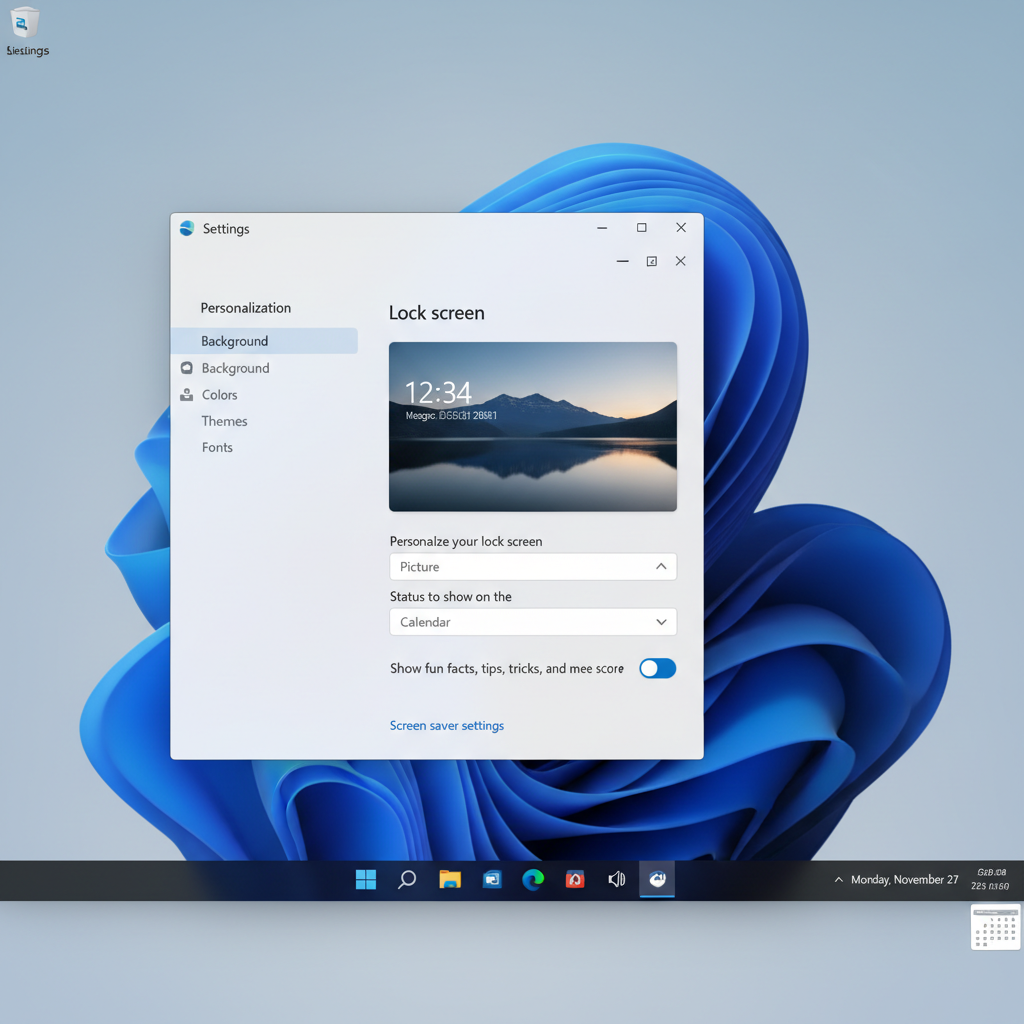
Lock screen vs. sign-in screen: what actually changes
Windows 11 uses similar wording for a few different “screens,” and mixing them up creates confusion.
- Lock screen: the screen you see before you click/press a key, often showing time, date, and a background image.
- Sign-in screen: where you enter your PIN/password. It can share the same background as the lock screen, but it’s controlled by a separate toggle.
- Desktop wallpaper: your regular background after you sign in, controlled under Background settings.
If your goal is “the picture behind the clock,” you’re changing the lock screen. If your goal is “the background behind the PIN box,” you also need the sign-in toggle (covered below).
How to change lock screen wallpaper in Windows 11 (photo, slideshow, or Spotlight)
For most home PCs, the steps are straightforward:
- Open Settings (Windows key + I)
- Go to Personalization > Lock screen
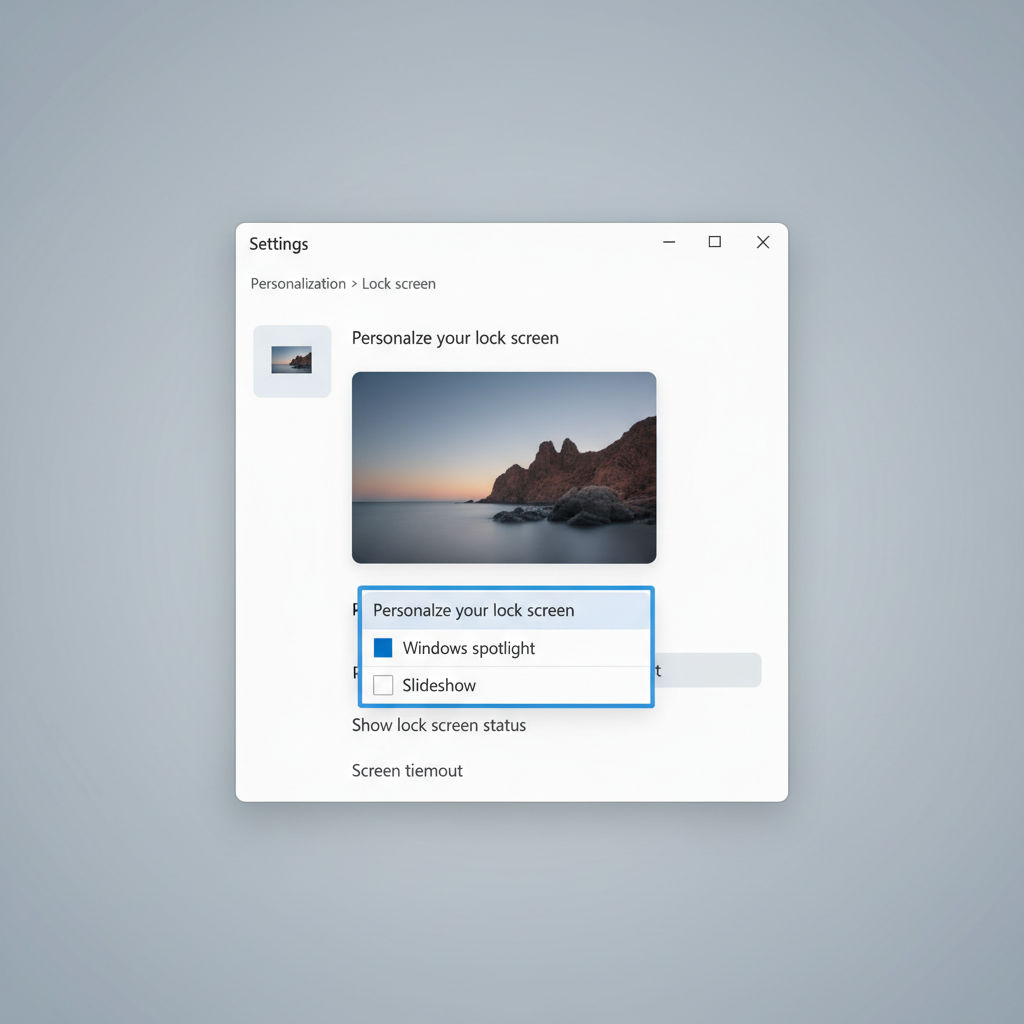
- Next to Personalize your lock screen, pick one option:
- Windows spotlight (Microsoft-curated images that rotate)
- Picture (one image you choose)
- Slideshow (a folder of images that rotate)
Choose a single picture
Select Picture, then click Browse photos and pick an image. Windows will use that file as the lock screen background.
Set a slideshow from a folder
Select Slideshow, choose Add a folder, then pick a folder (local pictures, a dedicated “Lock Screen” folder, or a synced OneDrive folder if available).
- If you want tighter control, put only the images you like in that folder.
- Big, high-resolution images usually look better on the lock screen because Windows crops aggressively.
Use Spotlight without surprises
Select Windows spotlight if you like rotating images. You can also turn off extras like tips or fun facts from the same Lock screen page, depending on what Windows shows on your build.
According to Microsoft Support, Windows Spotlight can show different backgrounds and related experiences on the lock screen, which is why it may change even when you didn’t touch settings.
Quick self-check: why your lock screen wallpaper won’t change
If how to change lock screen wallpaper windows 11 feels “not working,” it’s usually one of these real-world blockers.
- Windows Spotlight is enabled, so your image gets replaced later.
- “Picture” looks selected, but the file is missing (moved, deleted, or on an unavailable drive).
- Work or school policies restrict personalization, so options are grayed out.
- Sync conflicts if you use the same Microsoft account across devices and themes sync in unexpected ways.
- Third-party customization tools override Windows settings in the background.
A simple test: switch to Picture, choose a new image, lock your PC (Windows key + L), and see if it sticks after a restart. If it reverts, you’re likely dealing with Spotlight, policies, or an override tool.
Fixes for common issues (grayed out, reverting, or not showing)
1) Turn off Spotlight if you want a permanent image
Go to Settings > Personalization > Lock screen, then switch from Windows spotlight to Picture or Slideshow. If you leave Spotlight on, Windows can keep rotating images by design.
2) If your chosen photo doesn’t appear, try a local file
Photos stored on removable drives or network locations can fail silently when the path isn’t available at sign-in time. Copy the image to a local folder like Pictures\LockScreen, then select it again.
3) If options are grayed out, check whether it’s a managed PC
On a work or school device, IT may restrict lock screen personalization. You’ll often see “Some settings are managed by your organization.” In that case, you can ask your admin what’s allowed, because bypassing policy can violate company rules.
4) If it keeps changing across devices, review sync
Theme-related sync can sometimes make your choices feel inconsistent. In Settings > Accounts > Windows backup (or Sync settings, depending on build), look for theme personalization sync and consider toggling it off if it’s causing unwanted changes.
5) Disable third-party “theme” tools temporarily
Utilities that modify Windows UI can override lock screen settings. If you installed one, pause it, reboot, then set the lock screen wallpaper again.
Make the lock screen match the sign-in screen (or keep them different)
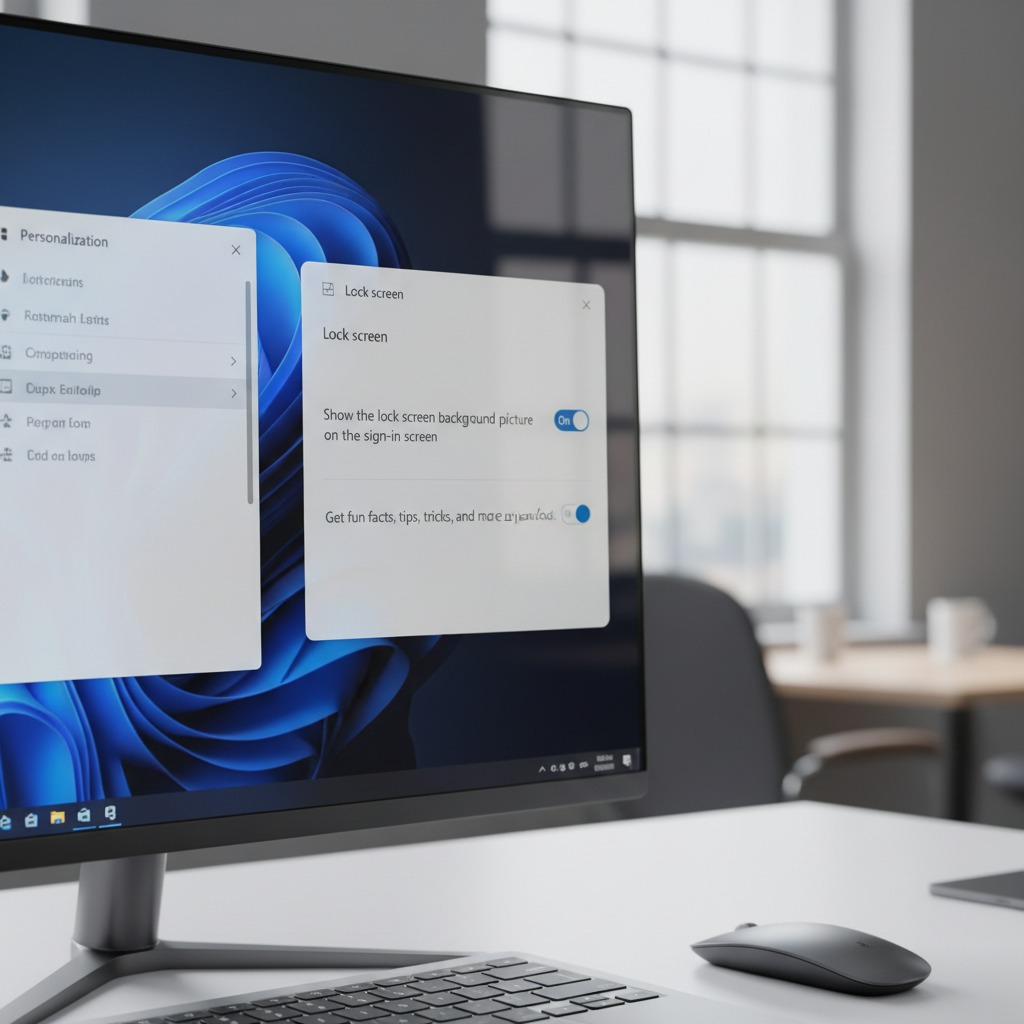
Many people change the lock screen and then wonder why the sign-in screen still looks different. On the same Lock screen settings page, look for:
- Show the lock screen background picture on the sign-in screen
Turn it On if you want the same image behind your PIN/password box. Turn it Off if you prefer a simpler sign-in look.
This one toggle is the difference between “I changed it, but it didn’t change” and “oh, now it matches.”
Practical recommendations: what to use (and when)
Not every option fits every PC. Here’s a quick, real-world comparison.
| Option | Best for | Pros | Watch-outs |
|---|---|---|---|
| Picture | Consistent branding or one favorite photo | Stable, predictable | If file moves, it may stop showing |
| Slideshow | Multiple photos without Spotlight | Fresh look, you control the folder | Folder management matters, duplicates happen |
| Windows spotlight | People who like variety | Hands-off rotation | Changes automatically, may show extras |
Image tips that actually help
- Use a high-resolution image close to your screen’s resolution to reduce blur.
- Pick a “safe center” photo because the clock and notifications crop the edges.
- Avoid super bright whites if you use the PC at night, the lock screen can feel harsher than the desktop.
Key takeaways and a simple action plan
If you want this done with minimal drama, keep it boring: switch off Spotlight, pick a local photo, and decide whether the sign-in screen should match.
- Fastest path: Settings > Personalization > Lock screen > Picture > Browse photos
- If it reverts: check Spotlight, then check whether it’s a managed device
- If the PIN screen looks different: turn on the sign-in background toggle
Once you’ve set it, lock your PC (Windows key + L) and restart once. If it still won’t stick, that’s your signal to look for policy restrictions or third-party tools overriding Windows.
Conclusion
how to change lock screen wallpaper windows 11 is easy when your PC is allowed to personalize, but it gets tricky when Spotlight rotation, missing image paths, or organization policies enter the picture.
Pick the experience you want, set it in Lock screen settings, and flip the sign-in background toggle if you want a consistent look. If settings are locked down by your organization, the realistic next move is asking IT what’s permitted rather than fighting Windows.