
how to enable night light windows 11 is a quick win when your screen feels too bright at night or your eyes feel tired after long sessions.
Night Light shifts your display toward warmer tones, which many people find more comfortable in the evening, especially in dim rooms. It’s not a magic sleep switch, but it can make late work, gaming, or reading feel less harsh.
In this guide, you’ll get the fastest way to turn it on, how to schedule it, what the sliders actually do, and what to try when the toggle is missing or stuck.
What Night Light does (and what it doesn’t)
Night Light is a Windows display feature that reduces blue-heavy color output and nudges your screen toward warmer colors. A warmer screen often feels gentler in low light, and it can help some people wind down.
According to the National Sleep Foundation, exposure to light in the evening can affect sleep timing for some people. That said, responses vary, and if sleep issues persist, it’s reasonable to consider broader habits or discuss with a healthcare professional.
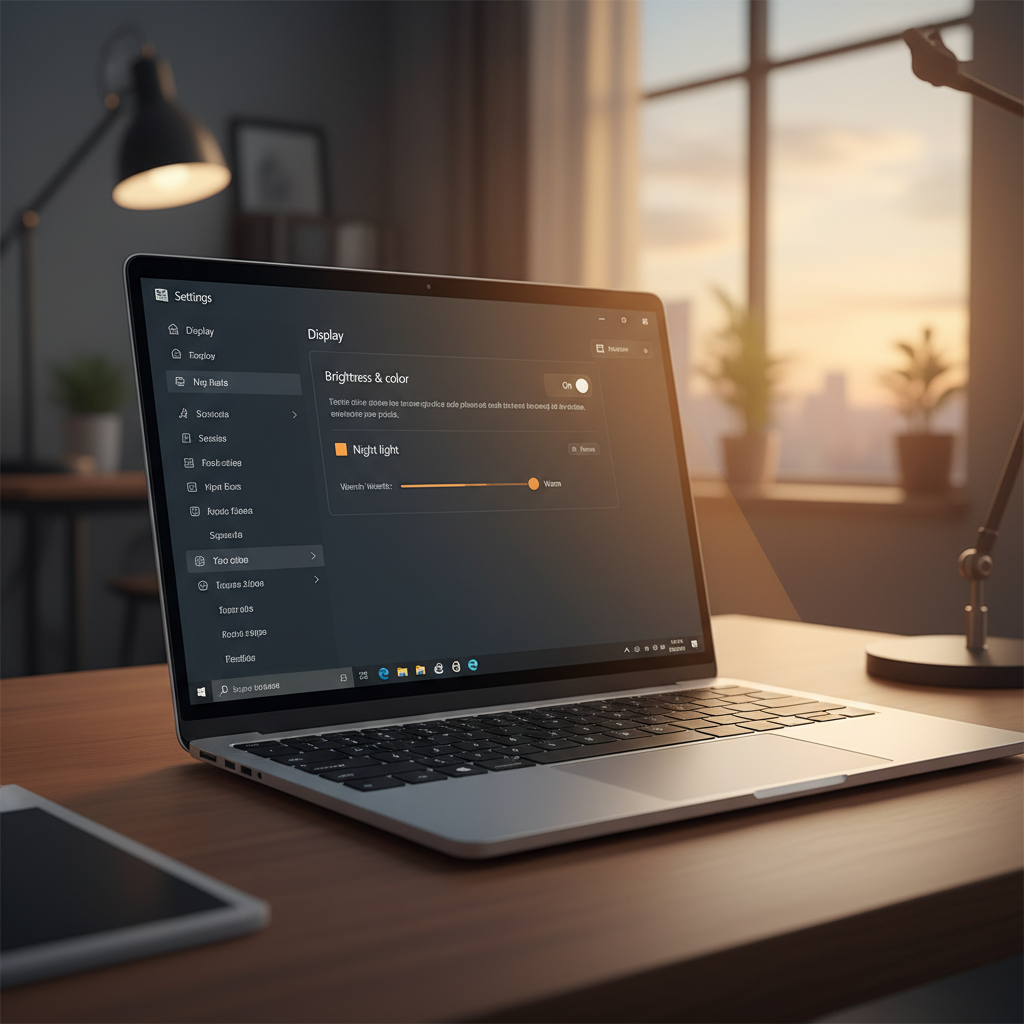
Key takeaway: Night Light changes color temperature, not brightness. If your screen is still “blinding,” you may also need to lower brightness or enable dark mode.
Enable Night Light in Settings (fastest method)
This is the most reliable path on most Windows 11 PCs.
- Open Settings (press Windows + I).
- Go to System > Display.
- Find Night light and switch it On.
- Select Night light (the text, not just the toggle) to open detailed options.
If you’re setting this up for the first time, give your eyes a few minutes to adjust. Many people turn it on and immediately think it looks “too yellow,” then later decide it’s fine once the contrast shock fades.
Turn it on from Quick Settings (two-click option)
When you’re hopping between daytime and nighttime setups, Quick Settings is faster.
- Click the Wi‑Fi/Volume/Battery area on the taskbar (or press Windows + A).
- Look for the Night light tile.
- Click it to toggle on or off.
If you don’t see the tile, click the pencil/edit icon in Quick Settings, then add Night Light if it’s available on your system.
Schedule Night Light for sunset-to-sunrise (or custom hours)
Scheduling is where Night Light becomes “set it and forget it,” and it also prevents the common annoyance of forgetting to turn it off in the morning.
- Go to Settings > System > Display > Night light.
- Turn on Schedule night light.
- Choose Sunset to sunrise or select Set hours for a custom window.
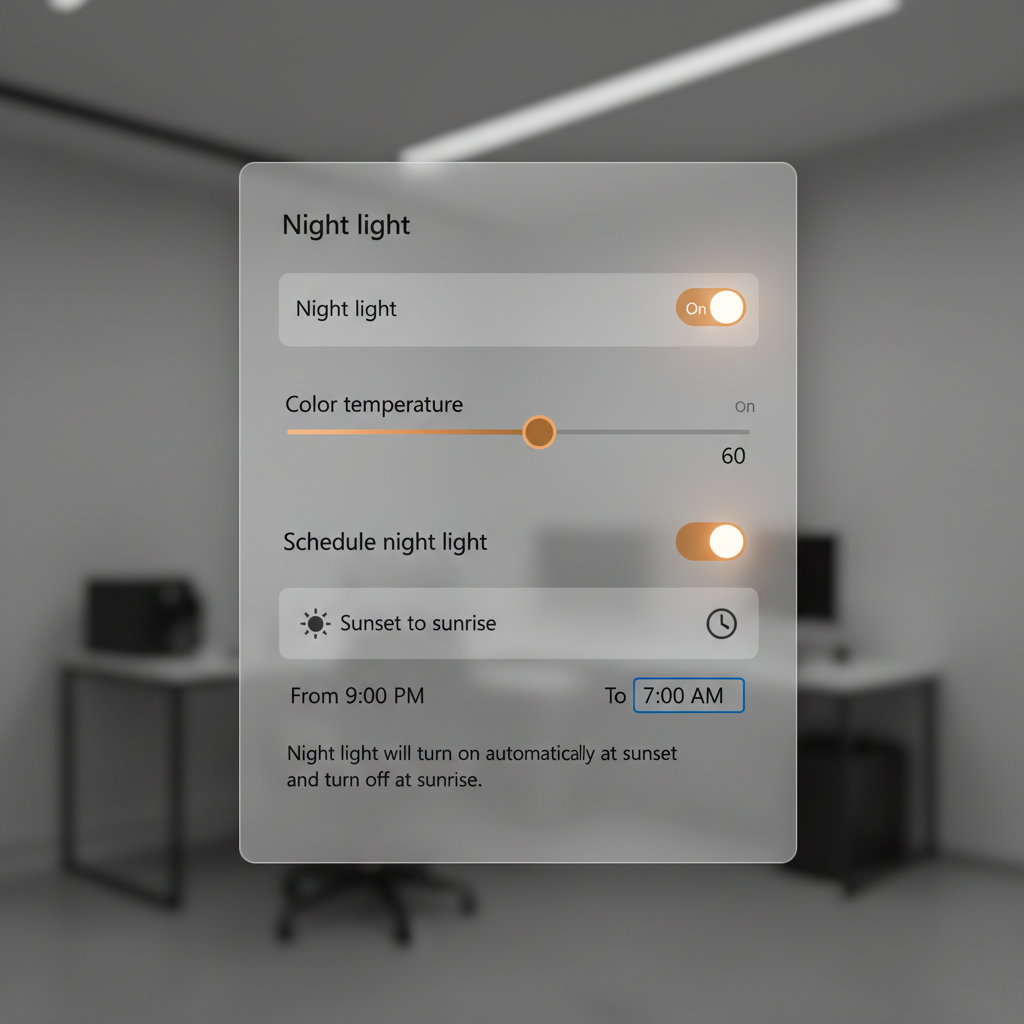
Practical tip: If you travel or your PC’s location services are off, “sunset to sunrise” can behave oddly. In those cases, custom hours tend to be more predictable.
Choose the right “Strength” (warmth) without overdoing it
The slider controls how warm the display becomes. Higher warmth can feel calmer in a dark room, but it also makes whites look yellow and can distort color-sensitive work.
- Light warmth (low strength): Good for general evening browsing, less color shift.
- Medium warmth: A common balance for reading and writing.
- High warmth: Comfortable late at night, but not ideal for photo/video editing.
If you do design, photography, or print work, consider setting a moderate level and toggling it off when color accuracy matters. For many users, that’s the realistic compromise.
Common problems: missing toggle, stuck switch, or “not supported”
If you tried how to enable night light windows 11 and it’s not showing up, it usually comes down to graphics drivers, display hardware limitations, or another color-management feature taking over.
Quick self-check list
- Are you on Windows 11 and not using a remote session that handles color differently?
- Is your graphics driver current (Intel/AMD/NVIDIA)?
- Are you using an external monitor or dock?
- Do you have HDR enabled?
- Are tools like f.lux, monitor vendor apps, or GPU “blue light filter” features installed?
Fixes that usually help
- Update graphics drivers: Go to your GPU vendor site (Intel/AMD/NVIDIA) or use Windows Update, then restart.
- Toggle HDR: Settings > System > Display > HDR. Turn HDR off and check Night Light behavior, since HDR pipelines can conflict on some setups.
- Disconnect external displays: Test on the built-in panel, then reconnect. Some older monitors handle color temperature changes poorly.
- Disable third-party color tools: Temporarily turn off apps that change color temperature to avoid overlap.
- Restart graphics stack: Press Windows + Ctrl + Shift + B (screen may flicker), then re-check the toggle.
If the option still doesn’t appear, Windows may be reporting that your display path doesn’t support it. That’s more common with certain remote desktop scenarios, unusual display adapters, or older hardware.
Night Light vs. Dark Mode vs. Brightness: what to use when
People mix these up, so here’s a clear comparison you can use when tuning your setup.
| Feature | What it changes | Best for | Limitations |
|---|---|---|---|
| Night Light | Color temperature (warmer tones) | Evening comfort, reducing blue-heavy output | Can skew colors |
| Brightness | Screen luminance | Reducing “too bright” feeling in dark rooms | Too low can reduce readability |
| Dark Mode | App/UI theme colors | Lower glare in apps, battery savings on OLED | Not all apps follow it |
| HDR | Wider brightness/color range | HDR video, certain games | May conflict with Night Light on some PCs |
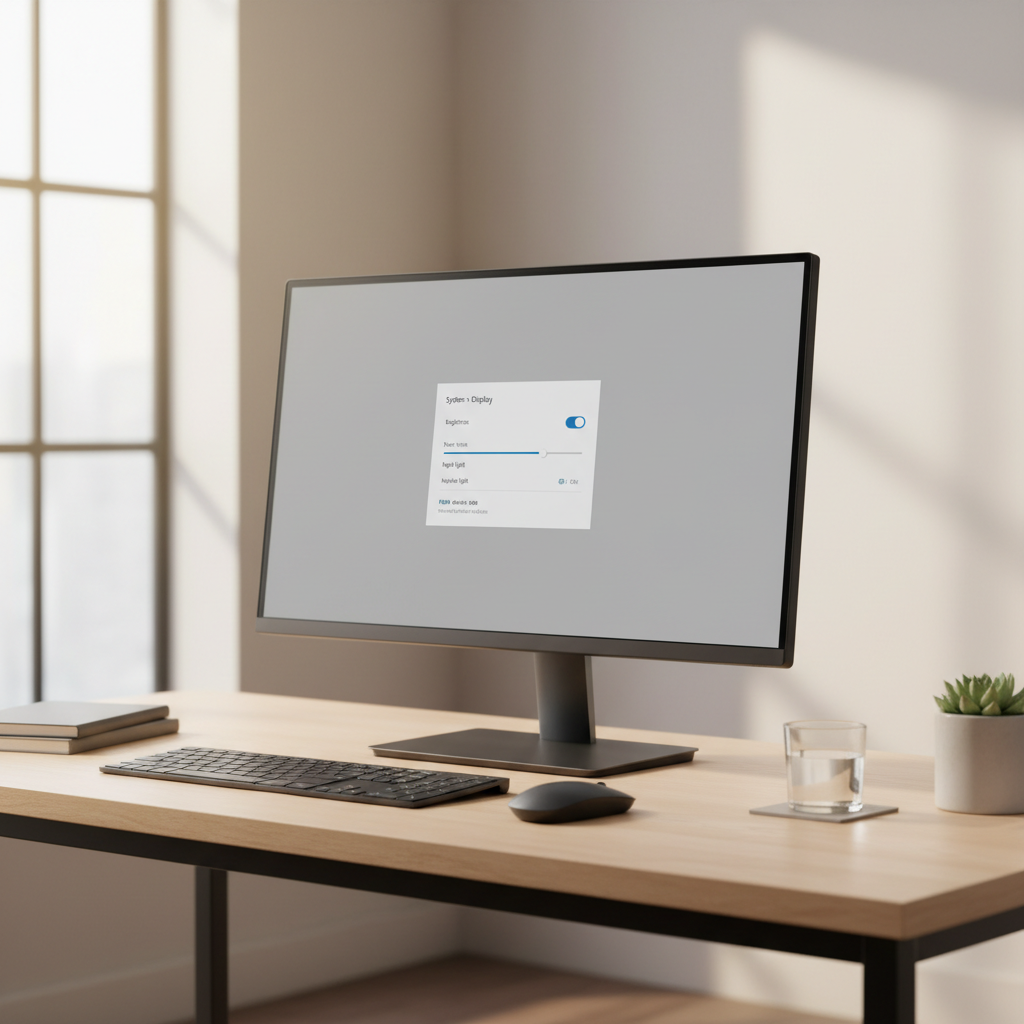
Rule of thumb: If your eyes feel strained because the screen is “intense,” lower brightness first, then add Night Light for comfort. If apps feel glaring, layer in Dark Mode.
Practical setup: a simple evening routine that works
If you want a setup you don’t have to micromanage, this combo tends to work in many homes and offices.
- Set Night Light to scheduled hours that match your routine, not your ideal routine.
- Pick a medium warmth level you can tolerate for long stretches.
- Lower brightness to a level that matches room lighting, especially after sunset.
- Turn on Dark mode in Settings > Personalization > Colors, if you like it.
If you do color-critical work, create a habit: toggle Night Light off for editing, then back on for everything else. It’s less “perfect,” but it’s sustainable.
Conclusion: get Night Light working, then tune it to your life
how to enable night light windows 11 comes down to one toggle in Display settings, but the real payoff is scheduling it and choosing a warmth level that you can live with.
Do this next: turn it on in Settings, set a schedule you actually keep, then adjust strength after 10 minutes of use. If the toggle is missing, start with graphics drivers and HDR conflicts before assuming your PC can’t support it.