
How to remove malware from windows 11 for free usually comes down to two things: cutting the malware off from the internet and using Windows’ built-in security tools the right way, in the right order.
If you’re seeing weird pop-ups, new browser toolbars, random redirects, sudden slowdowns, or “your computer is infected” scare screens, it’s worth taking seriously, but you also don’t need to panic-buy software. In many cases, Windows 11 already has what you need to detect and remove common threats.
This guide focuses on practical steps you can run today, plus a quick checklist to figure out whether you’re dealing with adware, a browser hijacker, or something more stubborn that needs extra help.
Know what you’re dealing with (malware vs adware vs “just a bug”)
Before you start deleting things, spend two minutes on a reality check. Different problems look similar, and the fix changes depending on what’s actually happening.
- Adware / PUPs (potentially unwanted programs): extra ads, notifications, “search bar” add-ons, slow browser, new homepage.
- Browser hijacker: your default search engine changes, redirects, extensions you don’t remember installing.
- Trojan / spyware: strange logins, security tools disabled, unknown processes, privacy concerns.
- Ransomware warning signs: files suddenly unreadable, new file extensions, ransom notes. This is the “stop and isolate” category.
According to CISA, isolating an affected device and limiting further access can help reduce the impact of a malware incident, especially when you’re not sure what you’re facing.
Quick self-check: are you in the “simple cleanup” group?
Use this list to decide how aggressive you need to be. Many people jump straight to drastic moves, but a calm sequence often works better.
- You can still open Windows Security and run scans.
- Your Windows account still works, and you’re not locked out of files.
- The issue is mostly inside the browser (pop-ups, redirects, new extensions).
- No signs of encryption, ransom notes, or widespread file corruption.
If these points match your situation, the steps below usually cover how to remove malware from windows 11 without paying for extra tools.
Do this first: disconnect, back up what matters, and stop the bleeding
It sounds basic, but it prevents a lot of “I cleaned it, then it came back” moments.
- Disconnect from the internet: turn off Wi‑Fi or unplug Ethernet. This can interrupt remote control, downloads, or data exfiltration.
- Pause risky syncing: if you use OneDrive/Google Drive, consider pausing sync until you’re confident the system is clean.
- Back up essential files to an external drive if you can do so safely. Avoid copying unknown executables or installers.
If you suspect ransomware or you see file encryption behavior, it’s reasonable to stop here and ask a professional for help, because “cleanup” can destroy evidence or worsen recovery options.
Free removal workflow (the order matters)
This is the sequence I’d use on most consumer Windows 11 machines. The goal is to remove persistence first, then scan deeper, then clean browser-level damage.
1) Boot into Safe Mode (when malware fights back)
If pop-ups keep coming back, apps close instantly, or scans won’t finish, Safe Mode helps because fewer startup items run.
- Settings → System → Recovery → Advanced startup → Restart now
- Troubleshoot → Advanced options → Startup Settings → Restart
- Press 4 for Safe Mode (or 5 for Safe Mode with Networking if you must update definitions)
2) Run Microsoft Defender “Full scan” then “Microsoft Defender Offline scan”
Windows 11 includes Microsoft Defender. It’s not perfect for everything, but it’s strong enough to catch a lot of mainstream threats when you run the deeper options.
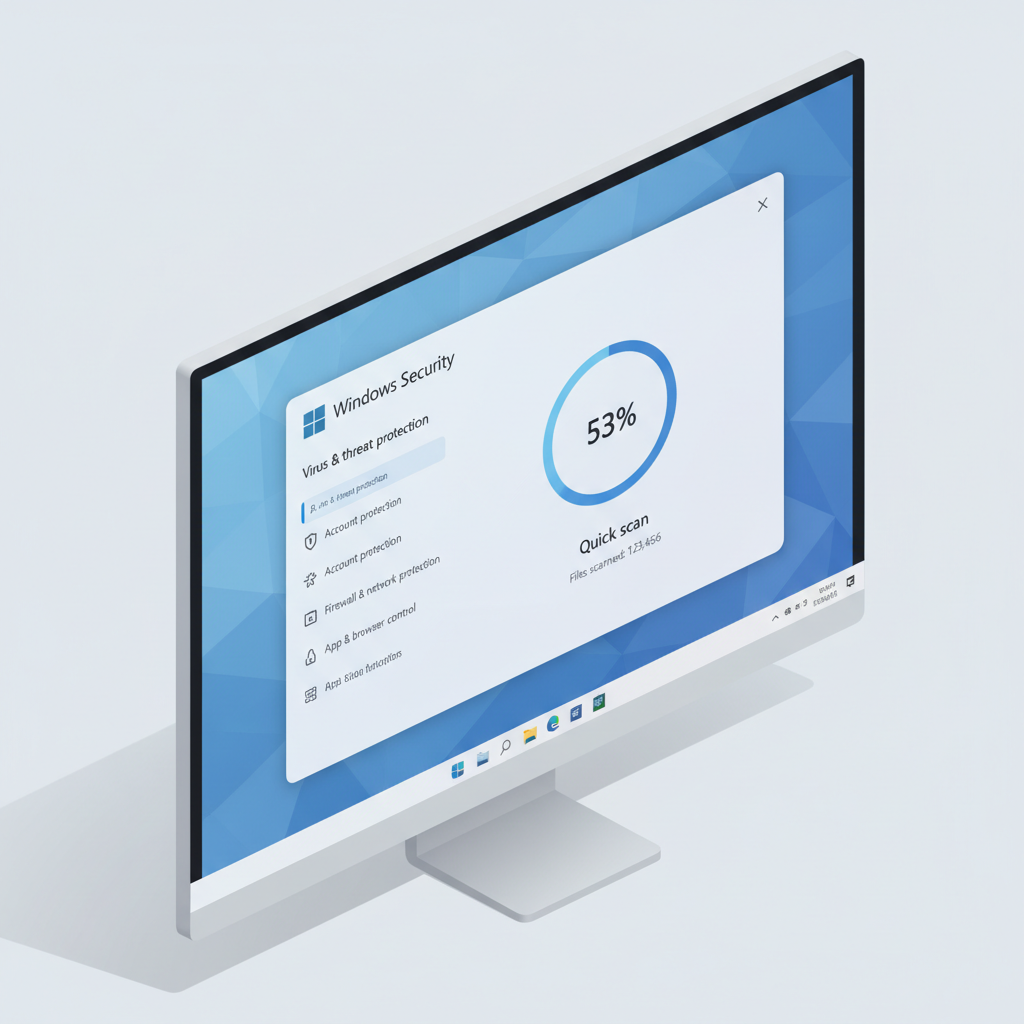
- Open Windows Security → Virus & threat protection
- Scan options → Full scan
- Then run Microsoft Defender Offline scan (this restarts your PC and scans before Windows fully loads)
According to Microsoft, the offline scan can help remove malware that’s difficult to remove while Windows is running.
3) Remove suspicious startup items and scheduled tasks (common persistence tricks)
Many threats survive reboots by auto-starting. You’re not “hacking” anything here, just checking the obvious persistence points.
- Task Manager → Startup apps: disable anything you don’t recognize or don’t need.
- Settings → Apps → Installed apps: uninstall recent unknown programs, especially anything that mentions “search”, “optimizer”, “security”, “coupon”, “driver updater”.
- Task Scheduler: look for recently created tasks with random names or odd triggers (like every 5 minutes).
If you’re unsure whether an item is legit, don’t delete system files blindly. Disable startup first, reboot, then re-check behavior.
4) Reset browser changes and remove extensions
A big chunk of “malware” complaints are really browser hijackers. You want to remove extensions, reset settings, and clear site permissions.
- Chrome/Edge: remove unknown extensions, reset settings, and check “On startup” and “Search engine”.
- Notifications: in browser settings, remove suspicious sites allowed to send notifications.
- Downloads: delete installers you grabbed right before the problem started.
This step is where many people finally feel the machine “snap back” to normal.
A simple “what to do when” table
If you want a quick decision map, use this. It’s not exhaustive, but it keeps you from wasting time on the wrong move.
| Symptom | Likely cause | Free action to try |
|---|---|---|
| Pop-ups and redirects only in browser | Adware / hijacker | Remove extensions, reset browser, run Defender Full scan |
| Defender won’t open or updates fail | More aggressive malware | Safe Mode, Defender Offline scan, check startup items |
| PC slow, fan runs, unknown processes | PUPs, miner, background malware | Uninstall suspicious apps, Full + Offline scan, review Startup |
| Files encrypted or ransom note appears | Possible ransomware | Disconnect immediately, avoid “cleanup”, consider professional help |
Practical cleanup steps people skip (but often fix the “sticky” problems)
After you’ve run scans, a few small checks can remove leftovers that keep re-triggering symptoms.
Clear temporary files
- Settings → System → Storage → Temporary files → remove what you don’t need
Check DNS and proxy settings
- Settings → Network & internet → Proxy: make sure “Use a proxy server” is off unless you intentionally use one
- Open an elevated Command Prompt and run: ipconfig /flushdns
Update Windows and browsers
Patching isn’t glamorous, but it closes the holes that malware and shady installers often rely on.
- Settings → Windows Update → Check for updates
- Update Chrome/Edge/Firefox to the latest version
Common mistakes that waste time (or make things worse)
- Installing random “free antivirus” from pop-ups: this is a classic trap, and it can add more junk.
- Deleting files in System32: if you’re guessing, you’re gambling. Disable and scan instead.
- Running five cleaners back-to-back: more tools doesn’t automatically mean better results, and conflicts happen.
- Forgetting browser notification permissions: many “virus pop-ups” are just abusive notifications you allowed once.
When people search how to remove malware from windows 11, what they often really need is to remove the persistence and undo browser permissions, not nuke the whole PC.
When free steps aren’t enough (and what to do next)
If any of the following shows up, consider escalating. Not because you failed, but because the risk profile changes.
- You see signs of ransomware, or files become unreadable.
- You can’t run scans, or security tools get disabled again after reboot.
- Financial or work accounts may be exposed, especially if you entered passwords during the infection window.
At that point, it’s reasonable to consult a local repair shop, a managed IT provider, or your organization’s IT team. If accounts might be compromised, changing passwords from a separate clean device and enabling multi-factor authentication can be a smart move. According to NIST, multi-factor authentication can reduce the risk of account takeover in many common attack scenarios.
Key takeaways (so you can act fast)
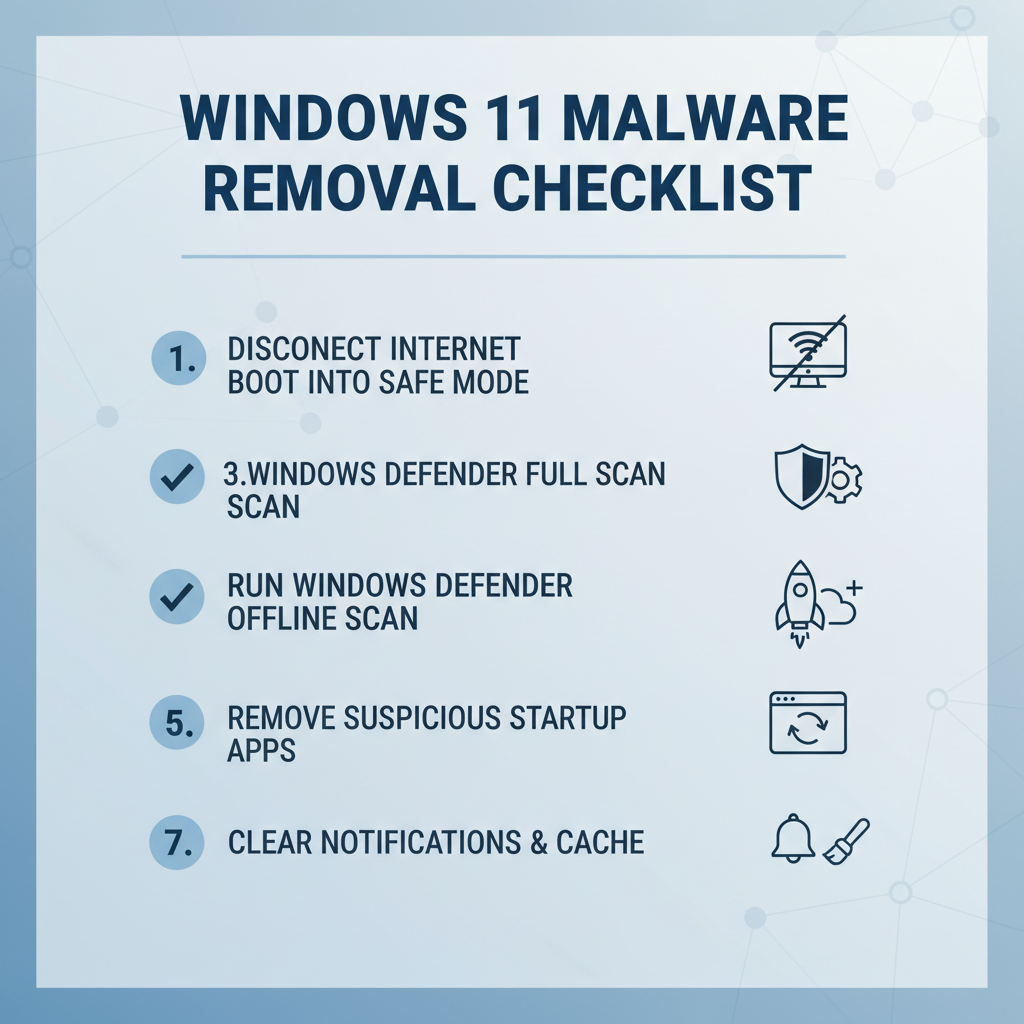
- Isolate first: disconnect the PC before deep cleanup.
- Use Defender properly: run Full scan, then Offline scan.
- Fix the browser layer: extensions, notifications, search engine, startup pages.
- Escalate for ransomware signs: stop and get help rather than experimenting.
Conclusion: a calm, repeatable way to get back to a clean Windows 11 PC
Most of the time, a clean sequence beats a “try everything” scramble: disconnect, scan deeply with Microsoft Defender, remove persistence, then reset the browser damage. If symptoms persist after an offline scan, treat it as a stronger infection and consider professional support, especially when sensitive accounts or important files are involved.
If you want one action today, run Microsoft Defender Offline scan and clean up browser extensions and notification permissions right after, that combo solves a surprising number of cases without spending money.
FAQ
- How do I know if I actually have malware or just annoying ads?
Annoying ads tend to stay inside the browser and disappear after you remove extensions and reset settings. Malware often affects startup behavior, security tools, or system performance across apps. - Can Windows Security remove malware by itself on Windows 11?
In many cases, yes, especially for common threats. If the infection disables scans or returns after reboots, you may need Safe Mode and an offline scan, or additional help. - What is Microsoft Defender Offline scan and why is it helpful?
It reboots into a trusted environment and scans before many malicious processes can start. That makes removal easier for threats that “hide” during normal Windows sessions. - Should I use Safe Mode to remove malware from Windows 11?
Safe Mode is useful when malware keeps re-launching or blocking tools. If your system runs normally and Defender can scan, you can try standard mode first, then escalate. - Why do virus pop-ups keep appearing even after I scan?
Often those are browser notification permissions or adware extensions, not a system-wide infection. Check notification settings and remove unknown add-ons. - Is it safe to delete suspicious files I find in Downloads?
Usually yes for obvious installers you don’t need, but avoid deleting system files. When in doubt, scan the file and uninstall the associated app through Settings. - When should I wipe and reinstall Windows 11?
If you can’t trust the system, scans fail repeatedly, or sensitive accounts might be compromised, a reinstall can be reasonable. Back up carefully and consider professional guidance for high-risk cases.