
Top free video editors for chromebook are a real lifesaver when you need to cut a school project, YouTube clip, or social post and you do not want a watermark stamped across the export.
The tricky part is that “free” often comes with trade-offs, some tools watermark only certain formats, others cap export quality, and a few are fine until you try to save your final video. This guide narrows it down to editors that are commonly used on Chromebooks, with a focus on clean exports.
I will also point out the “gotchas” that waste the most time, like hidden export limits, Chromebooks running low on storage, or the difference between web-based and Android-app editing.
What “no watermark” really means on a Chromebook
On paper, “no watermark” sounds simple, but in practice there are a few patterns you will see with Chromebook editors.
- No watermark, but export limits: some tools export clean video yet limit resolution (for example, 720p) or frame rate.
- No watermark only in certain modes: a tool might export without branding for basic edits, then add a watermark when you use premium effects, templates, or stock assets.
- No watermark, but account required: some web editors allow clean exports but only after you sign in.
- “Free trial” traps: many editors look free until the final export step, when watermarking appears unless you pay.
According to Google for Education, Chromebooks are designed around cloud-based workflows and web apps, which is why a lot of the best Chromebook editing options are browser-first rather than heavy desktop installs.
Quick comparison: top picks at a glance
If you want the fastest shortlist, here is a practical comparison. Availability and limits can change, so treat this as a starting point and double-check the export screen before committing to a project.
| Editor | Runs on Chromebook as | Watermark on free exports? | Best for | Common caveat |
|---|---|---|---|---|
| CapCut | Web app / Android app | Usually no (basic exports) | Short-form, templates, captions | Some assets/effects may require login or paid tier |
| Clipchamp | Web app | Often no for standard export | Simple edits, school/work projects | Export quality and features can vary by plan |
| WeVideo | Web app | Commonly yes on free tier | Education workflows, collaboration | Free plan may watermark, check before editing |
| VN Video Editor | Android app | Typically no | Timeline editing on lower-end devices | Android app performance varies by Chromebook |
| KineMaster | Android app | Commonly yes on free tier | Mobile-style editing with layers | Watermark usually removed only with subscription |
Best free editors for Chromebook with no watermark (realistic picks)
Below are the options that tend to work well on Chromebooks and, in many cases, let you export without a watermark for basic projects. The key word is “basic” because premium assets can change the output.
CapCut (Web + Android)
CapCut is popular for a reason: it is quick, it has modern templates, and it is friendly for TikTok/Shorts-style edits. On Chromebook you can use the web version or the Android app, depending on what runs smoother on your device.
- Why it makes the list: fast trimming, auto-captions in many cases, solid effects, clean export for many standard edits.
- Where people get burned: using a premium template or effect, then discovering export restrictions at the end.
- Good fit if: you want speed and trendy tools more than deep color grading.
Clipchamp (Web)
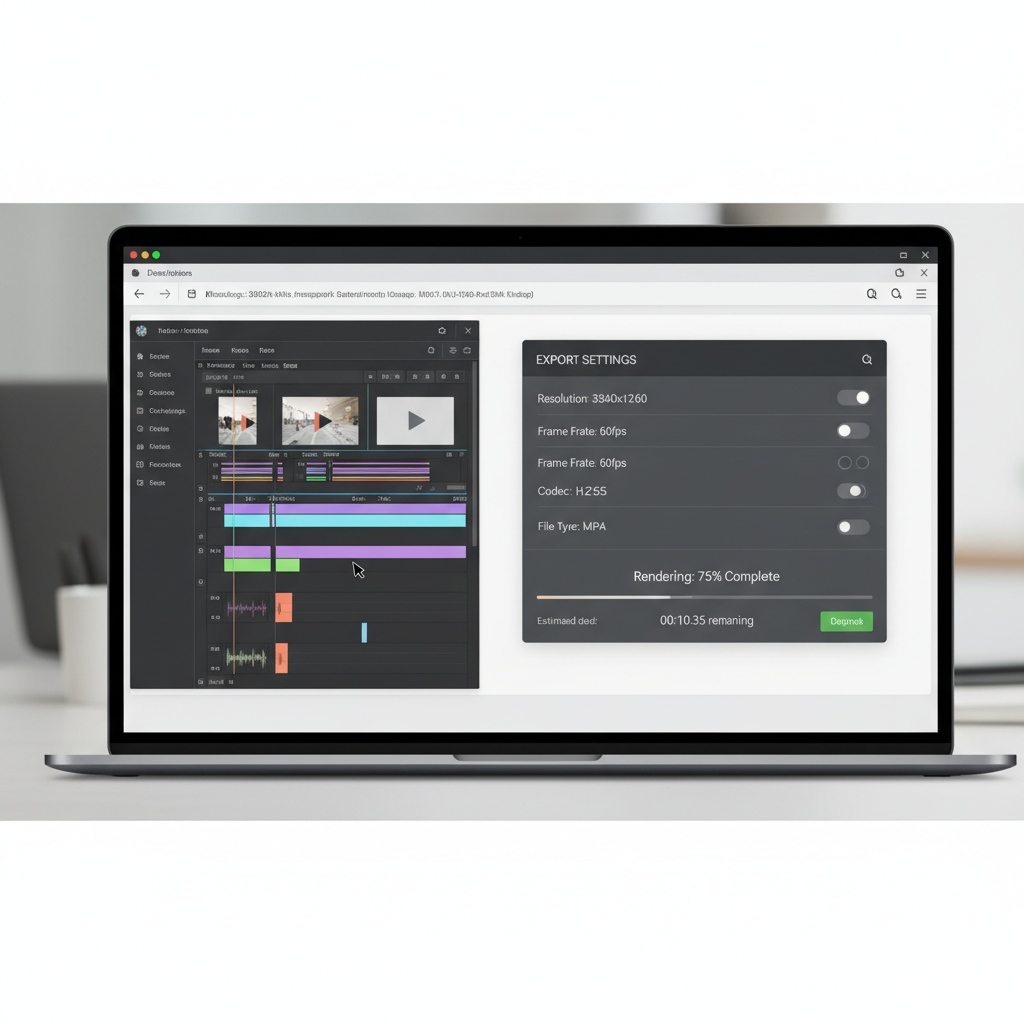
Clipchamp is a browser editor that feels “work-friendly,” which is why it often shows up in school and small business workflows. If your Chromebook handles Chrome tabs well, Clipchamp is usually stable.
- Why it makes the list: straightforward timeline, easy text overlays, decent stock options, and predictable export flow.
- Watch for: plan-based limits, especially around higher-resolution exports or certain stock elements.
- Good fit if: you need clean cuts, titles, and quick exports without learning a complex interface.
VN Video Editor (Android)
VN is an Android editor that many Chromebook users pick when they want a more traditional timeline without paying right away. It can feel lighter than some template-heavy web editors.
- Why it makes the list: multi-track timeline, speed control, keyframes in some builds, and often clean exports.
- Watch for: Android app compatibility, some Chromebooks run Android apps flawlessly while others lag on previews.
- Good fit if: you want a “video editor” vibe rather than a social-template workflow.
Other tools worth considering (but verify export)
These are commonly searched alongside top free video editors for chromebook, but free plans change often, so treat them as “check before you commit.”
- WeVideo: strong for classrooms and collaboration, but the free tier often includes watermarking or export limits.
- KineMaster: powerful layer editing on Android, though watermarking is common on the free tier.
- Online converters + simple cutters: fine for trimming, risky for quality, and some inject branding or compress heavily.
A quick self-check: which editor fits your Chromebook and project?
Before choosing, answer these questions honestly. This saves you from getting 90% done and restarting in a different tool.
- Is your Chromebook low-end (4GB RAM, older CPU)? If yes, prefer lighter edits, fewer tabs, and Android apps like VN might preview smoother than heavy web editors.
- Do you need captions fast? CapCut often makes this easier, but check language support and export behavior.
- Are you exporting for YouTube? Prioritize 1080p export and a stable H.264 MP4 output, then confirm no watermark on a short test clip.
- Is this for school? Clipchamp or WeVideo may fit the workflow better, especially for simple narration and slides.
- Will you use stock music or templates? That is where hidden “paid asset” flags appear, keep your first draft on basic built-in items.
Practical workflow: how to avoid watermarks and wasted exports
This is the part most people skip, then pay for it in time. Do this once, even if it feels cautious.
1) Run a 20-second test export
Import a short clip, add a title, export in your target resolution, and confirm the file plays clean with no branding. If the editor adds a watermark, you find out in two minutes, not two hours.
2) Keep effects and stock assets “basic” until the final cut
A lot of watermark surprises come from a single premium transition or music track. Build your edit using standard tools, then experiment with extras at the end, so you can roll back quickly.
3) Export settings that usually behave well
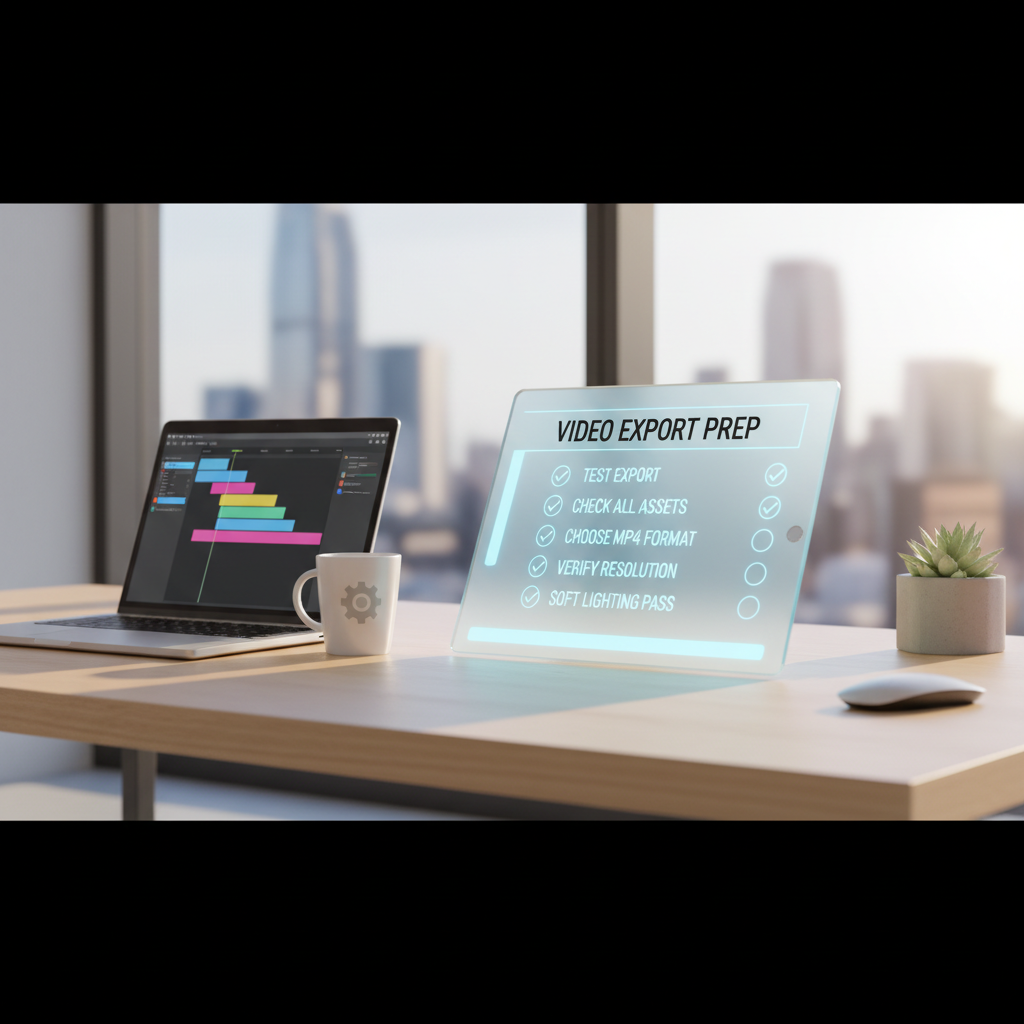
- Format: MP4 (H.264) is the safest for YouTube, Google Drive sharing, and most LMS platforms.
- Resolution: 1080p if available on your plan and device, 720p if your Chromebook struggles.
- Frame rate: match your source video (often 30fps), mixing frame rates can look choppy.
According to YouTube Help, creators should upload in widely supported formats like MP4 with H.264 video codec for smooth processing, which aligns with the export options most Chromebook editors offer.
4) Chromebook performance tips that actually help
- Close extra tabs: web editors compete with your browser memory, especially on 4GB devices.
- Use local storage wisely: if your Downloads folder is almost full, exports fail more often than you would expect.
- Prefer 1080p source over 4K: many Chromebooks can edit 4K, but previews may stutter, proxies are not always available in free plans.
Common mistakes (and the easy fixes)
- Editing with a “trial” tool by accident: if the site says “free,” still look for “trial” language on the export page, not the homepage.
- Using premium templates early: if you love a template, great, but keep a duplicate project with basic assets so you can export clean if needed.
- Assuming Android app = better: some Chromebooks run Android apps slowly, so if VN or KineMaster lags, a web editor might be smoother.
- Forgetting audio licensing: watermark-free is not the same as copyright-safe, pick music that is licensed or clearly allowed for your use case.
When it makes sense to upgrade or get help
If your projects are frequent or client-facing, paying for an editor can be cheaper than your time spent troubleshooting exports and limitations. That is especially true when you need consistent 1080p or 4K, brand kits, or collaboration.
If you are working with minors, school accounts, or organization devices, it may be worth checking with your IT admin or educator before installing Android apps or connecting third-party accounts, since Chromebook policies vary by district and employer.
Key takeaways and a simple next step
If you want top free video editors for chromebook that avoid watermarks, start with CapCut or Clipchamp for web-first convenience, and consider VN if you prefer an Android timeline editor. The winning move is boring but effective: do a short test export before your real edit.
Your next step: pick one tool from the table, run a 20-second export test, then commit to your full project once you confirm clean output and acceptable resolution.
FAQ
- What is the best free video editor for Chromebook with no watermark?
For many users, CapCut or Clipchamp are the quickest starting points because they are easy to run in a browser and often export clean for basic projects. Still, do a short test export because free-plan rules can change. - Why does my export suddenly have a watermark even though editing looked free?
This usually happens when a project includes a premium template, effect, font pack, or stock audio. Remove the premium item or rebuild the section with basic assets, then export again. - Can I edit videos on a school Chromebook?
Often yes, but the available tools depend on district policies. Web editors may work more reliably than installing Android apps, and you may need to sign in with an approved account. - Do web-based editors work better than Android apps on Chromebook?
It depends on your model and RAM. Web editors can be stable but tab-heavy, while Android apps may run smoother on some devices and lag on others, so testing one project is the quickest way to decide. - How do I export from Chromebook without losing quality?
Match your export resolution and frame rate to your source video when possible, and prefer MP4 (H.264). If 1080p export is blocked on a free plan, 720p can still look fine for social posts. - Is “no watermark” the same as “copyright safe”?
No. A clean export only means the editor did not add branding. Music, images, and clips still need proper rights for your use, especially if you publish on YouTube or for a business. - My Chromebook freezes during export, what should I try?
Close extra tabs, free up local storage, and export at 720p as a test. If the web editor struggles, try the Android version of the same tool, or switch to a lighter editor.
If you are juggling classes, work, and quick content deadlines, and you want a more predictable workflow, it can help to standardize on one editor, one export preset, and a simple “test export” habit, it removes most watermark surprises without turning editing into a tech project.