
how to enable 5g on android phone is usually a mix of three things: your plan supports 5G, your phone radio is allowed to use 5G, and you’re in a spot where 5G is actually available.
If any one of those breaks, your status bar may stick to LTE, or you’ll see 5G briefly and then it drops back down. The frustrating part is the phone settings can look “correct” while the carrier or coverage is the real blocker.
This guide walks you through the practical checks people skip, where the settings are on common Android versions, and what to try when 5G still won’t show up.
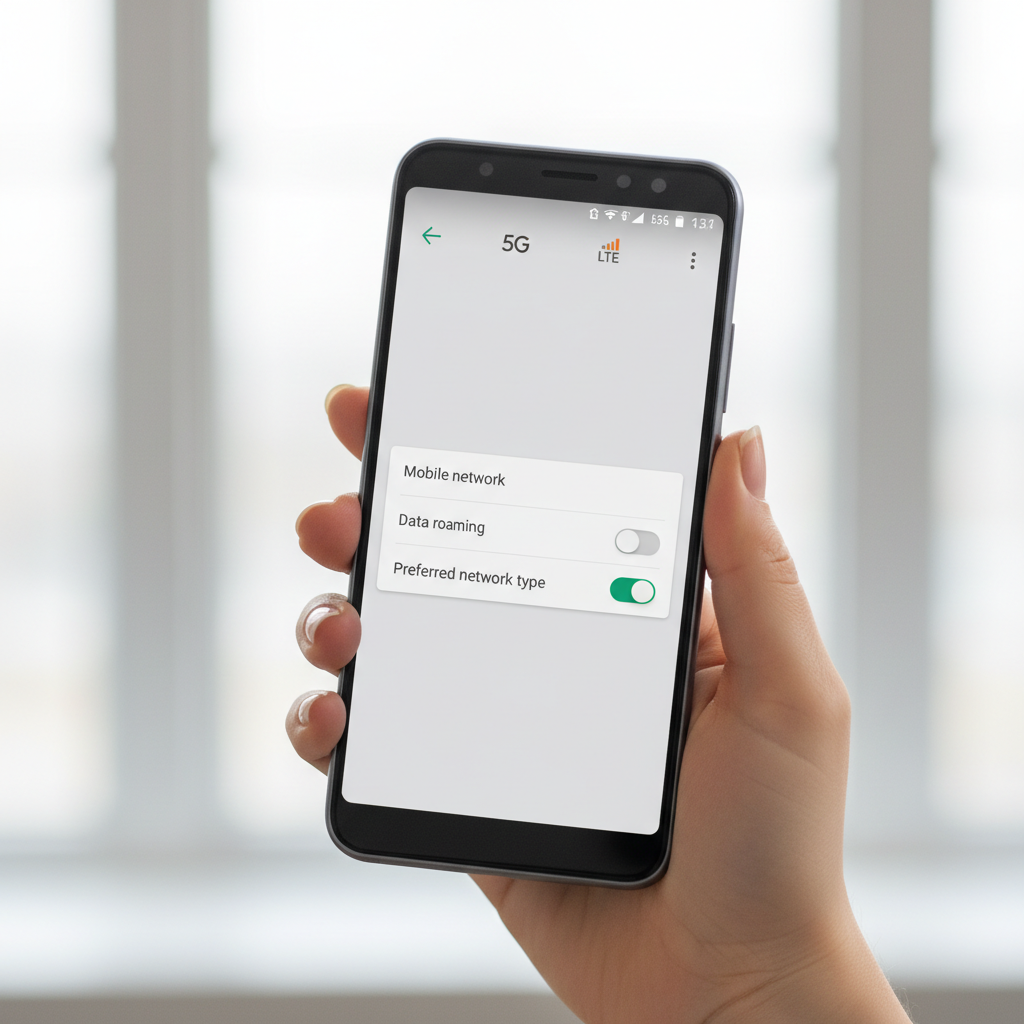
Before you touch settings: the 3 requirements that must be true
Most 5G “problems” aren’t software bugs, they’re eligibility issues. Get these out of the way early so you don’t waste time.
- 5G-capable phone: Your Android device must support 5G bands used in the U.S., and it must be carrier-approved if you use a carrier-locked model.
- 5G plan + provisioning: Your line needs a plan that includes 5G, and the carrier must provision 5G on the account. This can be wrong after a SIM swap or plan change.
- 5G coverage where you are: Indoors, basements, and dense areas can push you to LTE even in a “5G city.”
According to the Federal Communications Commission (FCC), mobile coverage can vary significantly by location and conditions, so seeing LTE in a 5G market is not automatically a phone fault.
Quick self-check: figure out what’s blocking 5G in 2 minutes
Use this short checklist to identify the likely cause before you dig into menus.
- Did 5G ever work on this phone/SIM? If it never worked, it’s often a plan, SIM, or device compatibility issue.
- Did it stop after an update, travel, or SIM change? That pattern points to network mode resetting, roaming rules, or provisioning.
- Does someone on the same carrier get 5G in the same spot? If yes, your settings or account is suspect. If no, coverage is the likely explanation.
- Are you on Wi‑Fi calling or airplane mode toggles often? Network handoffs can get “stuck” until a reset.
- Is Battery Saver on? Some devices reduce radio aggressiveness and prefer LTE.
Enable 5G in Android settings (common paths for Pixel, Samsung, and others)
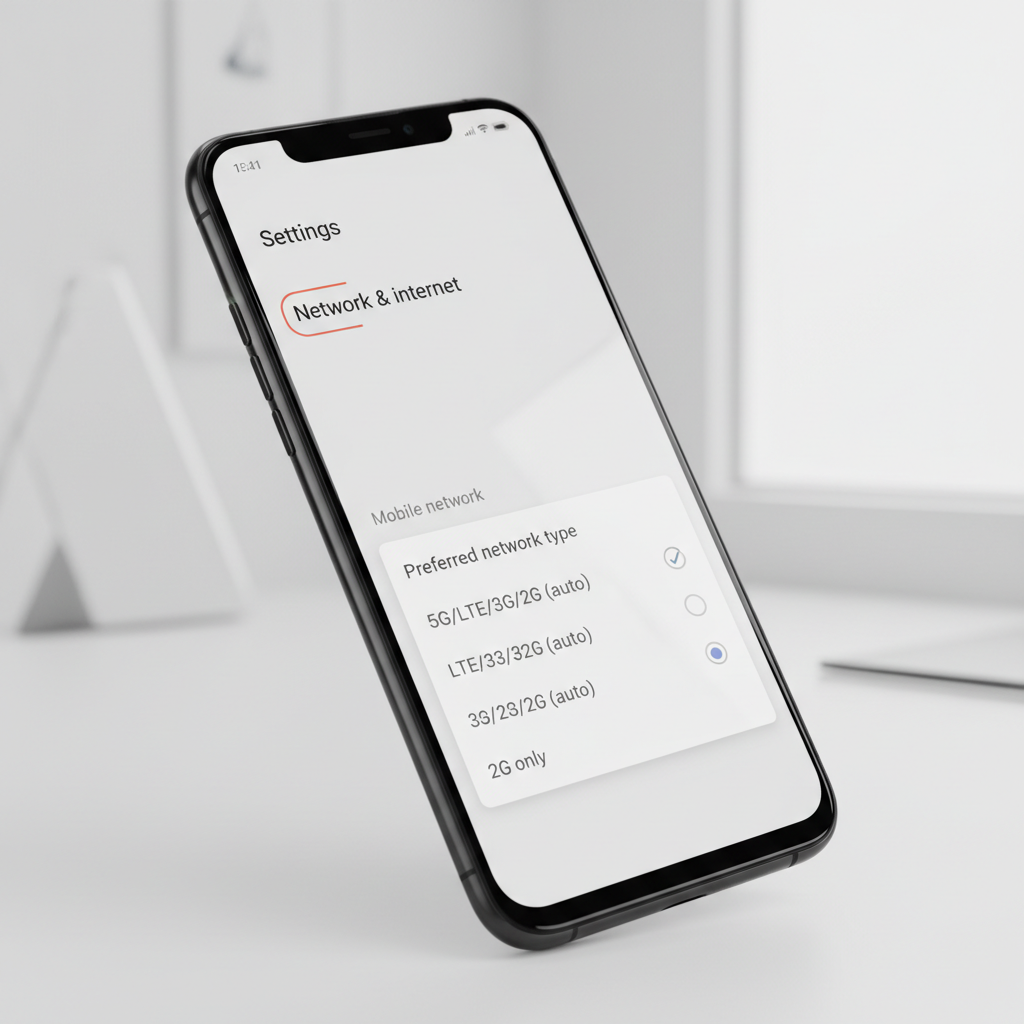
On many devices, 5G is controlled through the preferred network type. The exact wording varies by brand and Android version, but you’re hunting for “5G/LTE/3G/2G” style options.
Google Pixel (typical path)
- Settings → Network & internet → SIMs
- Select your SIM → Preferred network type
- Choose 5G (recommended) or 5G/LTE
Samsung Galaxy (typical path)
- Settings → Connections → Mobile networks
- Network mode
- Select an option that includes 5G/LTE (wording differs by carrier)
Other Android brands
- Settings → Mobile network / Cellular network
- SIM settings → Preferred network type or Network mode
- Pick the option that includes 5G
If you can’t find a 5G option at all, that’s a signal: the carrier firmware may hide it, your plan/SIM may not qualify, or your region/carrier combo doesn’t support 5G on that model.
Carrier and plan factors that silently disable 5G
Even when you know how to enable 5g on android phone, the carrier still decides whether your line can attach to 5G.
- Your plan tier: Some prepaid or legacy plans may limit 5G access, or require an add-on.
- SIM/eSIM provisioning: An older SIM sometimes works on LTE but won’t authenticate correctly for 5G. eSIM migrations can also need a refresh.
- Carrier settings update: Android receives carrier configuration updates that can change network mode options.
- MVNO rules: If you use an MVNO, 5G access can depend on the host carrier agreement and your device whitelist.
If you suspect provisioning, the fastest reality check is to log into your carrier account and confirm 5G is included, then ask support to verify “5G provisioning” on the line.
Troubleshooting steps that usually bring 5G back
These steps are safe in most cases and fix the “it should work but doesn’t” situations. Do them in this order, and stop once 5G returns.
- Toggle Airplane mode for 15–30 seconds, then turn it off.
- Restart the phone. It sounds basic, but it forces the modem to renegotiate.
- Disable Battery Saver temporarily, then re-check network mode.
- Update Android + carrier settings: Settings → System → System update (and check for carrier updates if your device shows them).
- Reset network settings (you’ll lose saved Wi‑Fi and Bluetooth pairings): Settings → System → Reset options → Reset Wi‑Fi, mobile & Bluetooth.
- Re-seat SIM / re-download eSIM: Try the SIM in a known-5G phone if possible, or re-scan eSIM QR code through your carrier process.
According to Google’s Android Help resources, resetting network settings is a standard step for persistent mobile connectivity issues because it clears stored network configurations that can conflict after changes.
What you should expect: 5G types, icons, and real-world behavior
People often assume any “5G” icon means the same thing, but carriers label 5G differently, and performance depends on network type and congestion.
| What you might see | What it usually means | What to do if speed feels off |
|---|---|---|
| LTE | No 5G connection, or device prefers LTE | Re-check network mode, coverage, plan provisioning |
| 5G | Standard 5G connection, often similar to strong LTE in some areas | Test outdoors, try different time of day, restart radio |
| 5G UW / 5G UC | Carrier branding for higher-capacity 5G layers in many markets | If unstable indoors, move near windows or outdoors |
One more thing people miss: your phone may show 5G availability while still routing some traffic similarly to LTE, depending on the network configuration. That’s normal behavior in many markets, not necessarily a broken setting.

Common mistakes that keep Android stuck on LTE
These are the traps that waste the most time because they look “close enough” to correct.
- Forcing LTE-only mode for battery or stability, then forgetting to switch back.
- Assuming “5G Auto” guarantees 5G. Auto modes can still prefer LTE if signal quality is better.
- Using an older SIM from years ago and expecting full 5G features.
- Testing only indoors. Many 5G layers struggle through building materials.
- Confusing Wi‑Fi issues with cellular issues. Turn Wi‑Fi off when testing mobile data.
If your goal is reliability more than chasing the icon, letting the phone choose the best network often gives the smoothest day-to-day experience.
When it’s time to contact your carrier or a repair professional
If you’ve confirmed the right network mode and tried resets, the next step depends on what you see.
- Contact your carrier if 5G never appears anywhere in a known 5G area, or if the 5G option is missing from network mode. Ask them to verify plan eligibility, device compatibility, and 5G provisioning.
- Consider device support/repair if the phone drops signal frequently, overheats during normal use, or can’t keep any stable mobile connection. Hardware issues are less common, but they happen.
If your phone is under warranty or carrier protection, it’s usually worth starting there. For refurbished or older devices, weigh the cost of repair against upgrading, especially if band support is limited.
Key takeaways and a simple action plan
If you remember one thing, it’s this: enabling 5G is not only a toggle, it’s eligibility plus settings plus coverage. When people ask how to enable 5g on android phone, the quickest win is confirming the plan and switching the preferred network type to a 5G option, then doing a network reset if it still refuses.
- Do now: Check Preferred network type and pick a 5G-enabled mode.
- Do next: Toggle Airplane mode, restart, then test outdoors with Wi‑Fi off.
- If still no 5G: Confirm plan provisioning and SIM/eSIM status with your carrier.
If you want a smoother setup, keep notes of your model name, Android version, and carrier, that info makes support calls much faster and avoids the usual back-and-forth.
FAQ
Why doesn’t my Android show a 5G option in network mode?
That usually points to a carrier configuration limitation, an unsupported device model for that network, or a line that isn’t provisioned for 5G. If the option is missing, checking with your carrier is often faster than reinstalling anything.
Can I enable 5G on Android without changing my SIM card?
Sometimes yes, especially with eSIM. But if your SIM is older, it may connect to LTE fine while failing 5G authentication features. If everything else looks right, asking for a replacement SIM can be a practical step.
Does turning on Battery Saver disable 5G?
Not always, but some phones become less aggressive about holding a 5G signal to save power, which can make the device stick to LTE more often. Testing with Battery Saver off helps you separate “power behavior” from true network issues.
Why do I get 5G outside but LTE inside my house?
Building materials can weaken higher-frequency signals. Many people see 5G return near windows or outdoors, while indoor areas fall back to LTE for stability. If it’s consistent at home, Wi‑Fi calling may be a better fix than chasing indoor 5G.
Is 5G always faster than LTE on Android?
Not necessarily. Network congestion, signal quality, and which 5G layer you’re connected to all affect performance. If LTE is strong and 5G is weak, LTE can feel faster in real use.
Will resetting network settings delete my photos or apps?
No, it typically only clears saved Wi‑Fi networks, Bluetooth pairings, and some cellular settings. It’s still smart to note your Wi‑Fi passwords before doing it.
Can an Android update turn off 5G?
It can change carrier settings or reset network mode defaults, so it may look like 5G “disappeared” after an update. Re-checking Preferred network type is a good first move.
If you want a more hands-off fix
If you’re stuck bouncing between LTE and 5G and you’d rather not keep experimenting, consider asking your carrier to confirm device compatibility and 5G provisioning in one pass, and if needed, have them issue a new SIM or re-push eSIM activation so your settings changes actually stick.