
how to fix instagram crashing android usually comes down to a handful of repeat offenders: a buggy update, corrupted cache, low storage, or a WebView-related conflict that takes down apps without warning.
If Instagram keeps closing the moment you open it, crashes when you post a Story, or freezes on Reels, you don’t need a factory reset as your first move. In most cases, you can narrow the cause in 10–20 minutes and get back to normal use.
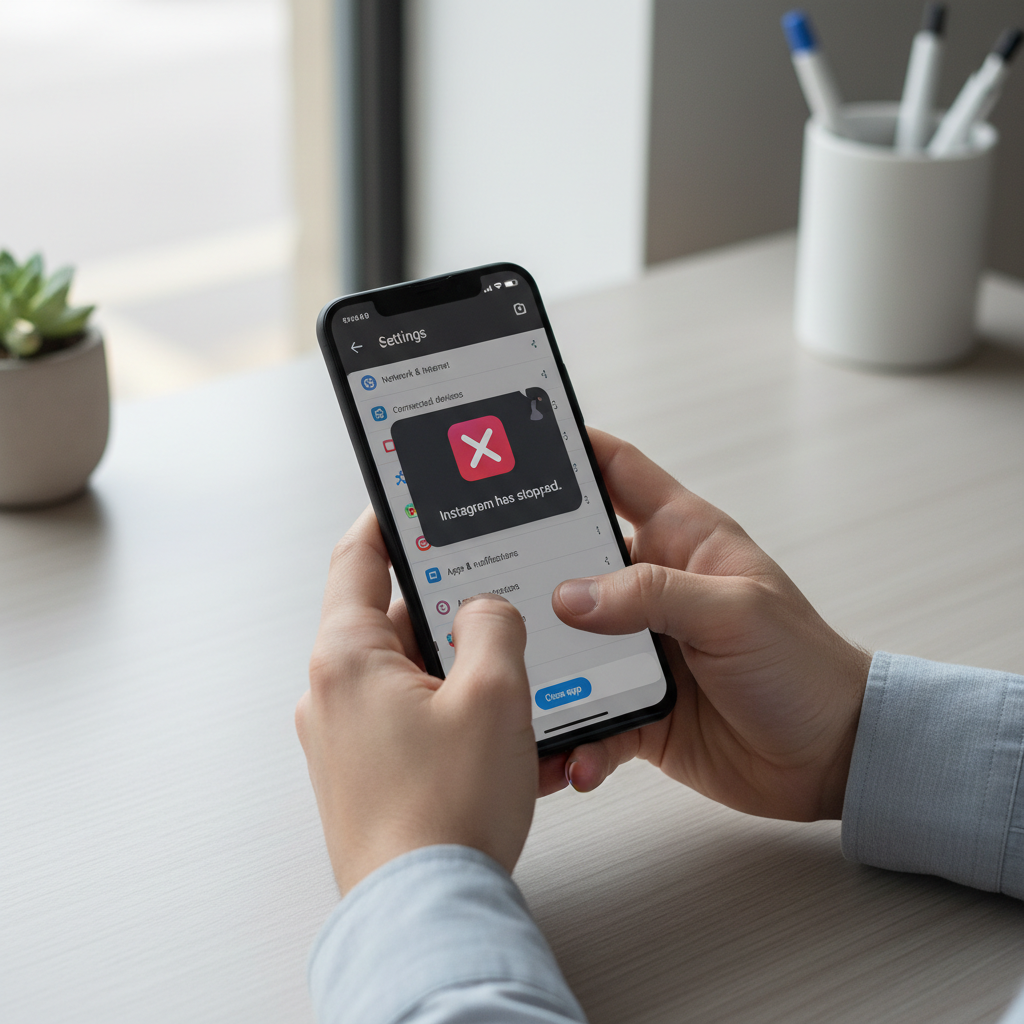
One thing that trips people up: “Instagram is crashing” can mean very different problems, from an account-specific glitch to an Android system component issue. Below is a practical sequence that helps you diagnose fast, fix what’s fixable, and know when it’s time to escalate.
Quick triage: what “crashing” looks like and what it suggests
Before you change settings, pay attention to when the crash happens. The pattern often points to the right fix.
- Crashes on launch: corrupted cache/data, bad update, WebView conflict, or low storage.
- Crashes only when uploading: permissions, storage access, codec/media issues, or unstable network.
- Crashes in DMs or Reels: memory pressure, app bug, or outdated system components.
- Only one account crashes: account/session corruption, experimental features, or server-side issue.
According to Google (Android Help), Android System WebView and Chrome can affect how apps render web content, and issues there can cause apps to misbehave, so it’s worth checking those components early if crashes feel “sudden” across multiple apps.
Fast checklist (do these first)
If you want the shortest path, run this list in order. It avoids the more destructive steps until you need them.
- Restart your phone (yes, really). It clears stuck processes and frees memory.
- Check if Instagram is down by looking for widespread reports (if everything is failing, your phone might be fine).
- Switch networks: Wi‑Fi to cellular or vice versa, then try again.
- Free storage: aim for at least 1–2 GB available; low space can destabilize apps.
- Update Instagram in Google Play.
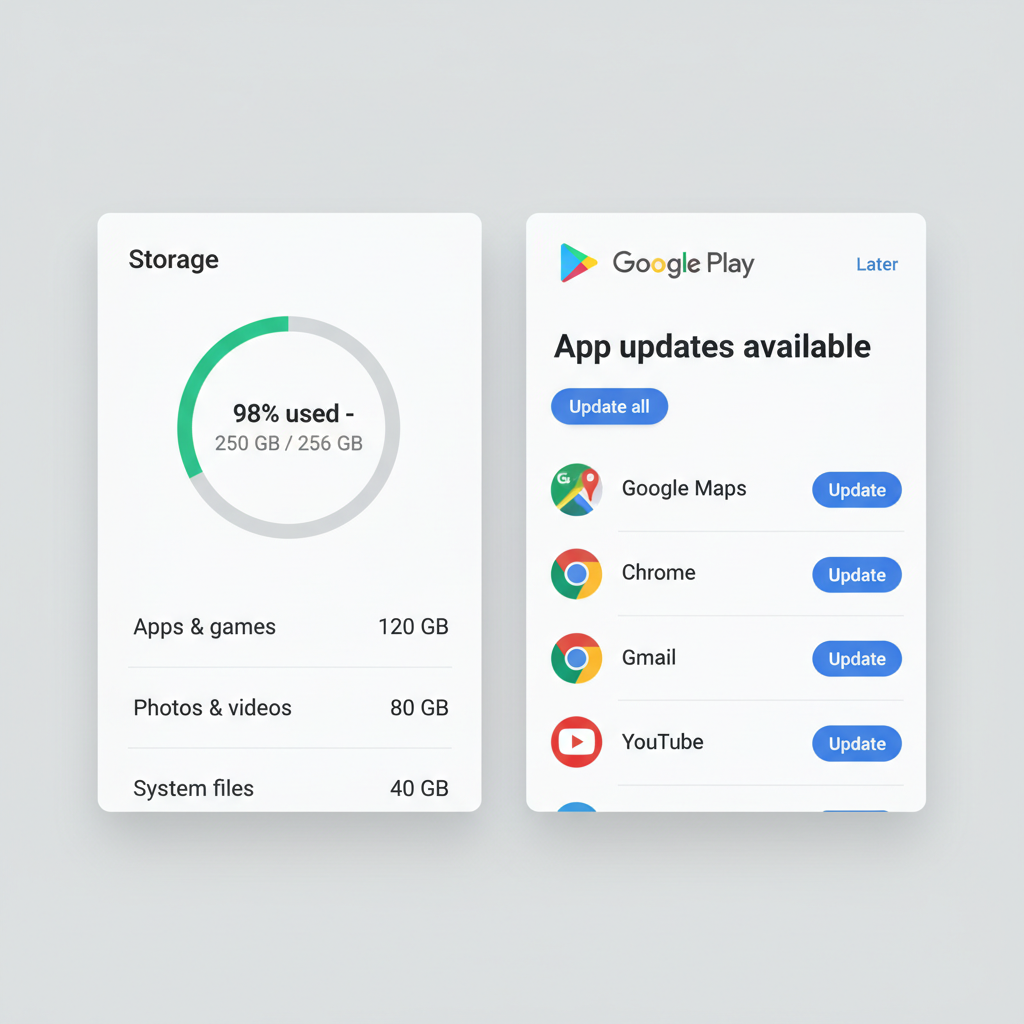
If you’re here because you searched how to fix instagram crashing android, these basics may feel too simple, but they eliminate a surprising number of “random crash” cases.
Most common causes (and the fix that matches each)
Crashes usually come from a mismatch between the app, your device resources, and Android components. Here’s a quick mapping you can use.
| Likely cause | What you notice | What to try |
|---|---|---|
| Corrupted cache | Launch crash, blank screen, stuttering feed | Clear cache, then restart |
| Corrupted app data/session | One account behaves oddly, repeated login prompts | Clear storage (data), re-login |
| Buggy Instagram build | Crashes started right after update | Update again, join/leave beta, reinstall |
| Low storage / memory pressure | Crashes when opening camera, editing, Reels | Free space, close background apps |
| Android System WebView / Chrome conflict | Multiple apps crash, not just Instagram | Update WebView/Chrome, reboot |
| Permission or media access issue | Crashes when posting, selecting photos, using mic | Review permissions, reset defaults |
Step-by-step fixes (in the order that tends to work)
1) Force stop Instagram and clear cache
This is the safest “real fix” to start with, and it targets corrupt temporary files.
- Go to Settings > Apps > Instagram
- Tap Force stop
- Tap Storage (or Storage & cache) > Clear cache
- Reopen Instagram and test the exact action that used to crash
If the crash happens during Stories/Reels, test the camera flow specifically, not just scrolling the feed.
2) Clear storage (data) if crashes persist
This signs you out and resets the app, so it’s more disruptive, but it fixes a lot of “looping crash on open” situations.
- Settings > Apps > Instagram > Storage
- Tap Clear storage (may be labeled Clear data)
- Open Instagram, log in, then test again
If you use two-factor authentication, make sure you can receive codes before you do this.
3) Update Instagram, Android System WebView, and Chrome
When people ask how to fix instagram crashing android, this is the “boring” step that often ends up being the real answer, especially after system updates.
- Open Google Play > search Instagram > Update
- Search Android System WebView > Update
- Search Google Chrome > Update
- Restart the phone after updates
If WebView doesn’t appear on your device, your phone manufacturer may handle it differently, Chrome updates still matter in many cases.
4) Reinstall Instagram (clean install)
If cache/data clears don’t stick, reinstalling resets app binaries and leftover junk. A clean install matters more than it sounds.
- Uninstall Instagram
- Restart your phone
- Reinstall from Google Play
- Log in and test posting, DMs, and Reels
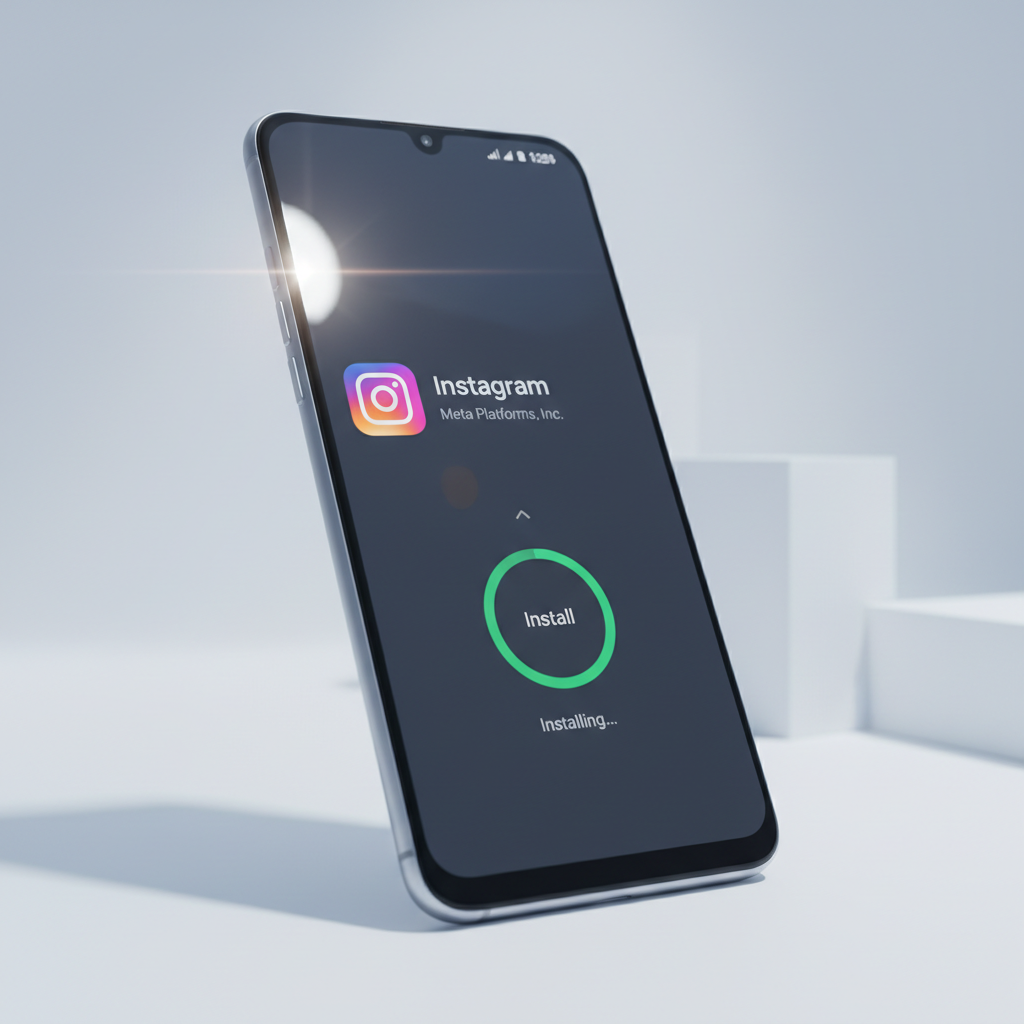
If you were on Instagram beta, consider leaving the beta program in Google Play. Beta builds can be stable, but they also introduce crashes for some devices.
5) Fix permission and media-related crashes (posting, camera, mic)
If Instagram crashes when you open the camera, attach media, or record audio, treat it like a permissions or media pipeline issue.
- Settings > Apps > Instagram > Permissions
- Allow Camera, Microphone, and Photos and videos as needed
- If you recently denied something, change it back and retry
Also check battery restrictions: Settings > Apps > Instagram > Battery, and try “Unrestricted” temporarily if the app crashes during uploads in the background.
6) Reduce memory pressure and heat (older phones, heavy Reels use)
On mid-range or older Android devices, Instagram can hit memory limits fast, especially with filters and video edits.
- Close other heavy apps (video editors, games, browsers with many tabs)
- Disable battery saver temporarily while testing
- Let the phone cool down if it feels hot, thermal throttling can cause instability
This isn’t glamorous, but it’s realistic: if your device is running at the edge, crashes can show up as “Instagram’s fault” even when the trigger is resource pressure.
How to tell if it’s your phone, your account, or Instagram’s servers
This is where most DIY troubleshooting gets sharper. You’re trying to avoid endless reinstall loops when the problem is upstream.
- Try a different account on the same phone: if it works, your main account might be the trigger.
- Try your account on another device: if it crashes there too, it’s likely account-side or server-side.
- Use Instagram Web in Chrome briefly: if web works but the app crashes, focus on app/system fixes.
According to Meta’s Instagram Help Center, reporting a problem from within the app (when possible) is the recommended route for persistent bugs, especially when issues appear tied to account features or specific screens.
Common mistakes that waste time
- Clearing cache repeatedly without changing anything else: do it once, then move forward.
- Ignoring storage: “I still have some space” can mean 200 MB, which is often not enough for stable media apps.
- Installing random APKs: it can introduce security risks, and it rarely solves a mainstream crash issue.
- Assuming it’s always Instagram: Android components (WebView/Chrome) and manufacturer overlays can be part of the chain.
If you’re troubleshooting for someone else, ask what changed right before the crashes: app update, Android update, new permission prompt, new VPN, or a storage cleanup tool. That detail usually matters more than people think.
When you should get extra help (or escalate)
If you’ve gone through the practical fixes and Instagram still crashes, it’s reasonable to escalate, but do it with the right info.
- Contact Instagram support/report a problem if crashes happen on specific features (like Reels editor) across multiple devices for your account.
- Check for Android OS updates if the issue started after a system patch and affects multiple apps.
- Talk to your carrier or device manufacturer support if crashes coincide with network drops, SIM changes, or aggressive battery management on your model.
If your phone shows overheating warnings, unexpected reboots, or battery swelling, stop using the device and consider professional repair guidance, since that can be a safety issue.
Key takeaways (keep this handy)
- Start simple: restart, free space, update Instagram.
- Cache then data: clear cache first, clear storage only if needed.
- Update WebView/Chrome when crashes feel sudden or affect multiple apps.
- Account testing saves time: try another account/device before endless reinstalls.
Conclusion: get stable first, then optimize
Most of the time, how to fix instagram crashing android is a straightforward sequence: clear cache, ensure enough storage, update Instagram plus WebView/Chrome, then reinstall if the crash keeps returning. If the issue follows your account across devices, it’s probably not your phone, and reporting it becomes the smarter move.
Pick one step, test the exact action that triggers the crash, then move to the next. If you want the quickest win, start with storage and updates, those two fix more “mystery crashes” than people expect.