
how to fix google play store not working usually comes down to a few repeat offenders: network hiccups, a stuck cache, outdated system components, or a Google account sync issue.
If the Play Store won’t open, keeps crashing, or won’t download apps, it feels like your phone is “broken” even when everything else works. The good news is most fixes are safe, quick, and don’t require a factory reset.
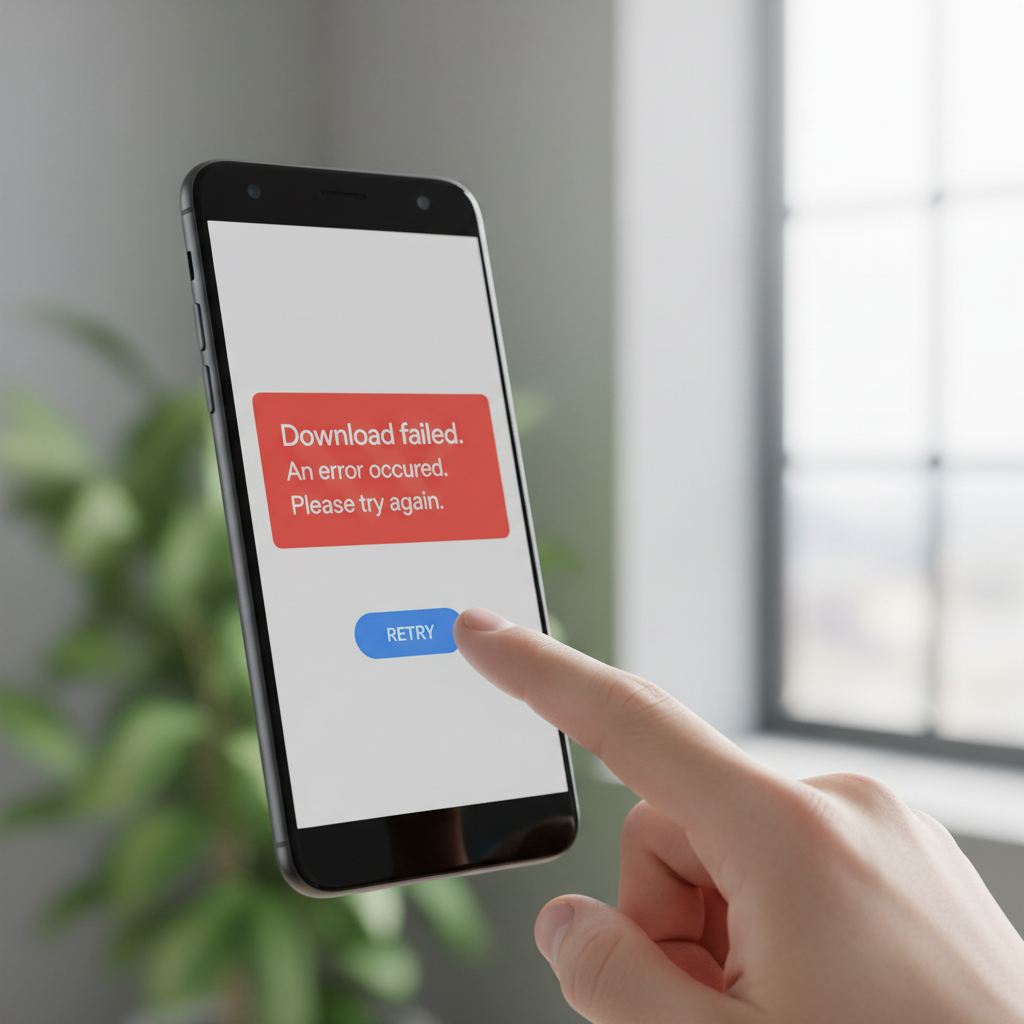
Below is a practical flow: start with the low-risk checks, then move into Play Store and Google services resets, and only then consider deeper steps. I’ll also call out common traps that waste time, like clearing the wrong thing or missing a system update.
Start Here: Identify Your Play Store Symptom
Different problems often point to different fixes. Before changing anything, note what you see on screen.
- Play Store won’t open or closes instantly
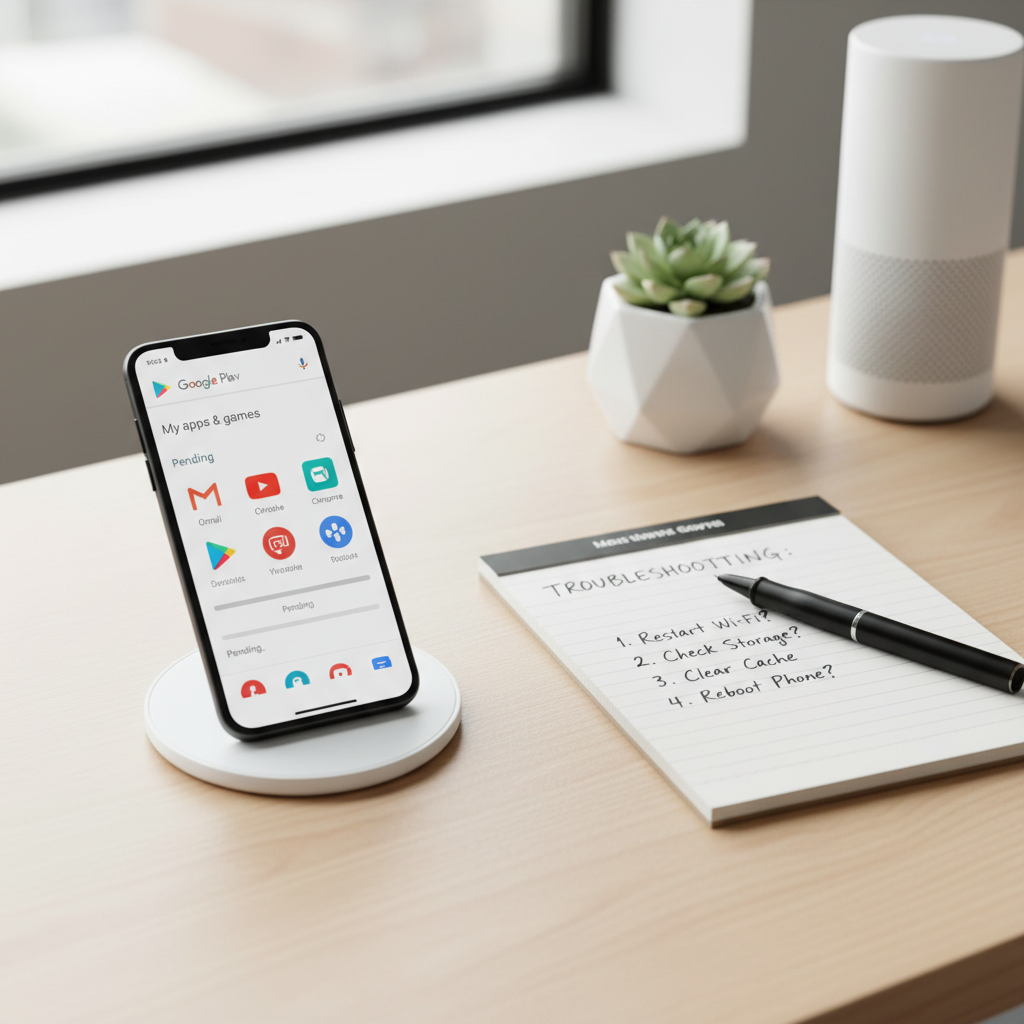
- Stuck on “Pending” for downloads
- Can’t update apps or updates loop forever
- Error codes (like “Something went wrong” or “Try again”)
- No connection even though Wi‑Fi works elsewhere
Key takeaway: If downloads are stuck on “Pending,” focus on network + Download Manager. If the Play Store crashes, focus on cache/data + Google Play services.
Quick Fixes That Solve a Surprising Number of Cases
These steps look basic, but they resolve a lot of “Play Store not working” reports without touching accounts or deleting data.
1) Check internet the way the Play Store “sees” it
- Toggle Airplane mode on for 10 seconds, then off.
- Switch between Wi‑Fi and cellular to test.
- Turn off VPN and Private DNS temporarily (they can block Google endpoints).
- If on Wi‑Fi, reboot the router; if on cellular, confirm you haven’t hit a data limit.
2) Restart the phone (yes, really)
A restart clears stuck background services that the store depends on, especially after OS updates or long uptimes.
3) Confirm date and time are correct
Incorrect system time can break secure connections. Set Automatic date & time and Automatic time zone.
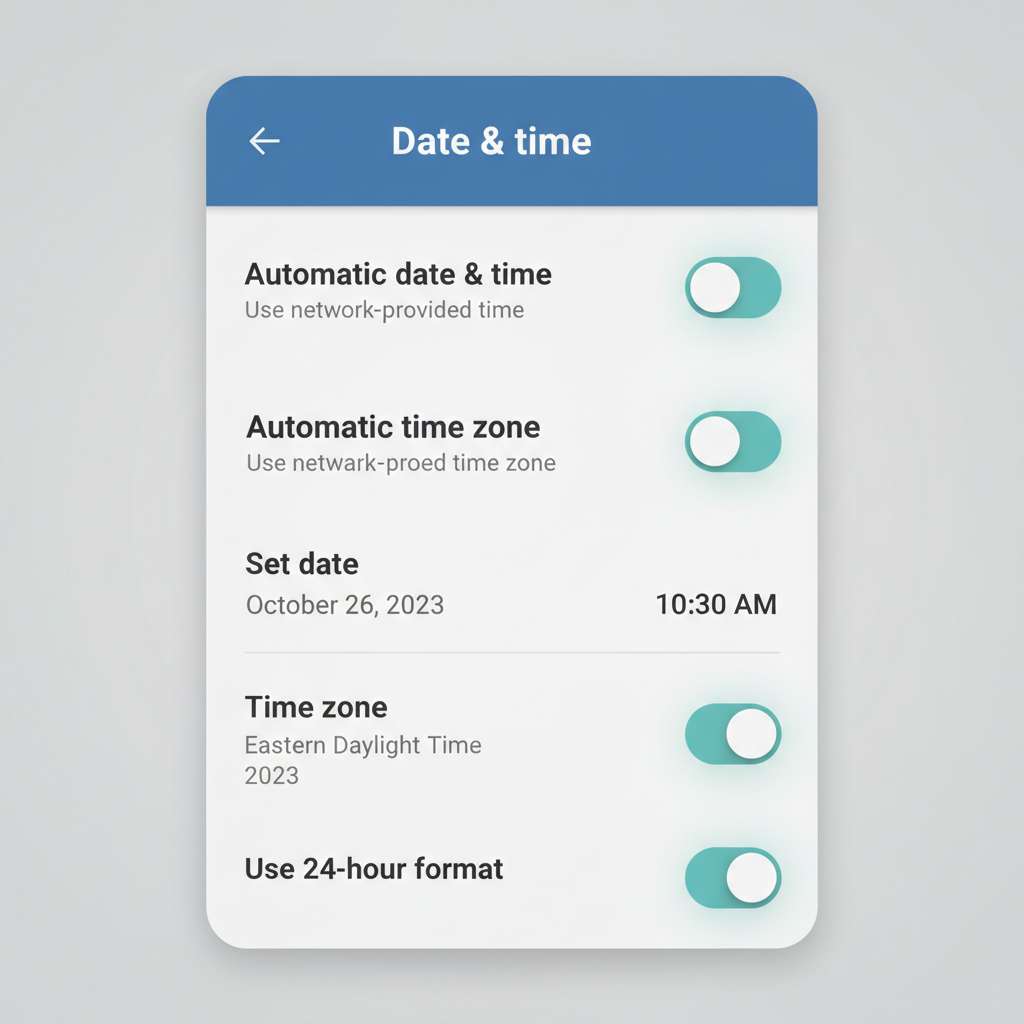
According to Google, Play Store troubleshooting often starts with verifying connectivity and updating the Play Store app because the store relies on background Google services and a stable connection.
Fast Self-Check: What to Try Based on What You See
If you want the shortest path, use this quick mapping and go straight to the likely fix.
| Symptom | Most likely cause | Best first fix |
|---|---|---|
| Downloads stuck on “Pending” | Network, queue stuck, Download Manager issue | Switch network, clear cache (Play Store + Download Manager) |
| Play Store crashes on open | Corrupted cache/data, outdated Play services | Clear cache/data, update Google Play services |
| “No connection” in Play Store | DNS/VPN, captive portal, Google account sync | Disable VPN/Private DNS, re-sync Google account |
| Apps won’t update | Storage, auto-update settings, background restrictions | Free storage, allow background data, reboot |
| Error codes repeat | Service mismatch or account auth issue | Clear data + remove/re-add Google account |
Clear Cache/Data the Right Way (Play Store + Google Services)
This is the core fix when people search how to fix google play store not working, because the store is really a bundle of apps working together.
Step A: Clear cache and data for Google Play Store
- Open Settings > Apps > Google Play Store
- Tap Storage (or Storage & cache)
- Tap Clear cache, then Clear storage (or Clear data)
What this changes: It resets Play Store preferences and local files. It does not delete your installed apps, but you may need to re-accept some prompts.
Step B: Do the same for Google Play services
- Settings > Apps > Google Play services > Storage
- Clear cache, and if the problem persists, consider Clear storage
Step C: Clear cache for Google Services Framework (if present)
Some devices expose this system app. If you see it in Apps, clear cache (and only clear data if you’re comfortable re-syncing afterward).
Important: After these steps, reboot the phone before re-testing downloads. Skipping the reboot is a common reason people think the fix “didn’t work.”
Fix “Pending” Downloads: Download Manager, Queue, and Storage
When the store looks fine but installs never start, treat it like a queue problem plus a background service problem.
1) Check storage and background restrictions
- Make sure you have at least a few GB free (updates can unpack temporarily).
- Disable Battery Saver and any “Restrict background data” setting for Play Store.
2) Clear cache/data for Download Manager
- Settings > Apps > (tap Show system if needed)
- Find Download Manager (sometimes “Downloads”)
- Storage > Clear cache, then Clear storage
3) Cancel and restart the queue
- In Play Store, pause any stuck downloads, then cancel them.
- Restart the phone, then try one small app first.
Update What Actually Matters: Play Store, Android System, and WebView
Sometimes the issue isn’t “your” Play Store as much as a mismatch between system components.
- Update Android: Settings > System > System update.
- Update Play Store: Play Store > profile icon > Settings > About > Update Play Store (if available).
- Update Android System WebView: search it in the Play Store, update it. Many apps and Google screens depend on WebView to render sign-in and store content.
According to Android Developers documentation, Android System WebView provides web content rendering for apps, and issues with it can affect screens that rely on embedded web components.
Google Account and Sync Fixes (When Errors Keep Coming Back)
If you’ve done the cache resets and the Play Store still fails with repeated prompts, authentication is a frequent culprit.
1) Re-sync your Google account
- Settings > Passwords & accounts (or Accounts) > Google
- Ensure sync is on, then use Sync now
2) Remove and re-add your Google account (more disruptive, often effective)
- Settings > Accounts > Google > Remove account
- Restart the phone
- Add the account back, then open Play Store
Before you do this: Make sure you know your Google password and have any 2-step verification access, otherwise you can lock yourself out for a bit, which is a frustrating detour.
Common Mistakes That Slow You Down
- Clearing cache for only the Play Store and skipping Google Play services. In many cases, services is the real bottleneck.
- Leaving a VPN or ad blocker on while troubleshooting, then blaming the store.
- Trying 10 fixes at once. Make one change, reboot when relevant, then test a single download so you can see what worked.
- Assuming it’s always Google’s outage. Outages happen, but local network and account sync issues are more common day to day.
When It’s Time for Deeper Help (Without Guessing)
If you still wonder how to fix google play store not working after the steps above, you’re probably in a less common scenario: device policy restrictions, corrupted system components, or a manufacturer-specific bug.
- Work/school phones: Your device may be managed (MDM). Play Store access can be restricted. Ask your IT admin.
- Rooted devices or custom ROMs: Google services compatibility issues are common. Consider checking your ROM’s support notes.
- Persistent crashes after updates: Back up essentials and consider a factory reset as a last resort, or contact the device maker’s support.
According to Google Play Help, if standard troubleshooting doesn’t resolve the issue, contacting device manufacturer support or Google support can be appropriate, especially for account or device-specific errors.
Practical Conclusion: A Simple Order That Usually Works
If you want a clean, low-drama sequence, do this: confirm internet and time settings, restart, clear cache/data for Play Store and Google Play services, then address “Pending” via Download Manager and storage, and only then move to account removal and system updates.
Action steps: Pick one test app, run the fixes in order, and stop as soon as downloads work again. That’s the fastest way to get back to normal without over-resetting your phone.