
Best laptop cooling pads for gaming usually matter when your laptop runs hot enough to throttle performance, spike fan noise, or feel uncomfortable during long sessions. A good pad will not turn a thin gaming laptop into a desktop replacement, but it can help your system hold boost clocks more consistently and keep surfaces cooler.
The trick is that “cooling pad” covers a bunch of designs that behave very differently. Some push lots of air but don’t line up with your laptop vents, some are quiet but barely move air, and some are built like stands with just enough airflow to make a real difference.
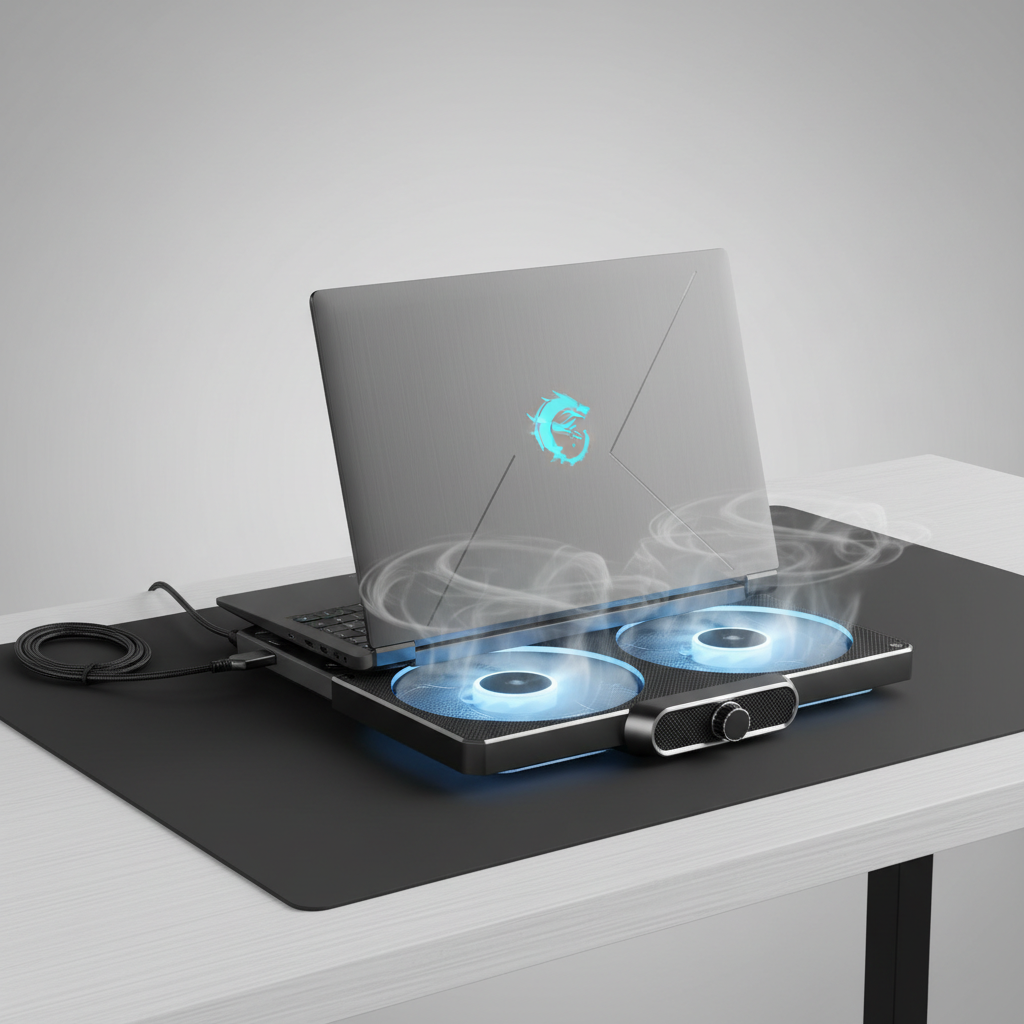
Below is a practical way to pick a pad that matches your laptop’s vent layout, your desk habits, and your tolerance for noise, plus a shortlist-style comparison table and setup steps you can actually follow.
What a cooling pad can (and can’t) do for gaming laptops
Most gaming laptops hit a limit called thermal throttling, meaning the CPU/GPU reduces speed to stay within safe temperatures. A cooling pad can reduce heat buildup around the chassis and increase fresh air intake, which may reduce throttling in many setups, but results vary by laptop design and room temperature.
According to NVIDIA, laptop performance is affected by power and thermal limits, so anything that improves cooling headroom can help sustain higher clocks in supported conditions. That said, if your laptop’s internal heatsink is clogged with dust or the thermal paste has aged, a pad won’t “fix” the root cause.
Use a pad when you notice these patterns: fans ramp early, keyboard deck gets hot, FPS dips after 10–20 minutes, or your laptop sits on a soft surface that blocks intake.
Quick comparison table: which type fits your setup?
Instead of chasing one “best” model, start by choosing the right type. The table below covers what typically changes your experience the most.
| Type | Best for | Pros | Trade-offs |
|---|---|---|---|
| High-airflow fan pad (2–5 fans) | Hot laptops with bottom intake vents | More airflow, often adjustable fan speed | Can be louder, alignment matters |
| Sealed/foam “vacuum” style pad | Laptops that can seal against a pad surface | Targets intake zone, can be effective | Fit is picky, bulkier feel |
| Stand-style cooler (fan + elevation) | People who want posture + modest cooling | Better airflow gap, ergonomic angles | Less raw airflow than big fan pads |
| Passive mesh stand (no fans) | Quiet rooms, light gaming, travel | Silent, light, improves ventilation | Limited impact in heavy loads |
How to choose the best laptop cooling pads for gaming (what actually matters)
Shopping pages overemphasize fan count and LEDs. In practice, these details decide whether a pad helps or just takes up desk space.
1) Vent alignment and pressure (the “hidden” deciding factor)
Flip your laptop over and look for the main intake vents. If your pad’s fans blow mostly into solid plastic, airflow won’t reach the heatsink area efficiently. A pad with adjustable fan positions or a wide, centralized airflow zone tends to be easier to match across laptop designs.
2) Size and stability
A 15.6-inch laptop can physically sit on many pads, but gaming often involves sudden mouse/keyboard inputs that wobble a flimsy stand. Look for a pad rated for your chassis size (15–17 inches is common) and check front lip height so the laptop doesn’t creep forward at steeper angles.
3) Noise profile, not just “dB” claims
Two pads can measure similarly yet sound different. Higher-pitched fan noise usually feels more irritating than a lower, broader “whoosh.” If you stream or play in a shared space, prioritize pads with a wide RPM range so you can tune noise versus cooling.
4) Build quality and airflow path
Mesh matters. A dense metal mesh can restrict airflow unless the fans are strong enough. On the other hand, very open grilles can feel flimsy. If the pad uses foam sealing, check whether the foam ring will match your laptop’s underside shape without blocking vents.
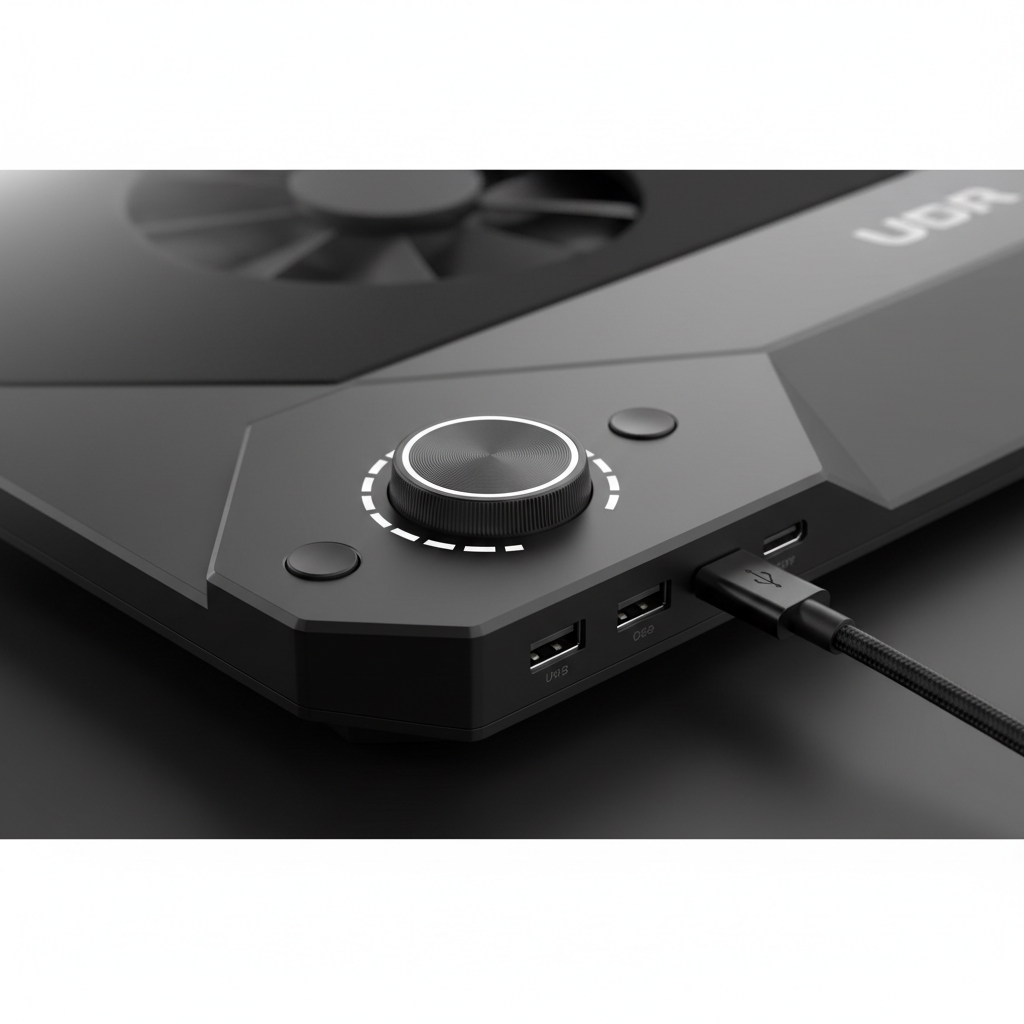
5) Power and ports
Most pads draw power via USB. If your laptop is short on ports, a pad with USB pass-through can be convenient, though pass-through sometimes shares power and may limit fan speed on some models. If you already use a hub, keep it simple and avoid stacking too many USB-powered accessories on one port.
Self-check: do you actually need a cooling pad?
Before buying, it helps to separate “normal laptop heat” from a cooling bottleneck that a pad can meaningfully improve.
- You likely benefit if FPS drops after the laptop warms up, the underside gets uncomfortably hot, or your laptop sits on fabric often.
- You might see modest gains if your laptop already has tall rubber feet and strong internal cooling, but you want quieter fans.
- A pad won’t solve it alone if temps are high even at idle, vents blow weak air, or fans make grinding noises.
If you want a quick reality check, run a repeatable in-game benchmark twice: once with the laptop flat on the desk, then on an elevated stand or pad. Watch whether performance stays steadier during the second run. Keep room temperature similar.
Recommended picks by scenario (instead of one “best” model)
Because availability and pricing shift a lot in the U.S., the safest way to pick the best laptop cooling pads for gaming is by matching features to your use case. Use these as buying filters when you compare listings.
- For maximum airflow in a hot room: choose a large-pad, multi-fan model with manual fan speed control and a full-surface mesh, ideally sized for 17-inch laptops even if you own a 15-inch system.
- For quieter late-night gaming: pick a stand-style cooler with fewer, larger fans and a wide RPM range, pair it with undervolting or a balanced power mode if your laptop supports it.
- For travel or small desks: a slim, single-large-fan pad or passive mesh stand can be “enough” when combined with a clean, hard surface and some rear elevation.
- For laptops with concentrated intake zones: consider a sealed airflow design if reviews show it fits your exact chassis layout, otherwise stick to a standard mesh pad to avoid misfit frustration.
Setup that improves results (most people skip this)
A cooling pad can underperform when it’s used like a decoration. Small adjustments change airflow more than you’d expect.
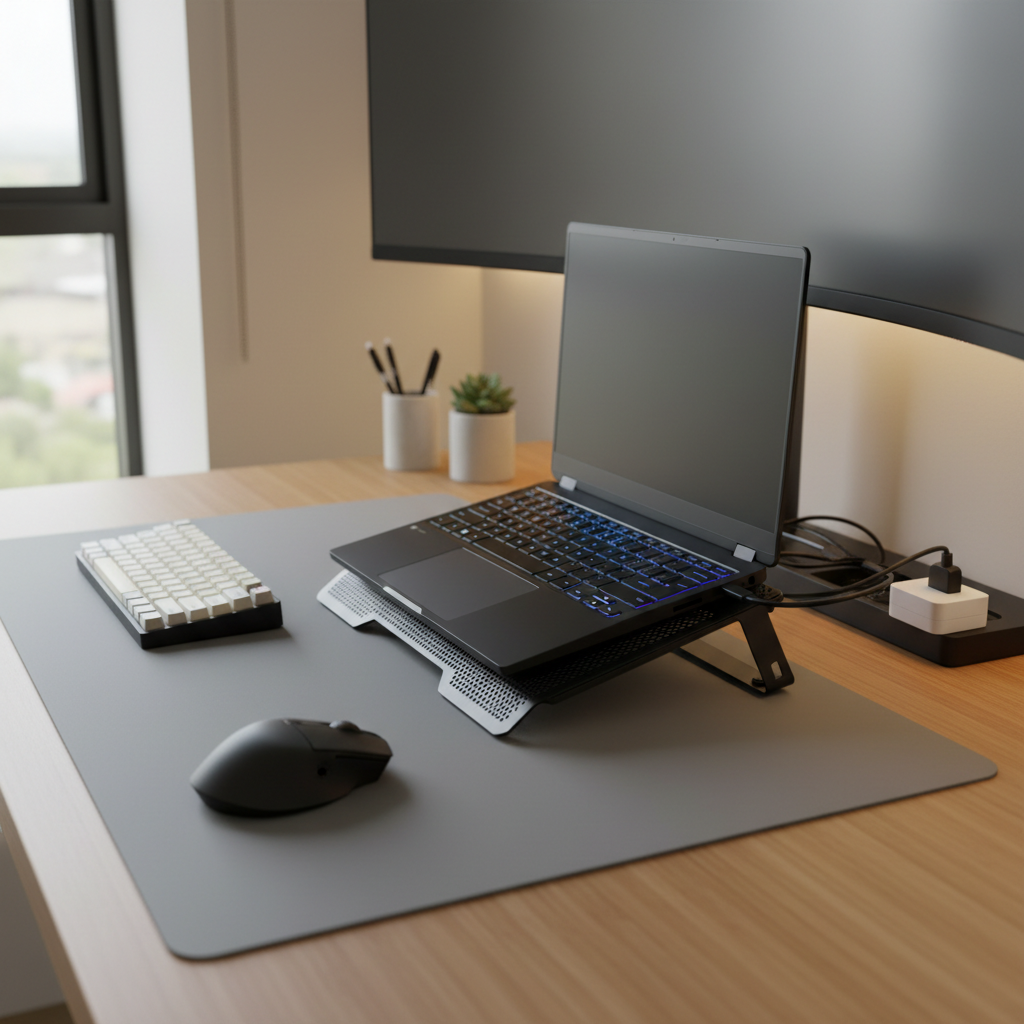
- Raise the rear even a little; creating a gap often improves intake more than blasting higher fan speed.
- Center the intake vents over the strongest airflow zone; if your pad has two fans, align them with your laptop’s vent clusters.
- Keep the desk surface clear; papers under the pad can block its own intake.
- Manage cables so they don’t prop up one corner, wobble reduces consistent contact and airflow direction.
Quick sanity tip: if your laptop exhaust vents are on the side or rear, make sure the pad doesn’t push warm exhaust back toward the intake. Most designs avoid this naturally, but tight spaces and walls behind the laptop can trap hot air.
Common mistakes and safety notes
- Buying by fan count alone: more fans can mean smaller fans, and smaller fans often mean sharper noise for similar airflow.
- Blocking your own vents: foam seals and front lips can cover intakes on some chassis, check before you commit.
- Ignoring dust: if your laptop heats up fast, cleaning vents and fans may help as much as a pad. According to the U.S. Environmental Protection Agency (EPA), indoor dust is a common contaminant; it can accumulate in electronics over time, so basic cleaning habits matter.
- Power draw surprises: USB-powered pads are usually low-power, but if your port is unstable or the pad flickers, try a different port or a powered hub.
- Heat and comfort: if you game with the laptop on your lap, avoid fan pads that can restrict breathing of fabric surfaces, and consider a lap desk. If heat causes skin discomfort, it may be worth asking a medical professional for advice.
Conclusion: picking the “best” is really about matching your laptop
The best laptop cooling pads for gaming are the ones that line up with your intake vents, keep a stable elevated angle, and let you control noise without fighting your setup. If you do one thing today, flip your laptop over and map where it breathes, then buy around that reality instead of marketing specs.
If you want a low-effort next step, test your current setup by elevating the rear with a sturdy stand or book for one gaming session, then decide whether you need extra airflow or just better ventilation and ergonomics.