
how to set up static ip address on router usually comes down to one practical goal: you want one device (printer, NAS, camera, gaming PC) to keep the same local IP so things don’t randomly stop connecting after a reboot.
If you’ve ever had a printer “disappear,” a Plex server lose its library connection, or a port-forwarding rule suddenly point to the wrong device, you’ve already felt why this matters. Your router hands out addresses automatically (DHCP), and those leases can change.
The good news is you rarely need to buy anything or call your ISP. In most homes, you just need a stable private (LAN) IP. This guide walks you through the two common approaches, how to choose a safe address, and how to verify it actually sticks.
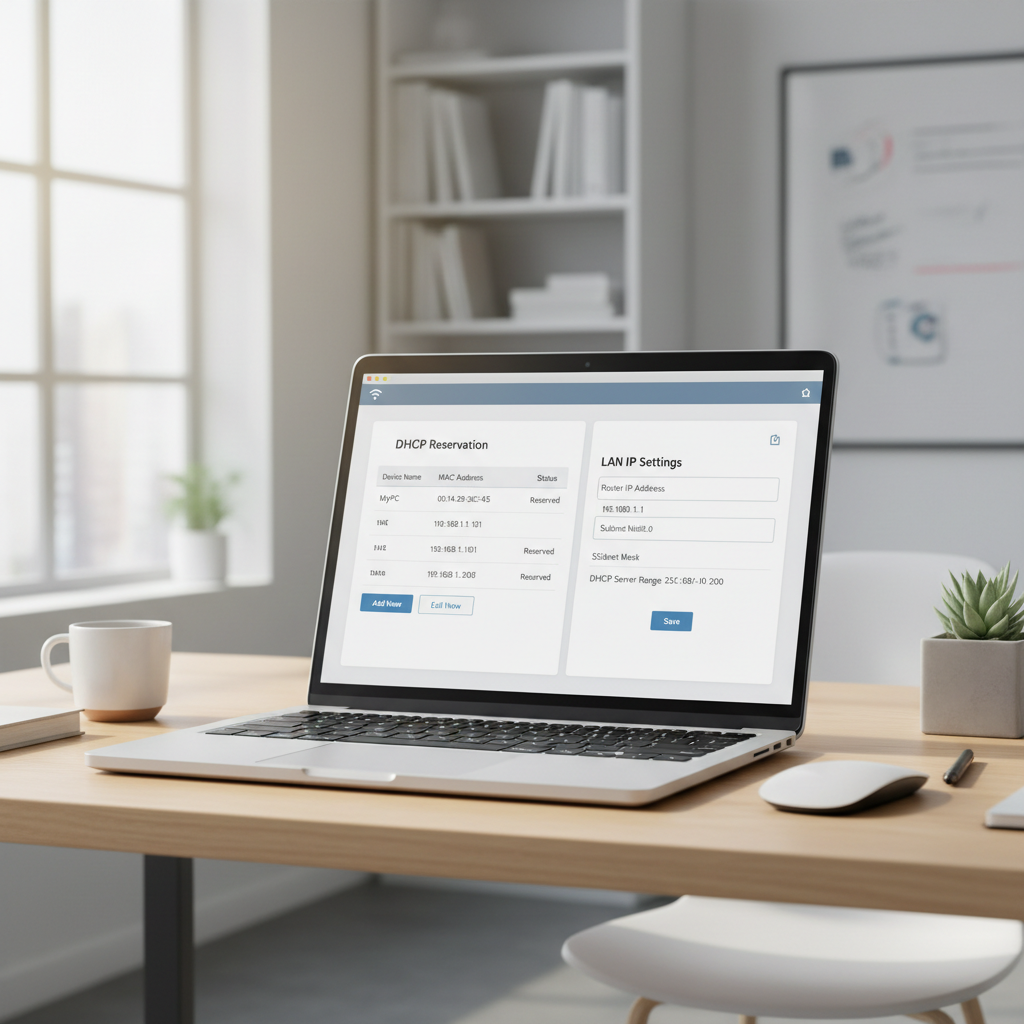
Static IP vs DHCP reservation (which you actually want)
People say “static IP” and mean two different things. Getting this wrong is where most frustration starts.
- Static IP on a device: you manually set the IP on the printer/PC/camera itself. Works, but easier to misconfigure.
- DHCP reservation (recommended): the router still uses DHCP, but it always gives the same IP to a specific device (by MAC address). Usually the cleanest option.
For most home networks, a DHCP reservation is the safer version of “static,” because the router stays in charge of what’s in-use and what isn’t.
Before you start: collect the 3 details that prevent mistakes
To set a stable address without breaking connectivity, you need a few basics from your router and the target device.
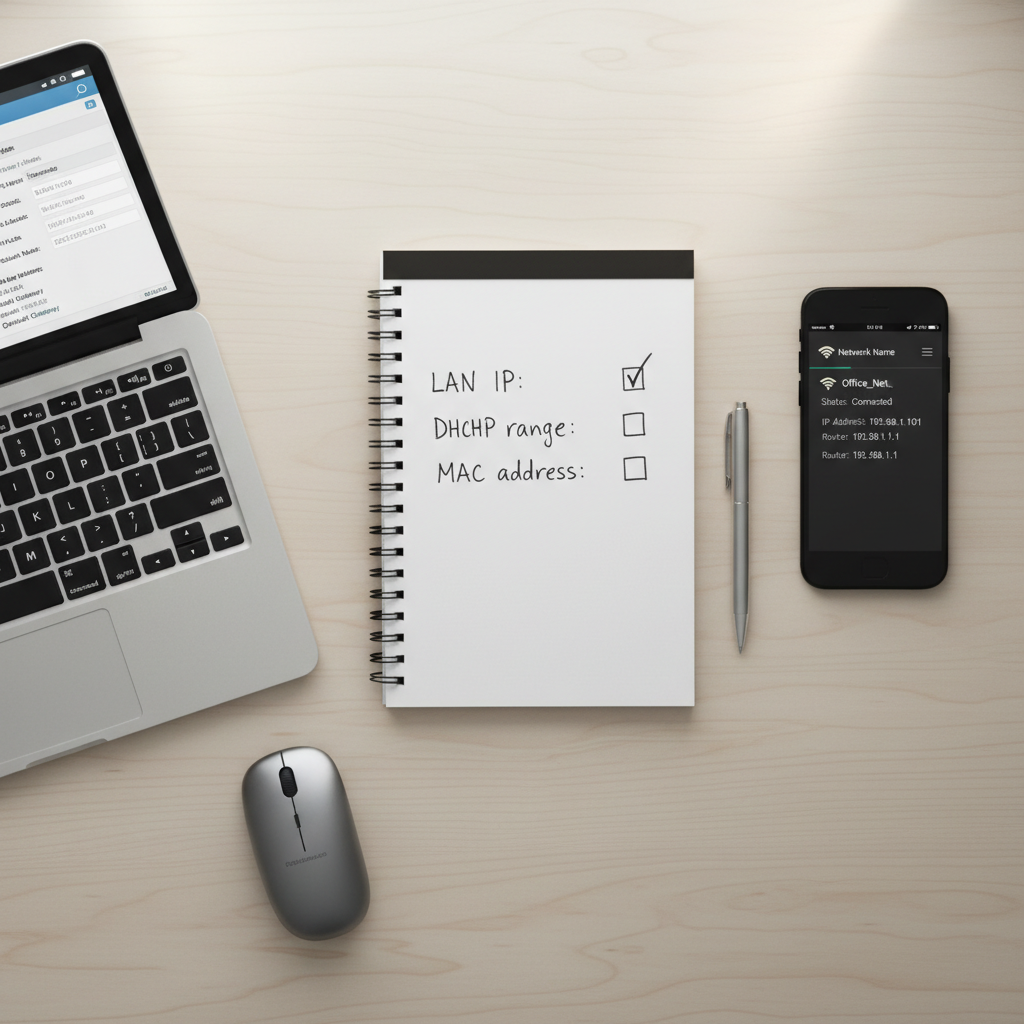
1) Your router’s LAN IP and subnet
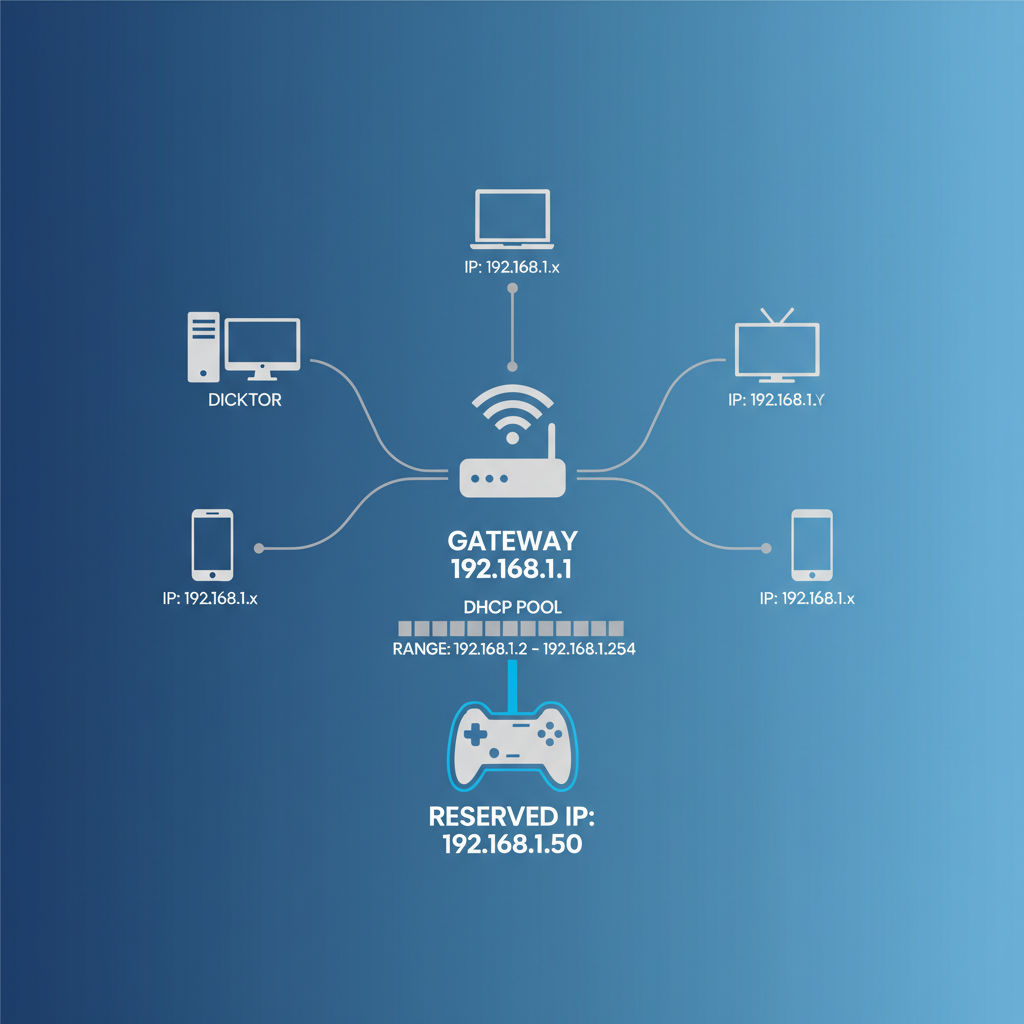
Common examples are 192.168.1.1 or 192.168.0.1. The subnet is typically 255.255.255.0 (also written as /24). If you’re unsure, check your device’s current network details.
2) Your DHCP range (the pool)
This is the block of addresses your router automatically hands out, such as 192.168.1.100–192.168.1.249. You generally want your reserved/static IP to be outside that range, or reserved inside it using the router’s reservation feature.
3) The device’s MAC address
For a DHCP reservation, the router matches a device by MAC address. On Windows it’s “Physical Address,” on Apple devices it’s “Wi‑Fi Address” (note: some devices use “Private Wi‑Fi Address,” which can change unless you disable it for your home network).
Quick note about public vs private IP: if your goal is remote access from outside your home, you might be thinking of a public static IP from the ISP. That’s a different service. Here we’re focusing on the home LAN address that keeps local connections stable.
Self-check: which setup fits your situation?
If you’re not sure how to set up static ip address on router for your exact use case, this quick sorting step saves time.
- You need port forwarding, VPN to home, or a game server: do a DHCP reservation for the host device, then update port-forwarding rules if needed.
- You have a printer, NAS, or smart hub: DHCP reservation is usually simplest and most reliable.
- Your device has no “network advanced” settings (or it’s painful to configure): do it on the router side (reservation).
- You must set IP on-device (some enterprise gear): use on-device static, but pick an address carefully to avoid conflicts.
Method 1 (recommended): set a DHCP reservation on the router
This is the method most home routers support: you pick an IP, tie it to a MAC address, and the router always hands out that same address.
Step-by-step (router-side reservation)
- Log in to your router: typically http://192.168.1.1 or http://192.168.0.1. Use the admin credentials.
- Find DHCP settings: look for “LAN,” “DHCP Server,” “Address Reservation,” “Static DHCP,” or “IP & MAC Binding.”
- Pick the device: many routers show a client list; select the device and choose “Reserve.” If not, enter the MAC manually.
- Choose an IP: either a suggested one or your own choice. Stay consistent with your subnet (for example, 192.168.1.x).
- Save/apply, then renew the lease: reboot the device, or disconnect/reconnect Wi‑Fi, or renew DHCP.
Verify: on the device, check it received the reserved IP. Then try the thing you care about (printing, NAS mapping, camera feed, port forwarding test).
Good IP choices (practical rule of thumb)
If your DHCP pool starts at .100, reserving .20, .30, or .50 often keeps things tidy. But some routers let you reserve inside the pool safely, since they won’t assign that address to another device once reserved.
Method 2: set a static IP on the device (when you have to)
Sometimes the device needs to be configured directly, or you prefer explicit control. This can work well, but the details matter.
Device-side static IP fields (what they mean)
- IP address: the unique local address you choose, e.g., 192.168.1.50
- Subnet mask: commonly 255.255.255.0
- Default gateway: your router’s LAN IP, e.g., 192.168.1.1
- DNS server: often your router (192.168.1.1), or a trusted resolver you prefer
Safe setup pattern
- Pick an IP outside the DHCP range to reduce conflict risk.
- Keep gateway/subnet exactly matching the router.
- After saving, test local browsing, then test the specific service (printer discovery, SMB share, camera app).
According to FCC, home routers typically assign private IP addresses for devices inside your network, which is why these settings affect local connectivity, not your ISP-provided public address.
Common router menus and what they’re called (quick reference table)
Router interfaces vary a lot, but the features tend to map to the same concepts.
| What you want | Common menu label | What it does |
|---|---|---|
| Reserve an IP for a device | Address Reservation / Static DHCP | Router always gives the same IP to that MAC |
| Change the DHCP pool | DHCP Range / Starting IP | Defines what IPs get assigned automatically |
| See device details | Client List / Attached Devices | Shows IP, MAC, hostname, connection type |
| Make ports point to the device | Port Forwarding / NAT Rules | Routes inbound traffic to a chosen LAN IP |
Key takeaways and troubleshooting (the stuff that usually goes wrong)
If your “static” IP doesn’t stick, or something breaks right after you set it, it’s almost always one of these.
- IP conflict: you picked an address already used by another device. Fix by choosing a different IP, or reserve it on the router.
- Wrong subnet/gateway: the device ends up on a different network and can’t reach the router. Double-check gateway and mask.
- MAC randomization: phones/laptops may rotate MAC addresses unless “Private Wi‑Fi Address” is turned off for your home SSID, which can break reservations.
- Multiple routers: if you have ISP modem/router plus a second router or mesh, you might be reserving IPs on the wrong box. Confirm which device runs DHCP.
- Port forwards still pointing to the old IP: update rules after you change the host device address.
Fast verification checklist
- Router client list shows the device with the expected IP
- From a computer, you can ping the IP (if allowed on your network)
- Reboot the device and confirm the IP remains the same
- The app/service that depends on it works again
When you might need ISP or pro help
If your real goal is a public static IP for hosting services, some ISPs offer it as an add-on, and some plans don’t. Also, if you’re dealing with double NAT, business gateways, or you’re trying to expose services to the internet, it can get risky fast if you’re not comfortable with firewall rules.
In those cases, it’s reasonable to ask your ISP what’s supported, or consult a network professional, especially if you’re securing cameras, NAS access, or remote admin panels.
Conclusion: the simplest reliable setup
For most homes, the most stable answer to how to set up static ip address on router is DHCP reservation: it keeps the router in control, prevents conflicts, and makes port forwarding and device discovery far less fragile.
If you want one next step, pick one “problem” device, reserve an IP for it today, then reboot it once and confirm the address stays put. That single test usually tells you everything you need about your router’s behavior.
FAQ
- What’s the difference between a static IP and a reserved IP?
Static IP is set on the device manually, while a reserved IP is assigned by the router via DHCP but always the same. For home networks, reservation tends to be easier to maintain. - Do I need a static IP from my ISP to do this?
No, not for local stability. A public static IP matters for certain remote-access setups, but keeping a printer or NAS reachable at home is a LAN issue. - Which IP address should I choose for a home static setup?
Choose an address in your router’s subnet and avoid conflicts. Many people pick an IP outside the DHCP pool, or use DHCP reservation inside the pool so the router blocks others from using it. - Why did my DHCP reservation stop working after a while?
Often it’s MAC randomization on the client, or the device switched between Ethernet and Wi‑Fi (different MAC). Confirm the router is reserving the correct interface. - Should I set DNS to my router or to a public DNS?
Both can work. Router DNS is simple and often fine, public DNS can help in some cases, but if your router provides local name resolution, pointing DNS at the router may keep local features working. - Can I reserve IPs for multiple devices?
Yes, and it’s common for printers, NAS, cameras, and hubs. Just keep a simple list so you don’t reuse the same address later. - Will this improve gaming ping or Wi‑Fi speed?
Usually not directly. It improves consistency for services that depend on stable addressing, like port forwarding, local servers, and device discovery.
If you’re trying to set up remote access, port forwarding, or a home server and you’d rather not guess, a simple approach is to document your LAN subnet, DHCP range, and reserved IP list first, then change one thing at a time so you can roll back quickly if something behaves oddly.