
Best budget mechanical keypads for gaming are basically the shortcut to better control without paying full-keyboard money, but only if you buy the right kind for your setup. The wrong one feels cramped, misses key combos, or takes up desk space you were trying to save.
This guide is for people who play on PC, type a lot, or do both, and want a small mechanical pad that feels solid, lasts, and doesn’t turn into a “drawer accessory” after two weeks. I’ll keep it practical: what to look for, what to skip, and how to match a keypad to the way you actually play and work.
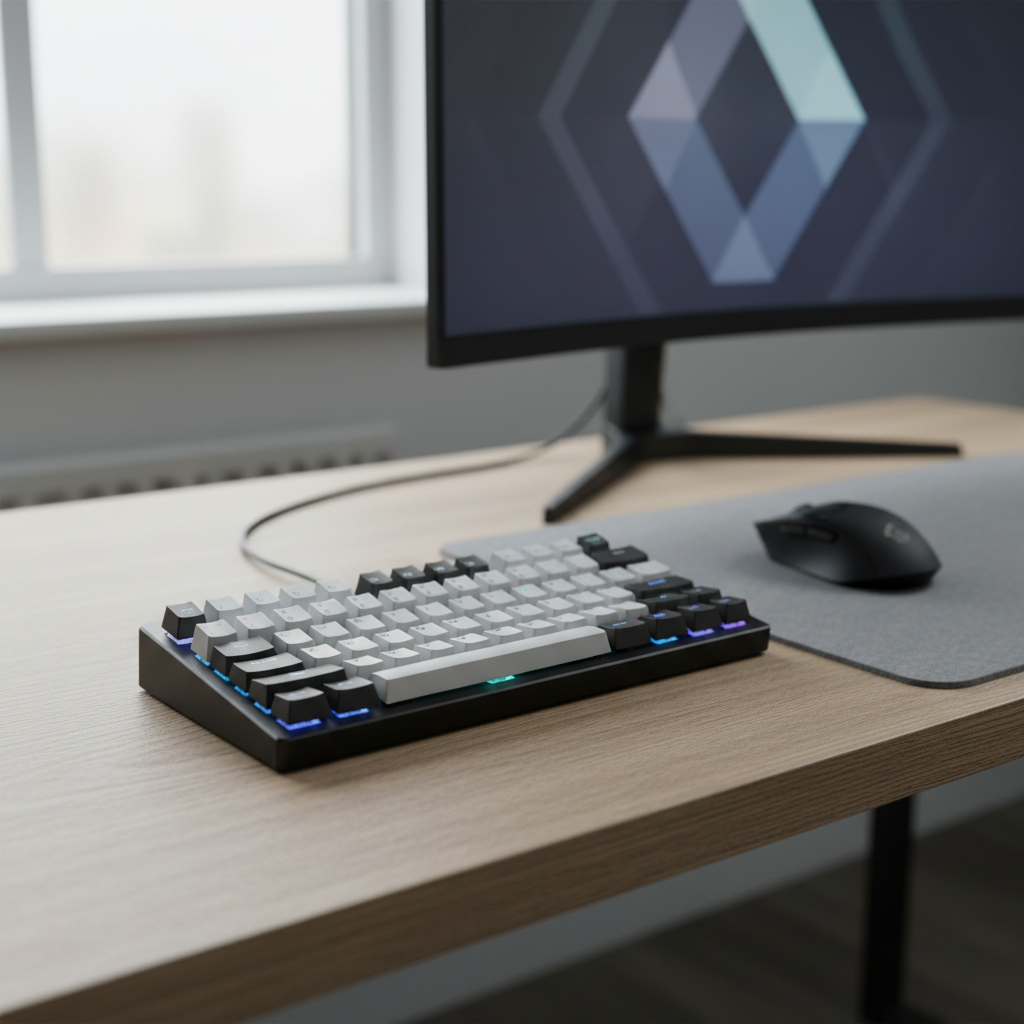
One quick note before we get into models: “keypad” can mean a left-hand gaming pad, a macropad, or a numpad-style board. A lot of disappointment comes from buying the wrong category, not from buying the wrong brand.
What counts as a “mechanical keypad” (and which type you actually need)
In shopping listings, “mechanical keypad” gets used loosely. Here are the common types, and why you might pick each.
- Gaming keypad (left-hand pad): Usually 20–40 keys, sometimes a thumb cluster, sometimes a wrist rest. Great if you mainly want movement + skills on one hand.
- Macropad: Often 6–16 keys, built for shortcuts, streaming, editing, and MMO abilities. Better for productivity and “one-button actions.”
- Numpad-style mechanical keypad: 17–23 keys, calculator layout. Best if you miss a numpad on a compact keyboard, or want numeric entry plus a few macros.
If your main goal is FPS movement and quick binds, you usually want a gaming keypad, not a numpad. If you want hotkeys for Discord, push-to-talk, OBS scenes, or Photoshop actions, a macropad is often the happier purchase.
Why budget mechanical keypads vary so much in feel
Two budget pads can look the same online and feel totally different on your desk. The difference usually comes down to a few parts and design choices.
- Switch type and quality: “Mechanical” can include name-brand switches, decent clones, or inconsistent bargain switches. For gaming and typing, consistency matters more than hype.
- Stabilizers (for larger keys): Spacebars and big modifier keys can rattle. On a keypad, that thumb key is often the dealbreaker.
- Firmware/software: Cheap software can be frustrating, especially if you want layers, tap/hold actions, or per-game profiles.
- Layout and ergonomics: A keypad that forces your wrist inward can feel “fine” for 10 minutes and rough after an hour.
According to NIST, ergonomic guidance generally emphasizes neutral wrist posture and reducing repetitive strain risk. A keypad won’t magically fix ergonomics, but choosing a layout that keeps your wrist straighter can help in many cases.
Quick buying checklist (so you don’t waste money)
If you only remember one section, make it this. Use it to filter listings fast.
- Decide the category: gaming keypad vs macropad vs numpad-style.
- Count the keys you truly need: for FPS, you may need 20–30; for macros, 6–12 can be plenty.
- Pick a switch feel: linear (smooth, common for FPS), tactile (noticeable bump, popular for typing), clicky (loud, not for everyone).
- Confirm remapping support: onboard memory helps if you move between PCs or use consoles via adapters.
- Check connection: wired is simplest; wireless is nicer but can add cost and battery friction.
- Look for hot-swap if you’re picky: swapping switches later can extend the life of a budget buy.
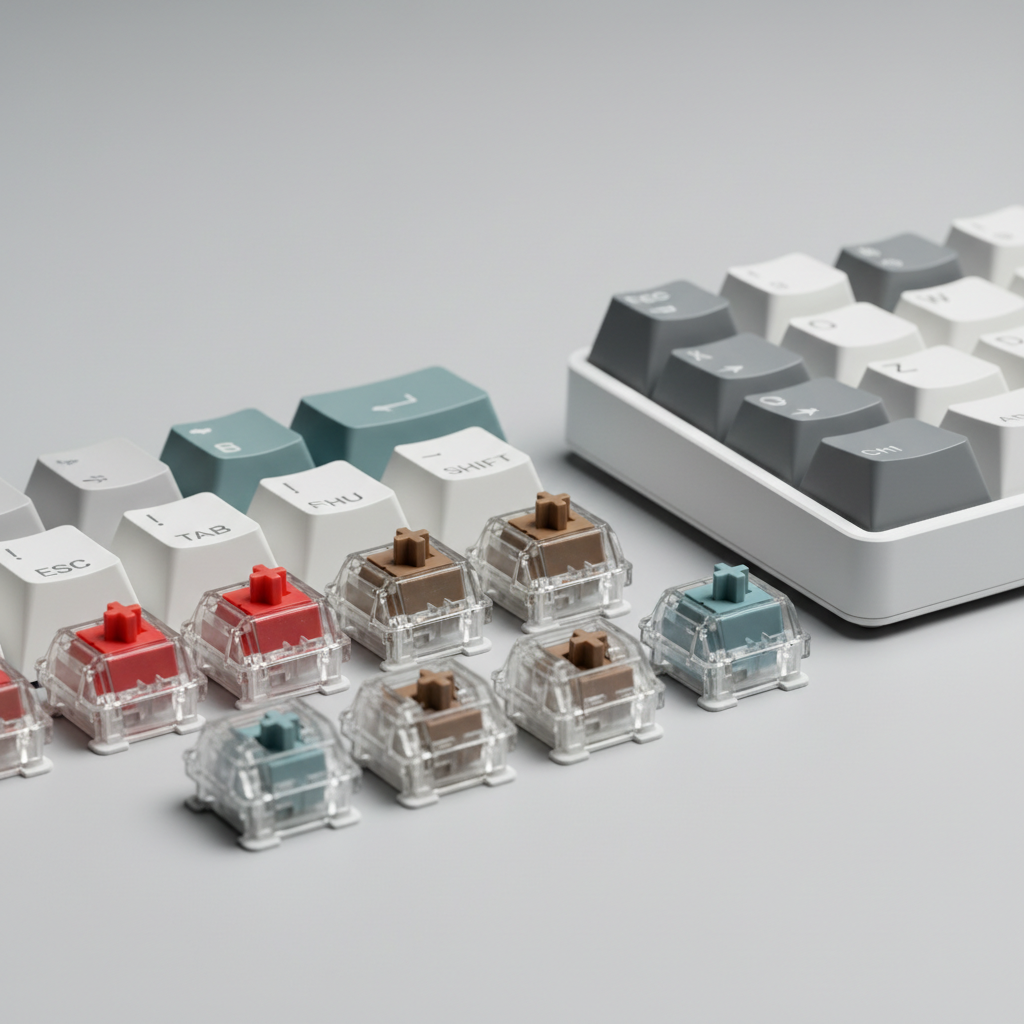
For most people shopping best budget mechanical keypads for gaming, the real “value” win is remapping + comfort, not flashy RGB or metal case marketing.
Recommended budget picks by use case (with a comparison table)
I’m not going to pretend there’s one perfect keypad for everyone. Instead, here are practical “buying buckets” and what tends to work well in each. Use the table to narrow your shortlist, then shop for a model that matches those specs in your price range.
| Use case | Best form factor | Keys to target | Switch feel | Must-have features | Nice-to-have |
|---|---|---|---|---|---|
| FPS & battle royale | Gaming keypad (left-hand) | 20–35 | Linear | Reliable remap, stable thumb key | Angle adjustment, onboard profiles |
| MMO/MOBA abilities | Gaming keypad or macropad | 12–30 | Tactile or linear | Layers/macros, easy profile switching | Rotary knob, per-app auto-switch |
| Typing + productivity shortcuts | Macropad | 6–16 | Tactile | Programmable layers, solid keycaps | Hot-swap, VIA/QMK support |
| Spreadsheet/data entry | Numpad-style | 17–23 | Any (preference) | Standard numpad layout, clear legends | Wireless, calculator key |
| Small desk / travel | Macropad or compact numpad | 6–23 | Linear (quieter builds exist) | Detachable cable, sturdy case | Bluetooth + 2.4GHz combo |
If you’re trying to keep cost down, prioritize software quality and a layout you’ll actually use daily. Fancy materials are nice, but they rarely fix a bad key arrangement.
How to set up your keypad for gaming and typing (fast, no rabbit holes)
This is where a budget keypad can feel “premium” quickly: smart mapping. Keep it simple at first, then iterate.
Step 1: Start with a default map that mirrors your keyboard habits
- FPS: movement cluster + reload + interact + crouch + push-to-talk.
- MMO/MOBA: group skills by finger zones, put “panic buttons” on the easiest thumb key.
- Typing: one layer for editing (copy/paste/undo), one for navigation (home/end, word jump).
Step 2: Add one layer, not five
A common mistake is making a keypad complicated on day one. Add a second layer for “rare but important” commands, and stop there until muscle memory catches up.
Step 3: Tune actuation feel with the cheap fixes
- O-rings can reduce bottom-out noise (feel changes, so it’s personal).
- Better keycaps often improve grip and sound more than people expect.
- Lubing switches/stabilizers can help, but it’s optional and takes patience.
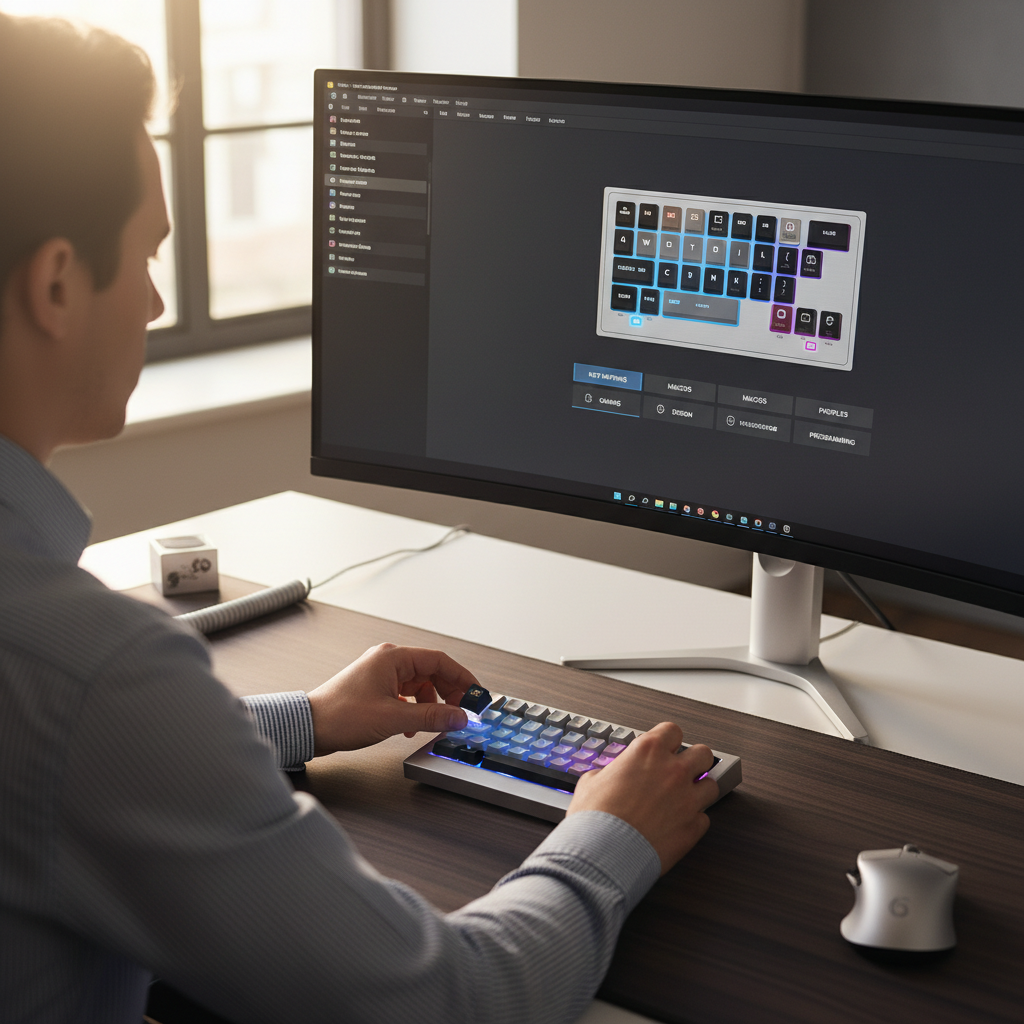
Once you do this, best budget mechanical keypads for gaming stop feeling “budget,” because the performance improvement comes from consistency and speed, not price tags.
Common mistakes that make a “good” keypad feel bad
- Buying too few keys for your game: if you constantly chord keys or reach, you’ll hate it.
- Ignoring thumb key stability: many pads put a large key near the thumb, and that key can rattle or feel mushy.
- Over-trusting marketing terms: “pro,” “esports,” and “ultra-fast” usually tell you less than switch type + firmware support.
- Setting macros that break games: some titles and anti-cheat systems can flag certain automation patterns. Keep macros to simple remaps and timing-free sequences.
- Forgetting posture: if your wrist bends sharply, consider adjusting angle or placement. If you feel pain or numbness, it’s smart to pause and consider professional guidance.
According to OSHA, reducing awkward postures and repetitive stress can be an important part of workstation comfort. If discomfort persists, consulting a qualified professional is usually safer than “pushing through.”
Key takeaways (buy smarter, not louder)
- Pick the right type first: gaming keypad, macropad, or numpad-style.
- For value, remapping and onboard profiles matter more than case materials.
- Linear switches tend to suit fast gaming, tactile often suits typing, but preference wins.
- Don’t overbuild your macro setup, one extra layer is enough to start.
Conclusion: a budget keypad can be a real upgrade if you match it to your workflow
If you want the best budget mechanical keypads for gaming, shop backwards from your use case: what keys you need, where your thumb naturally rests, and how you’ll remap profiles for the games you actually play. Do that, and even an affordable pad can feel like a serious control upgrade.
Your next step is simple: pick a category, choose a switch feel you already like, then shortlist two or three models that support the mapping style you want. If you can, buy from a retailer with a straightforward return policy, it takes the stress out of the decision.
FAQ
What’s the difference between a mechanical keypad and a mechanical keyboard?
A keypad is a smaller subset of keys, often designed for one-hand gaming or shortcuts. A keyboard is your full typing layout. Keypads shine when you want dedicated binds without changing your main keyboard.
Are the best budget mechanical keypads for gaming good for typing too?
Many are, but it depends on layout. A macropad can speed up typing tasks through shortcuts, while a left-hand gaming pad is less about typing and more about in-game control.
Should I choose linear or tactile switches for gaming?
Linear is popular for smooth repeated presses, especially in FPS titles. Tactile can feel more deliberate and may help some people avoid accidental presses, but it’s preference-heavy.
Do I need hot-swap switches on a budget keypad?
You don’t need it, but it’s a strong value feature if you like experimenting or want an easy repair path later. If you just want something that works, stable firmware and good mapping matter more.
Will macros get me banned in online games?
It can vary by game and anti-cheat policy. Simple remaps are usually safer than timed automation. When in doubt, check the game’s rules and keep macros conservative.
Is wireless worth it for a budget mechanical keypad?
Wireless is convenient for clean setups and couch play, but it adds battery management and sometimes higher cost. If you’re focused on reliability per dollar, wired is still the easy recommendation.
How do I position a keypad to avoid wrist pain?
Try placing it so your wrist stays closer to neutral, not bent inward, and consider a slight angle that matches your forearm. If pain, tingling, or numbness keeps happening, consider talking with a qualified clinician or ergonomics specialist.
If you’re trying to choose between a gaming keypad and a macropad and you’d rather not spend hours comparing listings, make a short list of the games and shortcuts you use most, then pick the smallest pad that fits that list comfortably, it’s usually the most “budget-friendly” move long term.