
How to backup photos to cloud automatically is mostly about two things: turning on the right sync setting, and making sure it keeps working when your phone changes networks, storage, or permissions. If you have thousands of photos, doing this manually “later” usually means it never happens, until a lost phone or broken laptop forces the issue.
The payoff is simple: your camera roll stays protected with minimal effort, you can restore quickly after an upgrade, and sharing across devices becomes less fragile. But real life gets messy, some services pause uploads on cellular, some stop when Low Power Mode kicks in, and some “backups” are really just synced views that vanish if you delete the original.
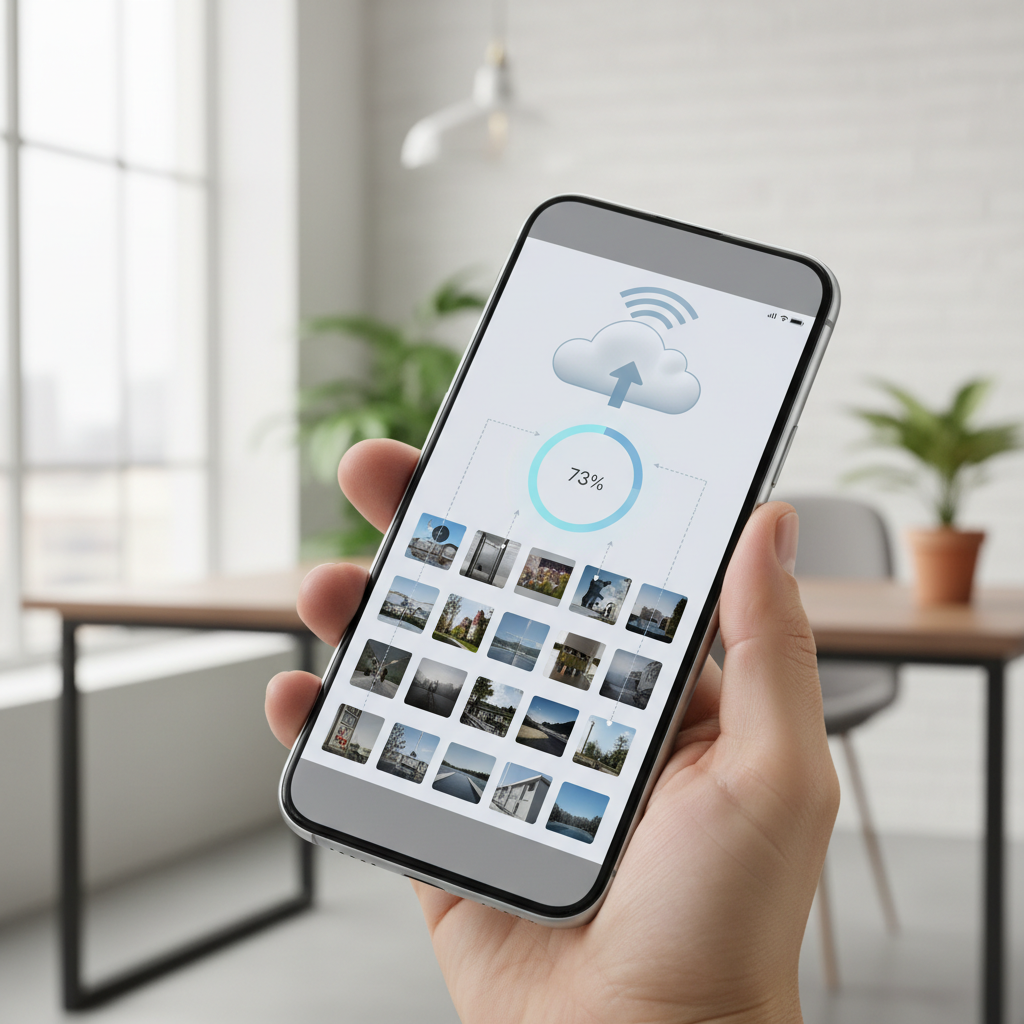
This guide breaks down what “automatic” really means in 2026, how to choose a cloud approach that fits your habits, and a practical setup you can finish in under an hour. You’ll also get a quick verification routine, because the only backup that matters is the one you can actually restore.
What “automatic cloud photo backup” really means (and what it doesn’t)
People use “backup” as a catch-all, but there are a few different behaviors that look similar on the surface.
- Sync: photos appear on other devices quickly, but deleting on one device might remove them everywhere, depending on the service and settings.
- Backup: a separate copy is stored in the cloud, ideally with recovery options even if you delete locally.
- Archive: long-term storage, often cheaper, sometimes slower to retrieve, meant for “keep forever” collections.
If your goal is “I never want to lose my photos,” you want a backup behavior, not just a mirrored library. According to Apple Support and Google Photos Help, features like iCloud Photos and Google Photos backup are designed to keep your library available across devices, but the deletion behavior and account choices still matter for how “safe” it feels.
Why automatic backups fail in real life (common blockers)
Most failed setups are not because the cloud is broken, they fail because phones protect battery, data, and privacy aggressively. Here are the usual culprits.
Battery and background limits
- Low Power Mode, Battery Saver, or background app refresh limits can pause uploads.
- Phones may delay large uploads until charging, on Wi‑Fi, or overnight.
Permissions and “silent” sign-outs
- Photo access permission gets downgraded after an OS update or app reinstall.
- Password changes or security events can sign the app out, uploads stop quietly.
Storage pressure and device cleanup
- If the device is near full, the system may restrict background tasks.
- “Optimize storage” features can confuse people into thinking originals are already safe when they’re not verified.
Network rules
- Uploads set to Wi‑Fi only never run if you mostly use cellular.
- VPNs, captive portals, or work networks can interrupt long uploads.
Fixing these tends to be more effective than switching services every few months.
Quick self-check: are you actually protected?
Run this checklist on your phone and your cloud account. If you answer “no” to any item, you have a gap.
- I can see today’s photos in the cloud app or web view without plugging anything in.
- Uploads happen automatically on my typical network (Wi‑Fi, cellular, or both).
- I know what happens when I delete a photo on my phone, does it delete in the cloud too?
- I can restore a batch of photos to a new device (not just view them).
- I have enough cloud storage to keep growing for at least the next 6–12 months.
- I have account recovery set (2FA, backup codes, recovery email/phone).
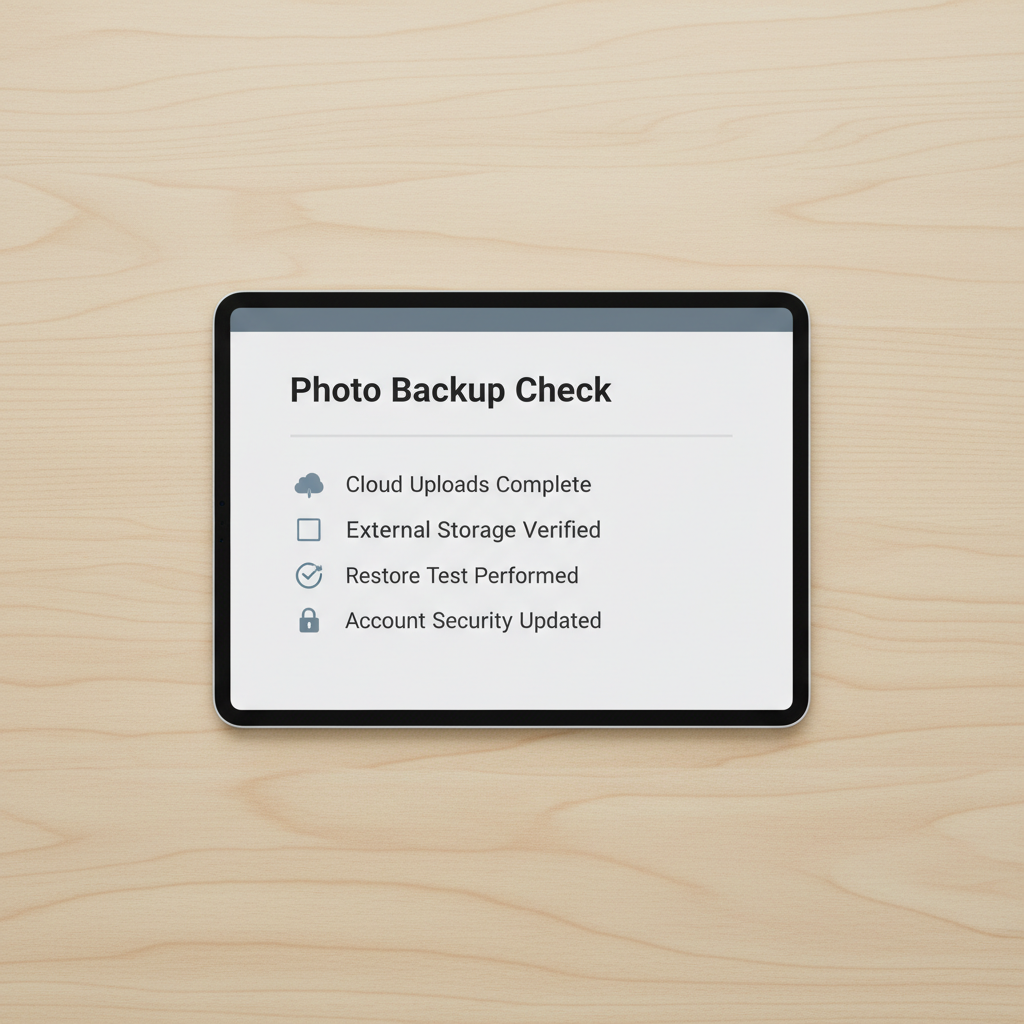
That third bullet is where many people get surprised. If you want a true “safety copy,” you may need an export/archive workflow in addition to sync.
Choosing a cloud approach in 2026: what fits your habits
There isn’t one universal answer, but you can choose a setup that fails less often for your lifestyle. Here’s a practical comparison you can use without overthinking it.
| Goal | Best-fit approach | Why it works | Watch-outs |
|---|---|---|---|
| “I just want it automatic” | Built-in platform cloud (iCloud Photos / Google Photos) | Deep OS integration, fewer background issues | Deletion behavior can feel like sync, not separate backup |
| “I want an extra safety copy” | Two-destination strategy (primary cloud + secondary archive) | One account issue won’t wipe everything | More storage cost, more settings to maintain |
| “Family sharing and simplicity” | Shared library + personal backup | Easy collaboration without merging all ownership | Sharing permissions and duplicates can get messy |
| “I shoot a lot, need organization” | Cloud with strong search + local export routine | Fast findability plus offline control | Requires a monthly ‘export day’ habit |
If you’re deciding between iPhone-first and Android-first behavior, it often comes down to where your “source of truth” lives. A phone-centric setup feels seamless until you need to change ecosystems, then portability matters more.
Step-by-step: set up automatic photo backups on iPhone and Android
Below is a dependable baseline setup. Exact menu names can vary slightly by version, but the logic stays the same.
iPhone (iCloud Photos) baseline
- Open Settings → your name → iCloud → Photos, turn on Sync this iPhone or iCloud Photos.
- Choose Optimize iPhone Storage if your phone storage runs tight, but only after you confirm uploads complete.
- Check iCloud storage capacity, upgrade if you’re near the limit, stalled backups are common when storage is full.
- Verify on iCloud.com (or another Apple device) that recent photos appear.
Android (Google Photos) baseline
- Open Google Photos → profile icon → Photos settings → Backup, toggle it on.
- Confirm the correct Google account is selected, especially if you use work + personal accounts.
- Set Upload size/quality preference based on your needs, then leave it alone to avoid duplicates or re-uploads.
- Under network preferences, decide if you want Wi‑Fi only or also cellular, pick based on your routine.
One setting people forget: background permissions
- On iOS, ensure the photos app and cloud app can run in the background as expected, and avoid force-quitting it constantly.
- On Android, check battery optimization for the cloud app, overly aggressive optimization can pause uploads.
Make it resilient: a “two-layer” backup that doesn’t add much work
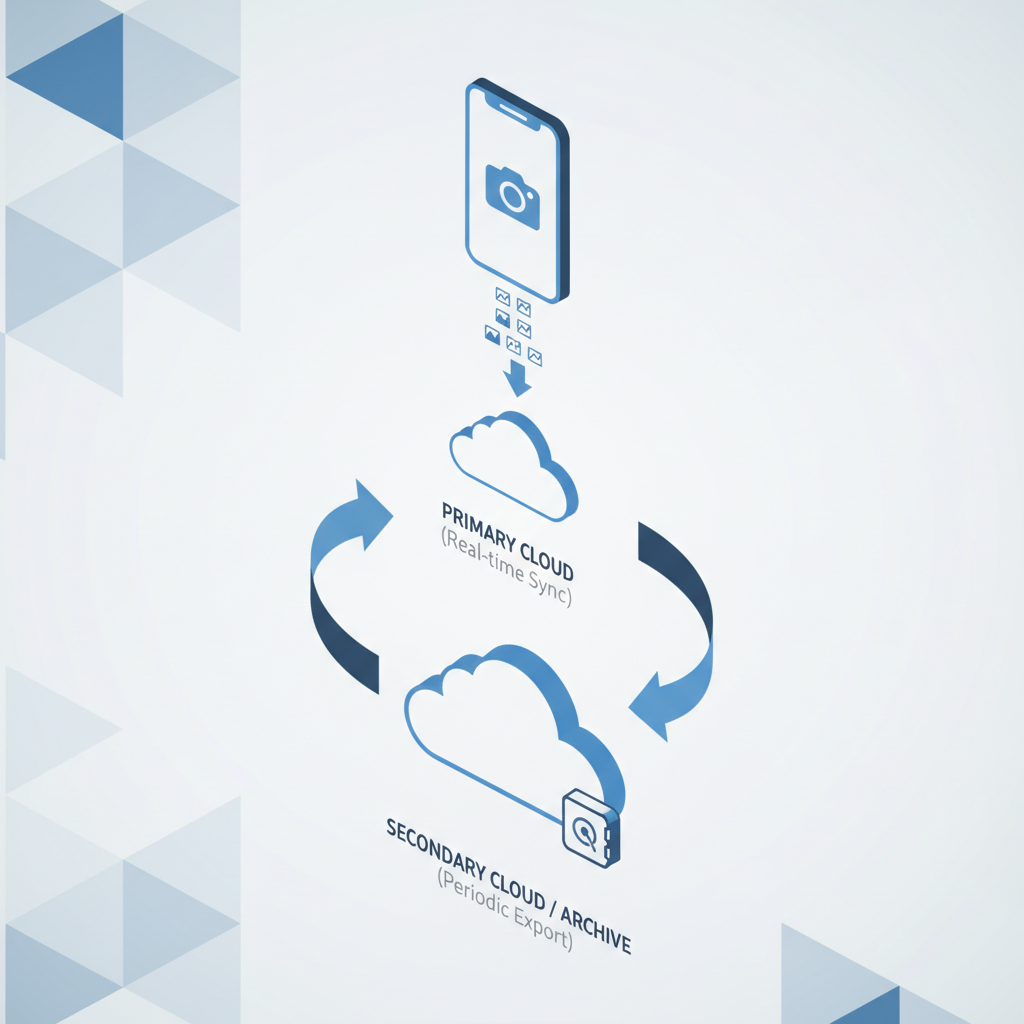
If your photos matter beyond convenience, weddings, kids, client shoots, legal documentation, it’s worth adding a second layer. Not because one service is “bad,” but because accounts, billing, and mistaken deletions happen.
- Layer 1 (automatic sync/backup): iCloud Photos or Google Photos runs daily in the background.
- Layer 2 (periodic archive): once a month or quarter, export originals to a second cloud folder or a separate provider, keep it as an archive you don’t browse every day.
To keep this realistic, tie the archive step to a routine you already have, like the first Sunday of the month, or right after you finish a trip. Many people fail here because they aim for weekly perfection, then stop entirely.
Practical verification: how to know your automatic backup is working
This is the part most guides skip. Automatic is great until it quietly stops. Use this simple verification loop.
- Weekly (30 seconds): open the cloud photos app, confirm “last backup” timestamp looks recent, and check a few newest photos.
- Monthly (5 minutes): log in via web (not just the phone app) and confirm you can download a small batch.
- After major events: OS update, new phone, password change, travel, or large camera import, check status again.
According to NIST, resilient data protection often relies on having more than one copy and periodically testing recovery, the testing part is what turns “I think I’m backed up” into “I know I am.”
Common mistakes that waste time (or create a false sense of safety)
- Assuming sync equals backup: if deletions propagate, you can lose the cloud copy too.
- Ignoring storage warnings: once cloud storage fills, uploads stall, and the app may not shout loudly.
- Using the wrong account: photos back up to a work Google account, then you leave the job and lose access.
- Turning on Wi‑Fi-only without realizing it: great for data bills, terrible if you rarely use Wi‑Fi.
- Never testing restore: you don’t want the first restore attempt to happen during a crisis.
Key takeaways (save this)
- Automatic depends on permissions, battery settings, storage, and network rules, not just one toggle.
- Pick a setup that matches your real routine, not an ideal version of it.
- If photos are truly important, use a two-layer strategy and test restore occasionally.
- When you change phones or passwords, re-check backup status the same day.
Conclusion: set it once, then keep it honest
If you want how to backup photos to cloud automatically to stay “automatic,” treat it like smoke alarms: install it properly, then do quick checks so you’re not surprised later. Tonight, turn on backup, confirm you have enough storage, and verify you can see today’s photos from the web.
If you have time for one extra step, schedule a monthly archive export to a second destination. It’s not glamorous, but it’s the difference between convenience sync and real protection when something goes sideways.
FAQ
How do I backup photos to cloud automatically without using Wi‑Fi?
In many apps you can allow cellular uploads in settings, but it can use a lot of data. If you go this route, consider limiting uploads to specific albums or only while charging, depending on what the app supports.
Does iCloud Photos count as a backup or just syncing?
For many users it behaves like a synced library across devices, which is helpful, but deletions can propagate. If you want a separate safety copy, add an archive export workflow or another destination.
What’s the safest way to backup iPhone photos automatically in 2026?
A common “safer” pattern is iCloud Photos for day-to-day continuity plus a periodic export to a second location. The safest setup depends on your risk tolerance and how much effort you can sustain.
Why is my Google Photos backup stuck on “Preparing backup”?
It’s often network, battery optimization, or storage pressure. Try switching networks, plugging in power, disabling aggressive battery restrictions for the app, and confirming your cloud storage has room.
Will backing up photos to the cloud reduce photo quality?
Some services offer quality options. If you choose a compressed setting, you may lose some detail, which might matter for printing or professional work. If quality matters, look for original-quality settings and verify storage costs.
How can I tell if my photos are actually in the cloud?
Don’t rely only on the phone app view. Sign in on the web, locate recent photos, and try downloading a few files. That small “restore test” is a more honest proof.
Should I use one cloud service or two?
One service is fine for convenience and many everyday needs. Two is worth considering if the photos are high-value or hard to replace, because account issues and accidental deletions are more common than people expect.
If you’re trying to keep how to backup photos to cloud automatically truly hands-free across phones, tablets, and a computer, it may be easier to map your “source of truth” first, then choose one primary service and one simple secondary archive so you don’t end up babysitting uploads all week.